Ever wondered what to do with that old tablet collecting dust in a drawer? If you're like most people, it just sits unused, while you juggle tabs and windows all day.
Turning an old tablet into a secondary monitor might seem a bit technical at first, but with a few simple steps, it’s actually accessible to nearly anyone.
This guide is for students, remote workers, tech hobbyists—anyone eager to enhance their digital workspace without buying more bulky hardware.
By the end, you’ll know not only how to set everything up, but what apps and tricks deliver the smoothest experience.
Plus, tips to maximize the value of your DIY dual-display—whether you're into productivity, gaming, or just want your digital life to flow better.
Why Turn an Old Tablet Into a Secondary Monitor?
Repurposing older devices keeps tech waste down and stretches every dollar. But that’s just the start. Let’s quickly look at the main benefits before diving in:
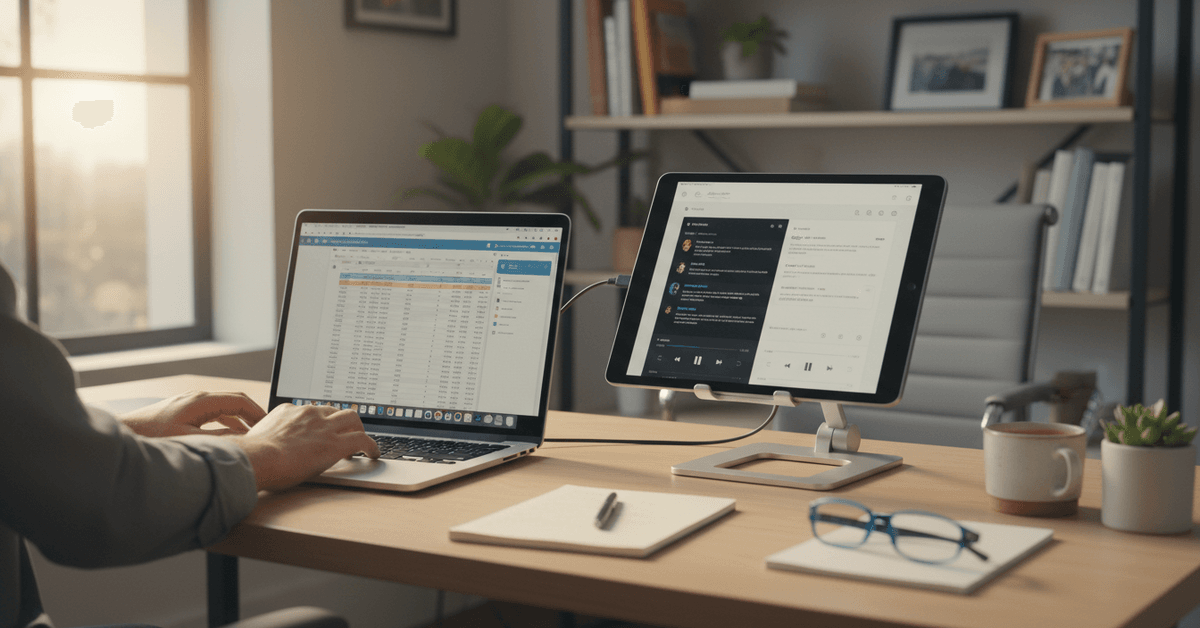
Extend Your Digital Workspace
Adding a second screen—however small—frees up space for referencing documents or messaging during meetings.
For students, it means essay outlines or research stay visible while writing. For remote workers, chat apps and to-do lists can be neatly corralled onto the side.
Increase Productivity
Studies suggest that dual displays boost productivity by as much as 20-30% for everyday computer work. It’s not magic—but the time saved Alt-Tabbing adds up fast, even if you only use the second display for notes or music controls.
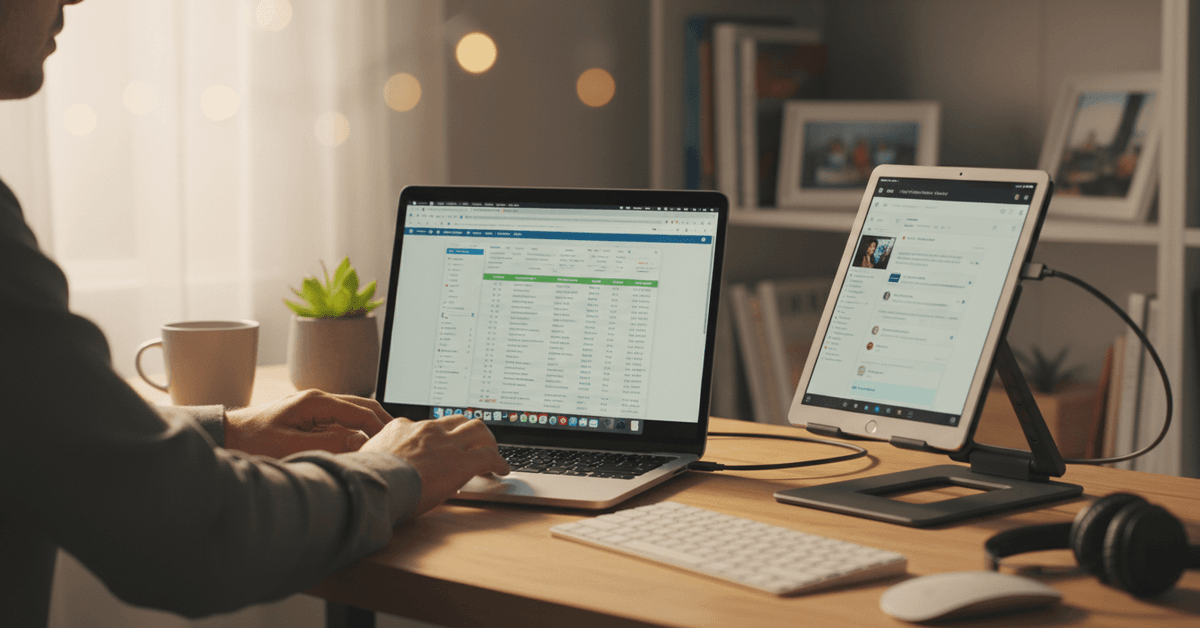
Save Money and Reduce E-Waste
Instead of buying another monitor, you’re giving an unloved device a second life. It’s perhaps the greenest upgrade you’ll make this year. And sometimes, a smaller portable display is exactly what you need for focused workflows.
What You Need Before Getting Started
Not all tablets—or computers—will work for this project. Here’s what you’ll want to check first:
- Your old tablet. iPad, Android, Amazon Fire—ideally with a decent battery, Wi-Fi, and working touchscreen.
- Your computer. Windows, macOS, or occasionally Linux. (Even Chromebooks are sometimes supported.)
- Charging cables—for sessions longer than a few hours. Streaming displays is battery-intensive.
- Wi-Fi connection—same network for tablet and computer (most apps require this).
- Optional: Stand or case to hold your tablet at a comfortable viewing angle.
Honestly, if your tablet turns on and connects to Wi-Fi, you’re probably in luck. Even devices several years old often work smoothly using the right app.
The Best Apps for Turning a Tablet Into a Second Display
You’ve got several solid options—each with their pros and cons. Compatibility, price, and features can shift as apps update, so I'll highlight the most reliable choices as of 2024.
1. Duet Display
Duet Display is a well-established leader, designed by former Apple engineers. It works with both iPads and Android tablets, offering wired or wireless setup.
- Supports Windows & macOS hosts
- Wired mode is lag-free; Wireless is nearly as good on strong Wi-Fi
- Touchscreen and stylus support for iPad
- App is paid (one-time or subscription for Pro features)
2. Splashtop Wired XDisplay
If you prefer a free or cheaper route—at least for basic use—Splashtop Wired XDisplay is often recommended. The catch: You must use a USB cable, not Wi-Fi.
- Works with iOS & Android tablets
- Stable, lag-free performance if you use the cable
- Free for limited sessions (paid upgrade available)
3. SpaceDesk (Windows only)
For Windows users, SpaceDesk is a free, popular choice. It sends your PC’s screen over Wi-Fi to your tablet using a browser or app. It’s surprisingly flexible, but the setup isn’t 100% foolproof.
- Works with Android, iOS, browser-based clients
- Completely free for personal use
- Best experience on the same, strong Wi-Fi network
4. Apple Sidecar (for Mac and iPad only)
If you’re in the Apple ecosystem—and your devices are recent enough— Apple Sidecar is the most seamless experience. It’s built right in to macOS and newer iPads.
- Lag-free wired or wireless
- Supports Apple Pencil input
- No app install needed (use AirPlay menu on Mac)
5. Other Niche Options
There are smaller apps, like iDisplay, Twomon, or even browser-based solutions (VNC, Deskreen, etc). Sometimes they’re worth testing if nothing else plays nicely with your devices.
How to Set Up Your Tablet as a Second Screen – Step by Step
The setup is very similar across most apps. Let’s walk through a typical scenario for both Windows and Mac users, with notes for iPads and Android tablets.
Step 1: Install Your Chosen App
- On your computer: Download the desktop app from the provider’s site (e.g., duetdisplay.com, spacedesk.net).
- On your tablet: Install the corresponding app from the App Store or Google Play.
Step 2: Connect Devices (Wired or Wireless)
Open the apps on both devices. Most modern solutions use Wi-Fi, but you might prefer USB for stability. Simply follow on-screen prompts (usually select your computer in the tablet app, or vice versa).
Step 3: Adjust Display Settings
- Windows: Open ‘Display Settings’ and ‘extend’ display to the new detected monitor (your tablet).
- Mac: Go to ‘Displays’ in System Preferences. Drag the monitor arrangement to match your setup.
Step 4: Tweak and Test
Test dragging windows between screens. If there's lag, try switching from Wi-Fi to USB. For slow performance, lower the resolution in the app’s settings. (Sometimes it’s the Wi-Fi strength!)
Tips to Get the Most Out of Your Secondary Tablet Monitor
Getting your old tablet running as a second screen is just the beginning. Here are some tried-and-true tips that make day-to-day use smoother and more effective.
- Keep your tablet plugged in for long sessions to avoid surprise shutdowns.
- Use a sturdy case or stand to get the right viewing angle; neck strain isn’t productive for anyone.
- Experiment with window placement—dedicate your tablet to chat, music, notes, or monitoring apps. That way, your main screen stays clear.
- Don’t ignore touch features! On iPad especially, touchscreen shortcuts can add efficiency.
- Clean your tablet screen and check for any old screen protectors that might cause touch lag or display fuzziness.
For some, having reference videos, social feeds, or even Zoom on a separate screen is a small revelation. Honestly, you’ll probably wonder how you ever lived without it.
Common Troubleshooting and Limitations
Not everything works perfectly every time, and sometimes the process involves a few hiccups. Here are some things that may go sideways, and possible fixes.
Connectivity Woes
If your devices won’t find each other, double-check that both are on the same Wi-Fi. With firewalls or VPNs, try temporarily disabling them. Restarting both the PC and tablet almost always helps.
Performance Issues
Lag can be due to weak Wi-Fi, older processors, or settings cranked too high. Switch to cable, drop resolution, or close background apps—but sometimes, an ancient tablet just can’t keep up with fast motion video.
App Compatibility
Some older tablets won’t run the latest apps. In that case, either find a legacy version (riskier), or use browser-based tools like SpaceDesk’s web viewer.
Should You Use a Tablet as a Second Monitor Long Term?
Let’s be honest, while this setup is genuinely handy, it’s not a replacement for a large, high-refresh-rate monitor if you’re into intensive gaming or video editing.
But for productivity, email, browsing, and background tasks, it often exceeds expectations. People often underestimate how much value an old device can still offer for years beyond its “main” use.
When Is It NOT Worth It?
If your tablet’s battery is failing, the touchscreen is broken, or the display is too small to be useful, it might be too much hassle. Likewise, if you expect ultra-sharp or color-accurate performance, you’ll probably hit limitations.
Still, for occasional or secondary usage—especially free or low-cost screen real estate—it’s hard to beat.
Conclusion
Turning an old tablet into a secondary monitor is a practical way to boost productivity without buying a new screen.
With the right app, stable connection, and proper stand, it can support research, chats, notes, or dashboards. Reusing hidden tech also saves space, money, and keeps older devices useful longer.