Few things are more frustrating than a sluggish internet connection—especially in an age when nearly every device you own relies on wifi.
If you’re tired of dead zones, buffering videos, or unreliable video calls, this guide is for you. We’ll break down actionable steps to help you boost your Wi-Fi signal in every room of your house.
Whether you’re a student, remote worker, or tech enthusiast, you’ll find practical solutions here to keep you productive and connected everywhere at home.
Why Your Wi-Fi Signal Might Be Weak?
Understanding what’s getting in the way of a strong Wi-Fi signal is half the battle. Sometimes the cause is obvious—other times, it’s not. Let’s look at the most common reasons:
Physical Obstacles
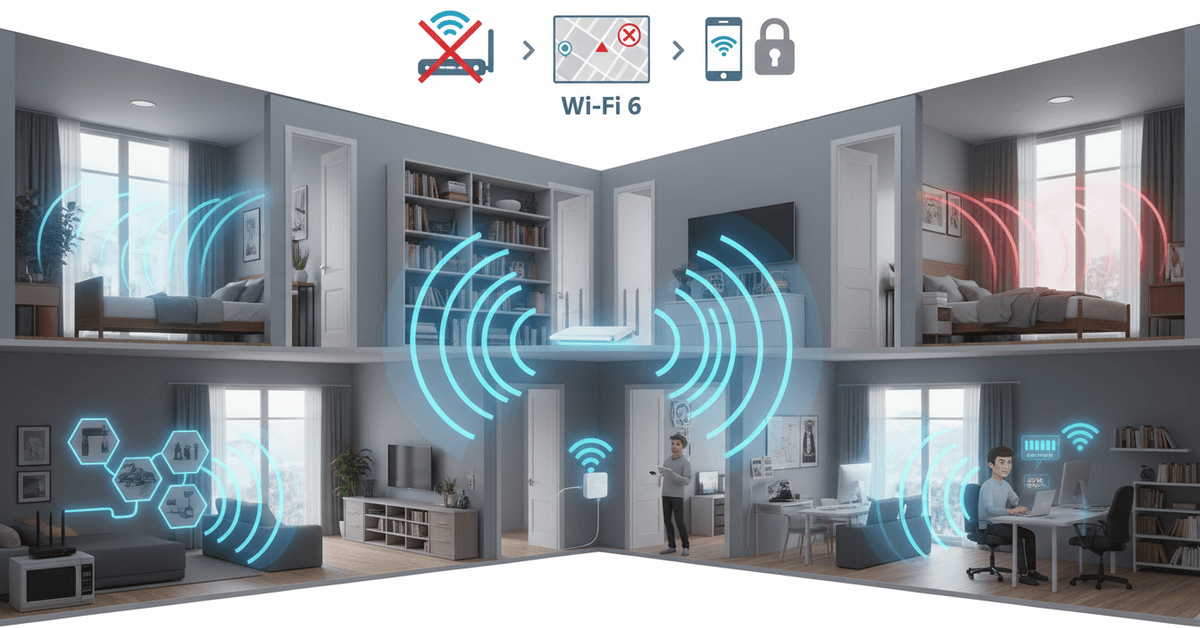
Walls, floors, furniture, even appliances can dampen signals. Concrete or brick walls are especially notorious for blocking wireless waves, while mirrors and metal surfaces can bounce signals away.
Router Placement
Maybe it’s tucked behind your TV, or sitting under a desk in the corner. Not ideal. The more central and elevated your router, the better.
Being too close to windows or walls means the signal may be “leaking” outside your house instead of covering needed spaces.
Interference from Devices
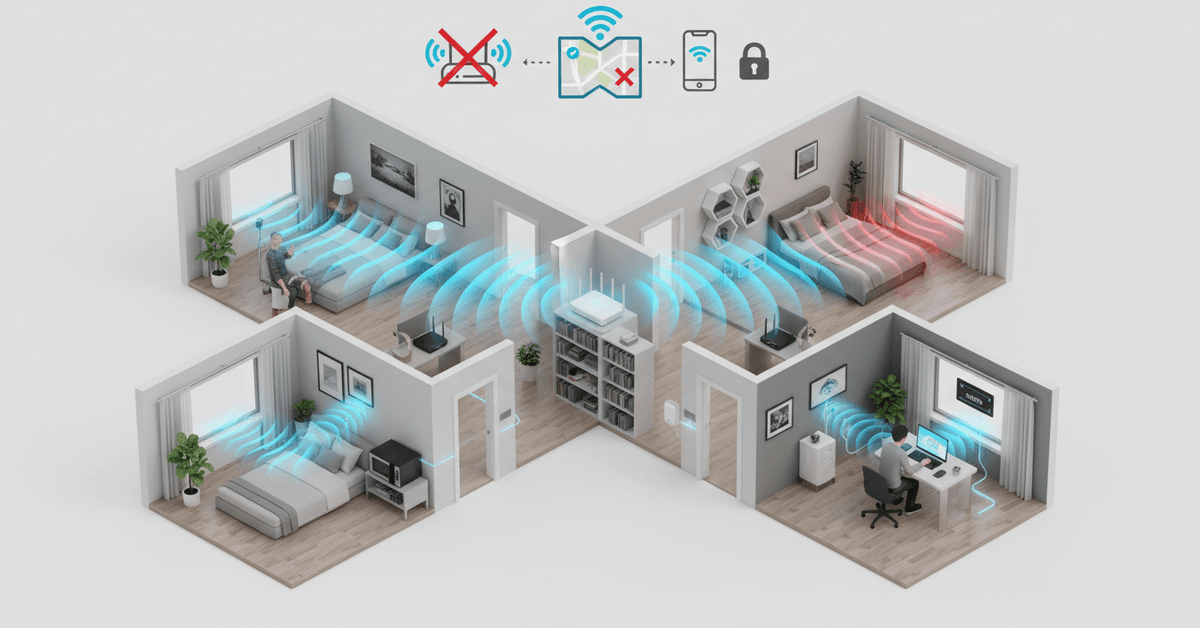
Other electronics—microwaves, baby monitors, cordless phones—can cause interference. Wi-Fi routers may even clash with your neighbors’ networks when you live in apartments or dense housing.
Outdated Hardware
If your router is more than a few years old, it may not handle newer, faster wireless standards or crowded networks well, leading to weaker coverage all around.
How to Check Your Current Wi-Fi Coverage?
Before making changes, it’s smart to map out where your signal really drops off. You can do this with a few free or paid tools:
- WiFi Analyzer apps (Windows or Android) - Show signal strength throughout your home
- AirPort Utility (iOS) - Apple’s tool for measuring Wi-Fi signals
- Manual method: Walk around your house with a phone or laptop and watch the Wi-Fi bars
Mark the weak spots—sometimes it’s surprising, like that one area in your kitchen or attic where the web just crawls.
Simple Ways to Improve Signal Right Now
Before investing in new gear, try these straightforward tricks. You might see an immediate boost.
Reposition Your Router
This alone can work wonders. Place your router in a high, central location—think the top shelf in the hallway, not behind a radiator or TV. Avoid low corners and cramped spots.
Minimize Obstacles and Interference
Move large furniture or metal items away from the router. Keep microwaves and cordless phones at a distance. Sometimes just moving your router by a few feet in either direction can make a difference.
Switch Wi-Fi Channels
Routers broadcast on numbered “channels.” If your neighbors use the same ones, signals can overlap. Access your router settings and pick a less crowded channel. Many routers can do this automatically (just look for “auto channel selection”).
Update Your Router’s Firmware
Manufacturers release updates that fix bugs and improve performance. Log into your router’s admin page and check for new firmware—a small update can sometimes mean a more stable signal.
Limit Connected Devices
Too many devices streaming or downloading simultaneously can bog down your network. Pause downloads, disconnect old devices, or manage Bandwidth using your router’s Quality of Service (QoS) settings.
Hardware Upgrades: Go Beyond the Basics
When simple tweaks aren't enough, it might be time to upgrade. Here are some reliable solutions:
Upgrade Your Router
If you’re still on an old N or AC1200 router, a modern Wi-Fi 6 (or even Wi-Fi 6E) router delivers far stronger and more reliable coverage. Look for features like MU-MIMO and beamforming for smarter device handling.
Use Wi-Fi Range Extenders
Plug-and-play extenders are affordable ways to push your signal farther. However, they may sometimes halve the bandwidth for connected devices. Place extenders about halfway between your router and weak zone—not at the very edge.
Consider Mesh Network Systems
For larger homes or multiple floors, mesh Wi-Fi kits (like Google Nest, Eero, or TP-Link Deco) are the gold standard. Each “node” works together, forming a seamless network with no dead zones as you roam around.
Powerline Adapters
Curious solution: these devices send internet signal through your home’s electrical wiring. Plug one near your router, the other in your far-away room—instant ethernet port, no drilling holes in the wall.
Advanced Tactics for Tech-Savvy Users
If you’re comfortable tweaking tech settings, some next-level changes might help:
Create Separate 2.4GHz and 5GHz Networks
2.4GHz travels further (but is slower), and 5GHz is faster (but shorter range). Naming each band separately lets you assign devices for optimal speed or coverage—a real help if you have smart home gadgets in the garage or garden.
Adjust Antennas and Transmit Power
Routers with external antennas can often be rotated. Point some vertically, others horizontally. If your router’s admin panel allows transmit power adjustment, try lowering it—a higher setting isn’t always better and can add noise.
Monitor Network Traffic
Tools like Fing or GlassWire show which devices or apps eat the most bandwidth. Kill off freeloaders, or troubleshoot odd slowdowns when everyone else is asleep. You might be surprised what’s running at 2AM!
Configure Guest Network Access
Guests should connect to a separate network. Not only is this more secure, it keeps your devices from fighting over bandwidth with every visitor’s phone or smart watch.
Addressing the Most Stubborn Dead Zones
Some rooms just refuse to get decent Wi-Fi, no matter what. Here’s how you can tackle those:
- Try directional antennas - Point signal toward tough rooms.
- Use wired connections (Ethernet) where feasible—sometimes a hardwired line with a small access point is simplest for offices or workshops.
- Check for hidden interference: radiators, fish tanks, or even hidden metal beams can block signals oddly.
- If there’s no luck after trying everything else, a mesh system may be your best bet.
Security and Performance: Protecting Your Network
Boosting signal is one thing, but you want it safe, too. A strong network is also a secure network.
Update All Devices
An unsecured device can accidentally let in malware or hackers. Always keep operating systems, security software, and firmware up to date.
Use Strong Passwords
Set complex passwords for both your Wi-Fi network and admin settings. Avoid anything predictable, like your street address. Change credentials regularly, especially after sharing with visitors.
Monitor Device Connections
Regularly review which devices are connected. Most routers list this in their admin settings. Not sure who “Laptop_123” is? Kick them off and update your password.
Disable WPS and Remote Management
WPS can make connecting easier, but it's also a known security risk if left on. Same goes for remote access—disable them unless absolutely necessary.
Regularly Reboot
Don’t laugh. Restarting your router at least once a month clears its memory. Sometimes, weird slowdowns have the simplest solutions.
Practical Home Wi-Fi Signal Tips
- Place your router centrally.
- Keep devices away from interference.
- Update router firmware regularly.
- Use extenders for weak rooms.
- Secure your network password.
Final Thoughts
Improving your Wi-Fi signal starts with checking weak spots, adjusting router placement, and reducing interference around your home.
Simple steps like updating firmware, switching channels, limiting connected devices, and rebooting the router can improve daily performance.
For larger homes or stubborn dead zones, range extenders, powerline adapters, or mesh systems may provide stronger coverage.
With the right setup and security habits, your home network can become faster, safer, and more reliable in every room.