Ever wished you could access your files from anywhere at home or even while traveling? A NAS (Network Attached Storage) makes that possible.
This guide is crafted for tech-curious homeowners, productivity enthusiasts, or anyone looking for a simple yet powerful way to centralize digital storage.
We’ll walk through everything, step by step, helping you pick the right NAS and configure it for secure, streamlined access. If managing digital chaos has been a challenge, you’ll want to read on.
What is a NAS and Why Do You Need One?
A NAS is essentially a specialized device connected to your home network that stores files for easy access from any compatible device. But it’s more than just a hard drive — think of it as your very own private cloud.
Centralized Storage
Instead of scattered drives or cluttered folders on various computers, a NAS stores everything in one safe place. Maybe this sounds like overkill for personal use. But consider how quickly family photos, videos, and documents add up.
Remote Access
Many modern NAS devices support mobile apps and web access. Imagine fetching a spreadsheet from your home PC while sipping coffee in a different city. That’s the magic of remote file access.
Data Protection
Redundancy options like RAID let you keep your data safe from single-drive failures. Sure, you might have heard “backup, backup, backup,” but setting it up properly? That’s where a NAS really shines.
Choosing the Right NAS for Your Home
The NAS market is full of models, ranging from minimal setups to powerhouse servers. Before buying, you’ll want to look at a few key factors —not just price.
Drive Bays and Storage Capacity
Ask yourself: How much storage do I really need? For some, 2 TB covers everything, but if you’re dabbling in photography or keep UHD movies, more is better. A 2-bay NAS offers a nice start, while 4-bay units give you flexibility as your needs grow.
Performance (CPU & RAM)
If you plan to stream media or run several users at once, look for faster processors and more RAM. Entry-level NAS devices often suffice for basic document storage and backup.
Brand Reliability
Some trusted names include Synology, QNAP, and Western Digital. Personally, I’ve had a Synology DS220+ for two years; initial setup took minutes, and it’s been nearly worry-free ever since.
Essential Components: What You’ll Need
- NAS enclosure (the network-connected box)
- Hard drives or SSDs (depending on your needs)
- Router and active internet connection
- Ethernet cables (for wired setup)
- PC or mobile device for initial setup
Optional but useful: UPS (uninterruptible power supply) for power outages. It’s not mandatory, though in areas with unreliable power, it offers real peace of mind.
How to Set Up a NAS at Home: Step by Step
1. Assemble and Install Drives
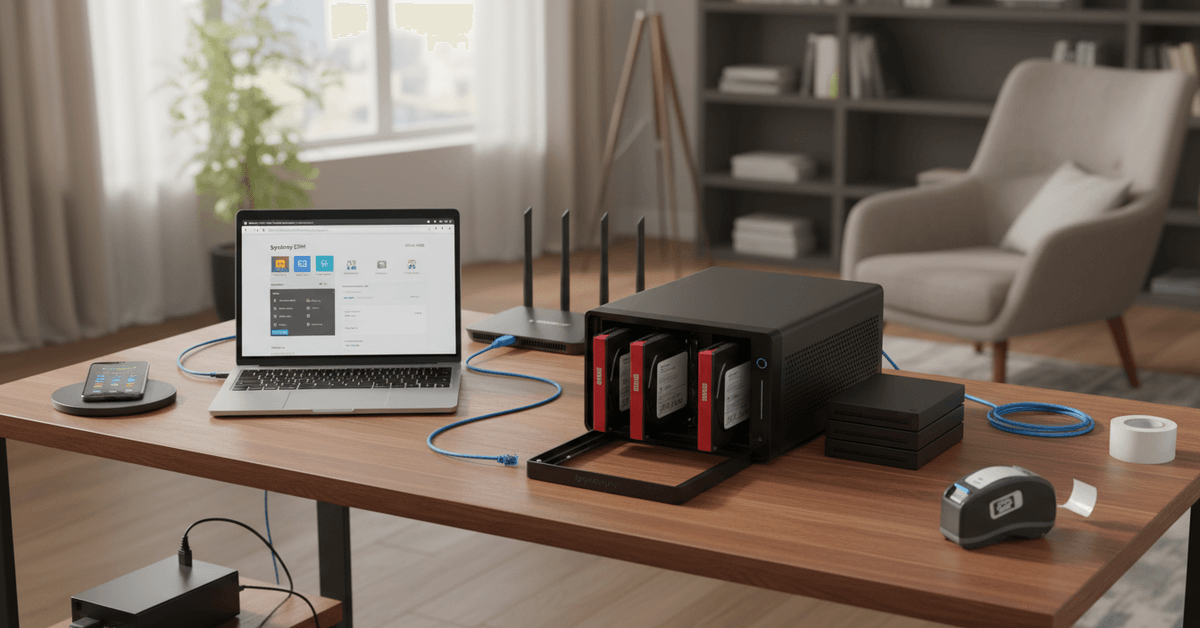
Open the NAS enclosure—usually tool-free—and insert your hard drives or SSDs. Secure any screws as instructed. It may feel intimidating, especially if it’s your first time, but the manuals are friendlier than you’d expect.
2. Connect to Your Network
Plug the NAS into power and use an Ethernet cable to link it to your home router. You can try Wi-Fi on select models, though wired is far more reliable for large file transfers.
3. Power Up and Access the Web Interface
Switch on your NAS. Open a web browser on your computer and enter the address specified in the manual (often something like http://find.synology.com/). It walks you through initial setup and account creation.
4. Configure Storage and RAID
Now, you’ll choose a RAID level . RAID 1 mirrors your data for safety but halves your available space. RAID 0 offers full capacity but zero redundancy. For most homes, RAID 1 or SHR (Synology Hybrid RAID) hits a sweet spot.
5. Set Up User Accounts and Permissions
Create accounts for each family member or housemate. Set access rights: maybe Mom can edit family photos, while the kids can only view or upload.
6. Install Useful Apps and Enable Services
Most NAS systems have built-in app stores. You’ll find tools for backups, media streaming, or even running a personal website. Don’t hesitate to poke around—some apps may surprise you with what they can do.
7. Enable Remote and Mobile Access
If you want files on the go, enable remote access. This often involves account verification and opening certain ports on your router. Follow the NAS’s official guidance—security is vital here.
8. Schedule Backups
Use built-in backup tools to run scheduled snapshots of crucial folders. Some NAS platforms can back up directly to Google Drive, Dropbox, or another NAS on your network.
Best Practices for Using Your Home NAS
Implement Strong Security
Change default passwords. Enable 2-step verification where possible. Strong security habits go a long way—yet, most folks admit they change things only after a scare. Learn from others’ mistakes.
Keep Your NAS Firmware Updated
Manufacturers release updates for features and fixes regularly. Set your NAS to auto-update, if possible, to reduce manual maintenance.
Monitor Storage Health
Most NAS systems offer S.M.A.R.T. reporting for drives. Periodically check drive status and replace a drive at the first sign of trouble, not after total failure.
Create Multiple Backups
The golden rule: if there’s only one copy, consider it gone. For truly vital data, consider external disk backups or cloud copies along with your NAS.
Advanced Tips for Power Users
Integrate with Smart Home Devices
Some NAS models connect to Home Assistant, Alexa, or Google Home. You could, for instance, trigger backups with a voice command. Truthfully, configuration can get a little technical here, but the payoff is worth exploring.
Host Media Servers and Automation
Run Plex or Emby to stream movies, music, and more around your house. Automate downloads or synchronize family calendars. The options seem almost endless once you start digging in.
Troubleshooting Common Issues
Can’t Find Your NAS on the Network?
Double-check physical cabling and try restarting both the NAS and your router. Sometimes, devices land on different subnets—checking your router’s device list might help.
Slow Transfer Speeds
Are you using Wi-Fi instead of Ethernet? Large video files practically crawl across wireless. Upgrading to a Gigabit switch can be an affordable, effective boost.
Access Problems After a Power Outage
It could be as simple as a corrupted filesystem check. Most NAS dashboards offer repair tools, but if you hit a dead end, official support forums are often genuinely helpful.
Prolonging the Longevity of Your NAS
To enhance the longevity of your NAS device, focus on cooling, power protection, and regular maintenance.
Place the unit in a clean, ventilated area where air can move freely around the vents. Avoid direct sunlight, dust-heavy spaces, and cramped cabinets that trap heat.
Protect the Hardware From Heat and Power Issues
Use NAS-rated hard drives because they are built for continuous operation and vibration control.
Connect the device to a UPS so sudden outages do not corrupt files or damage drives. Clean dust from vents and fans every few months to help the system stay cool.
Maintain Drives, Updates, and Backups
Keep the firmware updated, but read release notes before installing major updates. Monitor drive health, temperature, and storage alerts through the NAS dashboard.
Use RAID for availability, but still keep a separate backup routine because RAID does not replace real backups.
Conclusion
Setting up a NAS at home gives you a central place to store, back up, and access important files across devices.
With the right drives, network connection, user permissions, and backup routine, it can make file management easier. Start simple, secure your access, and expand storage only when needed.