Smudges, fingerprints, and dust can quickly turn your favorite tech from sleek and shiny to dull and grimy. If you enjoy keeping your devices as spotless as the latest digital trends, this guide is for you.
Learning how to properly clean your laptop screen and smartphone isn't just about appearances. It also helps you get more life and productivity out of your essential gadgets.
Let's walk through best practices that protect both your gear and your workflow.
Why Clean Screen Maintenance Matters for Modern Devices
With so much of our day spent on digital devices, clean screens aren't just about aesthetics. They minimize eye strain, keep touch accuracy high, and even support your hardware's longevity.
For those who regularly switch between Chrome extensions or AI tools, a clear screen also helps you spot notifications and app changes faster. I admit, there’s something satisfying about a streak-free display—almost motivating, really.
Protecting Device Functionality
Debris and oils build up slowly, but they can affect touch sensitivity and picture clarity. If you’ve ever noticed a laggy touchscreen or faded colors, dirt might be to blame. I found that even a light weekly refresh can make a real difference.
Health and Hygiene Considerations
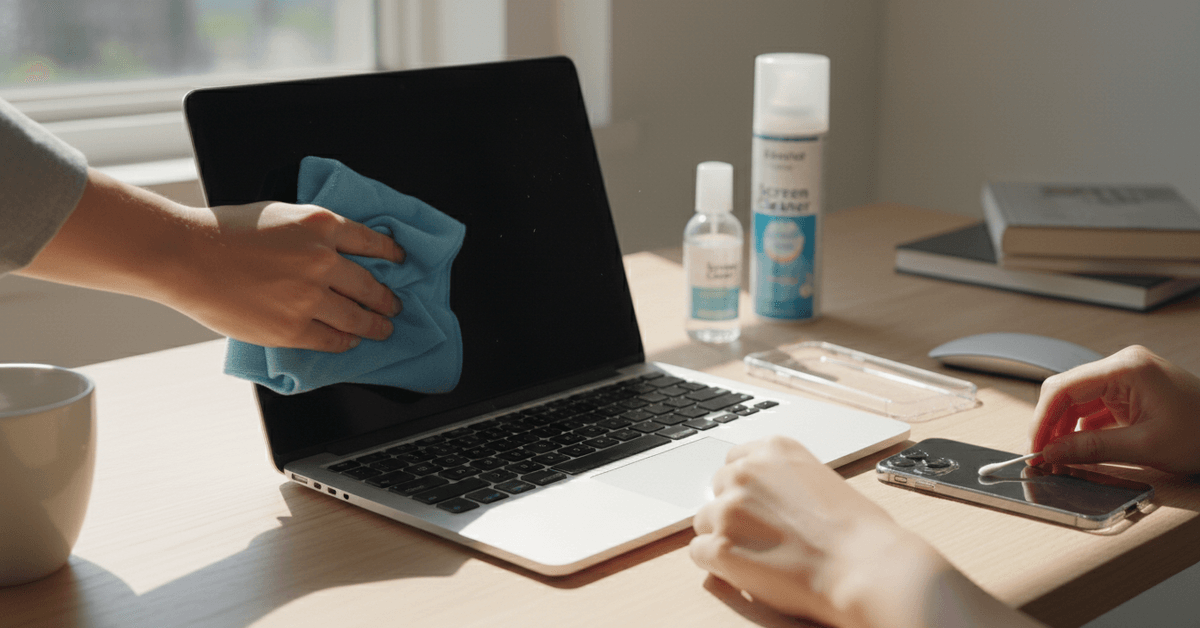
Laptops and smartphones accumulate bacteria from hands, faces, and surfaces. Frequent cleaning is a smart habit, especially with how often we handle our tech.
It’s easy to overlook, yet if you think about it, your smartphone is probably the most-touched item you own.
Supporting Device Resale Value
If you ever plan to resell your gadgets, maintaining the screen is key. Scratches and stains are red flags for buyers.
Simple screensaving habits early on can translate to better deals later—something I wish I'd known years ago.
Essential Tools for Safe Gadget Cleaning
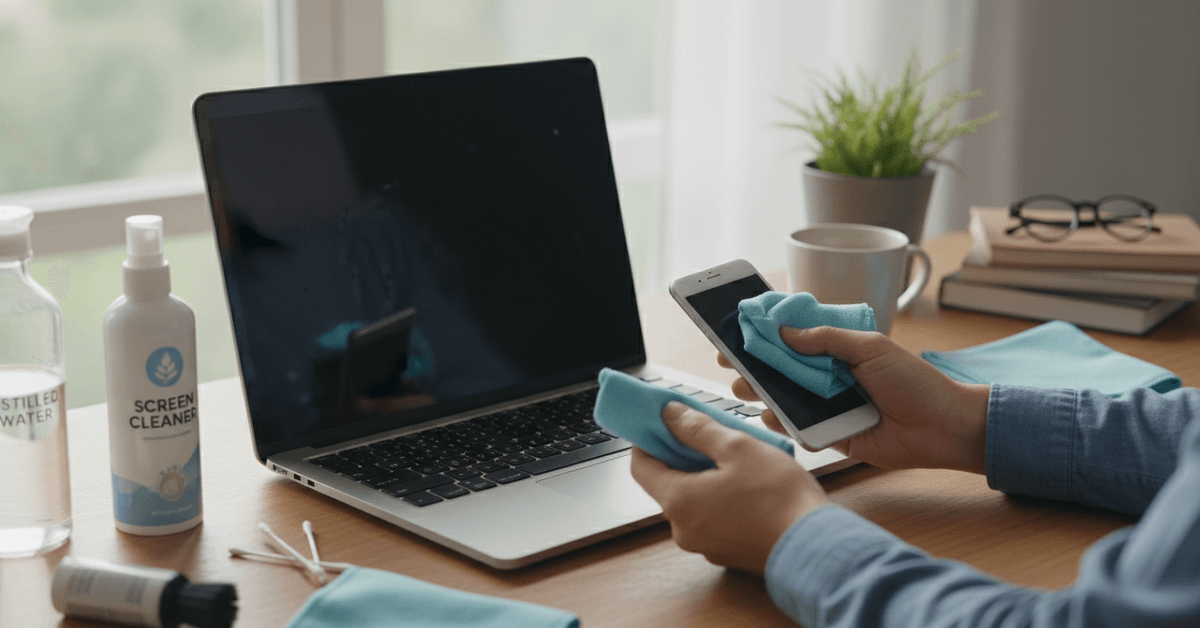
You don’t need a closet full of products to clean your screens effectively. In fact, using the wrong materials can do more harm than good. Here’s what really works for laptops, smartphones, and even tablets.
- Microfiber cloths: The most important accessory. They pick up dust without scratching.
- Distilled water: Keeps streaks away and avoids mineral spots.
- Screen-safe cleaning sprays: Opt for products labeled as safe for electronics—avoid strong solvents.
- Compressed air: Useful for blowing debris from keyboard seams and ports.
- Cotton swabs or soft brushes: Good for corners and edges around screens.
Never use paper towels or tissues. I tried it once and regretted the lint and micro-scratches that followed. And stay clear of household cleaners with ammonia or bleach; they just aren't designed for sensitive displays.
How to Clean Your Laptop Screen: Step-by-step Guide
Laptop screens, especially those with anti-glare or touch features, require a little extra care. Here’s a straightforward workflow I’ve adopted—nothing fancy, but it works every time.
Step 1: Power Down and Unplug
Always turn off and unplug your device. This isn’t just a safety step—it helps you spot streaks and smudges more clearly on a dark screen.
Step 2: Remove Surface Dust
Gently wipe the screen using a dry microfiber cloth. Use broad strokes, moving in one direction to catch most dust particles. For the edges, a soft brush or cotton swab is handy.
Step 3: Address Smudges
Lightly dampen a section of your microfiber cloth with distilled water or a screen-safe cleaning fluid.
Never apply liquid directly to the screen—just moisten the cloth. Gently wipe away fingerprints or stubborn spots, working in small circles. It’s tempting to press down harder, but a gentle touch really is enough.
Step 4: Buff and Dry
Use a dry side of your cloth to buff the screen, removing any lingering moisture. Double-check corners and bezel edges—they often hide spots you missed the first time.
Bonus Tip: Keyboard and Surround
If you have time, run a pass along the keyboard and laptop shell with your microfiber cloth. Compressed air can clear out crumbs from between keys. It’s another small thing that can make your tech feel new again.
How to Clean Your Smartphone Screen Safely
Smartphone screens are even more hands-on than laptops, making them magnets for smudges, oils, and (unfortunately) germs. The process is similar but has some unique quirks.
Step 1: Remove Case and Accessories
Take off any protective case or screen cover before you begin. This gives you access to the full surface and lets you give the case itself a cleaning, too.
Step 2: Wipe Down with Microfiber
Start dry—just like with laptops. Gently wipe the display, moving the cloth in a consistent direction.
Step 3: Spot Clean with Moist Cloth
If smudges remain, dampen a section of your cloth with distilled water or a phone-safe spray. Clean in gentle circles. For the speaker grill or side seams, a cotton swab or soft brush does wonders.
Step 4: Clean the Case and Reassemble
Wipe down the phone case separately—microfiber works here as well, or mild soap and water (dry it thoroughly before putting it back on). Reassemble everything, and your phone should look and feel like new.
Common Cleaning Mistakes to Avoid
It’s easy to misstep when cleaning electronics, even if you’re being careful. Here are mistakes I’ve made, and what you should avoid:
- Using window or glass cleaner on screens. These often contain chemicals that ruin screen coatings.
- Spraying liquid directly onto your device. It can seep into edges and cause damage.
- Pressing too hard. Gentle pressure avoids pixel damage and streaks.
- Using rough fabrics or old t-shirts. Micro-scratches add up over time.
- Ignoring ports and speaker areas. Dust can muffle sound or affect charging; a little compressed air on occasion helps.
Perhaps the biggest lesson? If you're unsure about a cleaning method, check the manufacturer's website for their advice first. Each screen layer can be slightly different, especially with newer tech.
How Often Should You Clean Laptop and Smartphone Screens?
It truly depends on how much you use and handle your laptop or smartphone every day.
If you don't use your laptop on a daily basis, a quick wipe with a microfiber cloth every other day would suffice. This helps control dust, light smudges and fingerprints from damaging your device.
When to Do a Deeper Clean
A deeper clean is necessary every couple of weeks especially if you already see a lot of oily marks and visible buildup on the screen. Use a damp microfiber cloth and a cleaning solution that is safe for your screen.
Do not spray any liquid directly into the screen. Spray the solution on the microfiber cloth instead. Do not allow the buildup to continue if you see it on your screen.
Does Cleaning Affect Screen Performance?
Yes, regular and gentle cleaning can help preserve screen clarity and touchscreen response. Notice that if the screen has oily buildup, it doesn't respond as much. It is also good to clean the screen so you can see better especially if you are reading or working.
What to Avoid
Try to have a regular schedule with your cleaning. An aggressive cleaning schedule can also be detrimental to the overall quality of your screen. Too much chemical, liquid and pressure can damage the coatings that is used to protect the screen.
Advanced Tips for Gadget Enthusiasts
For those extra protective or just curious about next-level cleaning, here are a few tricks:
- Invest in a UV sanitizer box for quick disinfection (without liquids or abrasives).
- Apply a screen protector —they’re much easier to clean than the screen itself, and replacements are cheap.
- Keep a travel-size microfiber cloth in your laptop bag or wallet—it’s a simple productivity win when working from coffee shops or coworking spaces.
- Review your device settings for touch calibration after cleaning, especially if you use styluses or gestures (see your device guide for how-to steps).
And sometimes, if your display just won’t come clean, it might be damage rather than dirt. In that case, seeking a professional screen replacement could restore both clarity and productivity.
Frequently Asked Questions about Screen Cleaning
Can I use alcohol wipes on my phone or laptop?
Some electronics brands do approve 70% isopropyl alcohol wipes for light cleaning. However, always check the manufacturer’s website or support page. Over time, alcohol can degrade screen coatings. Personally, I avoid it unless nothing else is available.
Is distilled water really necessary?
Distilled water prevents mineral deposits and streaking. Tap water often leaves spots or residues, which can be annoying. So, yes, I’d say it’s worth keeping a small bottle handy if you want a truly spotless display.
Should I clean my screen more if I use a stylus?
Definitely. Stylus use accelerates oil transfer onto the display. Clean more often, and consider a screen protector for extra durability.
Conclusion
Properly cleaning your laptop screen and smartphone helps protect the display, keep touch controls responsive, and improve everyday visibility. Use a soft microfiber cloth, avoid harsh chemicals, and apply moisture carefully.
With gentle habits and regular care, your devices can stay cleaner, safer, and easier to use for longer daily.