If you're spending hours each day in front of a screen—whether for work, study, or creative projects—eye strain isn’t just a mild annoyance. It can really sap your focus and overall productivity.
For readers looking to stay productive with digital workflows, monitor ergonomics matter more than you might think.
In this article, we’ll break down what to look for in a monitor, how smart ergonomics can reduce eye fatigue, and a few practical tweaks you can make right now.
Why Monitor Ergonomics are Crucial for Productivity
If you’re like most of us—juggling emails, spreadsheets, and maybe catching a webinar or two—monitor setup is easy to ignore.
But let’s be honest: a mismatched or poorly positioned display can take a toll, not only on your eyes, but also on your back and neck.
If you've ever ended a long day feeling foggy-eyed or with that slight, throbbing headache, you're definitely not alone. Understanding why ergonomics matter is the first step to building a healthier digital routine.
The Link Between Screen Setup and Eye Strain
A screen that’s too bright, too close, or at the wrong angle puts extra stress on your eye muscles. This is especially true if you’re switching between tabs, reading lots of text, or working in multiple windows.
Over time, this tension accumulates. You might not feel it right away, but after a few days, the difference can surprise you.
How Eye Strain Creeps In During Digital Work
With remote work and hybrid classrooms now the norm, we’re seeing new waves of digital fatigue.
Our website regularly reviews AI tools for students and digital trends—topics that keep us glued to screens. When you combine extra screen hours with less-than-ideal ergonomics, eye discomfort almost feels inevitable.
What to Look For in a Monitor to Reduce Eye Strain
Choosing the right monitor can make a world of difference. Focusing on ergonomic features isn’t just nice-to-have—it’s one of the simplest ways to ensure daily comfort and sustained productivity.
Let’s get specific about what you should pay attention to when buying or adjusting your monitor setup.
1. Adjustable Height and Tilt
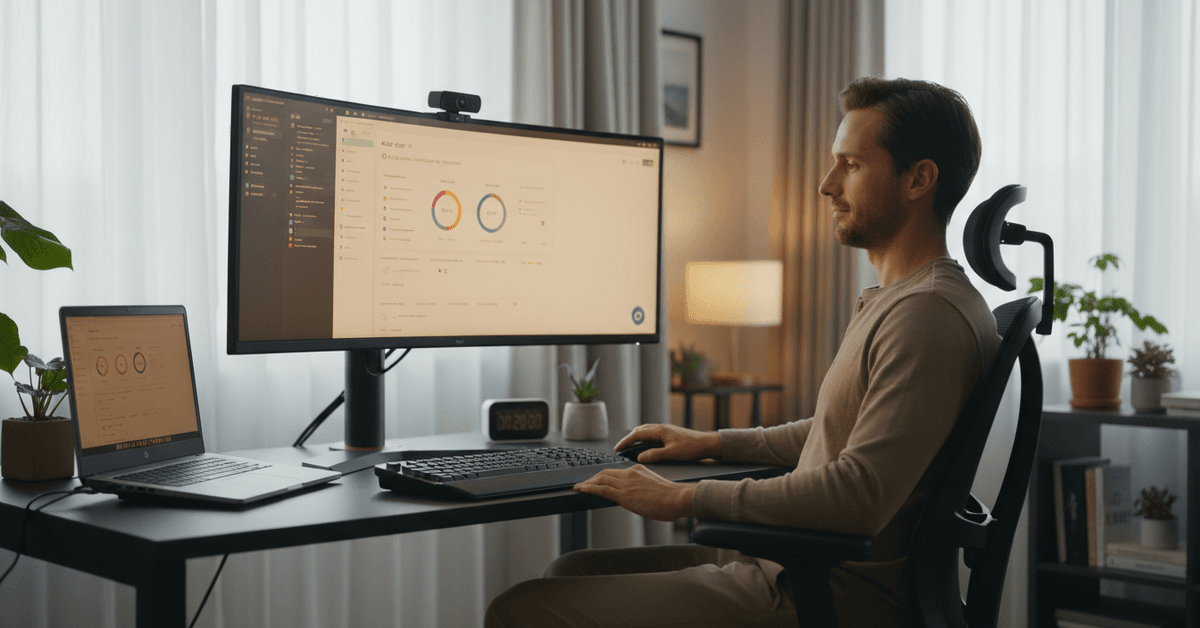
The first thing you should check is whether your monitor can be easily moved up and down, or tilted backward and forward.
This might seem minor, but keeping your eyes in line with the top third of the screen reduces the need for awkward neck movements. If you can’t adjust your monitor itself, monitor stands can help bridge the gap.
2. Screen Size and Resolution
Bigger isn’t always better, but having a monitor that’s at least 24 inches gives you enough workspace to keep windows side by side, reducing the need to squint or hunch forward.
Crisp resolution—something in the Full HD or 4K range—lessens blurry text and makes details easier on your eyes.
3. Blue Light Filter and Flicker-Free Technology
It’s a bit surprising, actually, how much blue light can affect how tired your eyes feel. Modern monitors often include a built-in blue light filter, and the best models offer flicker-free backlighting.
These features help minimize invisible screen flicker, which some people are more sensitive to than others.
4. Matte Versus Glossy Finish
You might think glossy screens look sharper, but reflections from windows or overhead lights can create glare, amplifying eye strain. Matte screens diffuse glare, making it easier to view your monitor from different angles—even in bright spaces.
5. Adjustable Brightness and Contrast Controls
Some monitors automatically adjust brightness based on ambient light, and that’s useful, but manual tweaking often yields even better results. You’ll want to set your monitor to match the surrounding light.
If you’re in a dim room, keep brightness lower; in a sunlit room, increase it a bit. If your monitor lets you save profiles for different times of day, that’s even better.
Smart Monitor Positioning: Practice Steps You Can Take
Even the best monitor can strain your eyes if it isn’t set up correctly. Here are some proven placement tips to make your setup more eye-friendly right now. (And honestly, a few might seem counterintuitive until you try them.)
Ideal Monitor Height and Distance
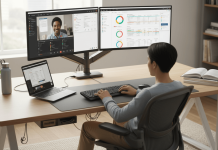
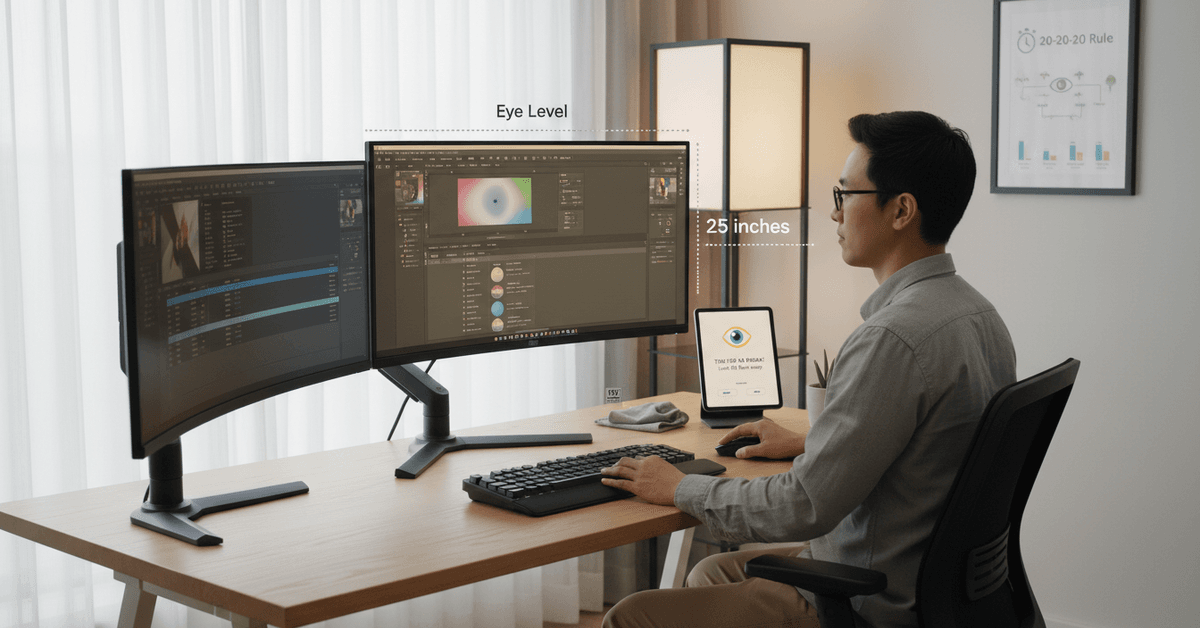
Set your monitor so the top edge is at—or slightly below—eye level when you’re sitting comfortably. As for distance?
A good rule of thumb: sit back until you can just reach your monitor with your outstretched arm. That usually lands around 20–28 inches away from your eyes for most displays.
Angle and Alignment Tips
Your screen should face you directly—don’t angle it too far up or down—and the center of the monitor should be about 15–20 degrees below your direct line of sight.
This matches the natural resting position for your eyes and eyelids. It probably sounds nitpicky, but even a few degrees off can increase eye strain over time.
Lighting in Your Workspace
Position your monitor to avoid backlighting from windows behind you, as well as glare from windows in front or on the side.
Soft, indirect lighting works best. If possible, use a desk lamp with an adjustable arm for extra fine-tuning.
Features in Modern Monitors That Support Eye Comfort
Technology is catching up to our needs. Many displays now tout “eye care” features directly in their marketing, and while some claims are a bit exaggerated, there are real benefits to modern eye-friendly panels.
Low Blue Light Modes
Activating your monitor’s low blue light setting cuts down on exposure—but keep in mind, this sometimes alters color accuracy.
Fortunately, many monitors let you toggle this setting for nighttime work or reading mode while preserving full color during daytime tasks.
Flicker-Free Backlights
Traditional monitors used pulse-width modulation for backlight control, which introduces invisible flicker.
Newer screens (especially those labeled as “flicker-free”) use direct current for smooth brightness adjustments. If you’re sensitive to flicker, investing in a modern panel can be worth it.
Curved and Ultrawide Monitors
Curved displays mimic the shape of your natural field of vision, especially useful for larger screens or ultrawide setups.
They’re not for everyone, but if you do a lot of multitasking or gaming, these designs can reduce the amount of constant eye movement required to track information across the display.
Best Practices to Reduce Eye Fatigue
So, maybe all this sounds a bit technical. But ergonomic adjustments are just the start.
Everyday digital habits can have a surprising impact on eye health, even if you’ve already got the best monitor money can buy. Here’s how you can lower your risk of eye strain:
Follow the 20-20-20 Rule
Every 20 minutes, take a 20-second break and focus on something at least 20 feet away. It sounds almost too simple, but it works. Your eyes need recovery time, and micro-breaks like this go a long way.
Blink More Than You Need To
It sounds silly to mention, but people tend to blink less frequently when staring at screens, and that dries out eyes.
Make a conscious effort to blink or use artificial tears if you notice dryness—especially in air-conditioned environments.
Adjust On-Screen Text and Color Settings
Larger text and high-contrast modes are available on both Windows (Settings > Ease of Access) and Mac (System Preferences > Accessibility), as well as in many Chrome extensions we’ve reviewed.
The easier your content is to read, the less strain on your eyes.
Keep Screens Clean and Dust Free
Smudges and dust create micro-glare and can subtly worsen how sharp your display appears.
Give your screen a gentle wipe once a week. It’s a simple move, but it honestly makes a bigger difference than you'd expect.
Productivity Tools and Apps That Help With Eye Strain
In the age of AI-driven productivity, a few software solutions stand out for reducing visual fatigue. Many are free or have basic versions perfect for students or remote workers.
Screen Dimmer Tools
Apps like f.lux and Windows Night Light (or Night Shift on Mac) adapt your monitor’s color temperature based on the time of day.
Chrome extensions such as Dark Reader or Screen Shader help with web browsing at night by relaxing the intensity of white backgrounds.
Break-reminder apps
Software like Eyeleo, TimeOut, or the Stretchly Chrome extension remind you to take regular breaks. These gentle nudges can be exactly what keeps your eyes (and mindset) refreshed throughout the day.
Things to Check Before You Buy
Feel like it may be time to upgrade? Here’s a quick rundown of features to check before you hit “Add to Cart.”
- Adjustability: Is the stand flexible enough for your space?
- Eye comfort certifications: Look for TÜV Rheinland certified monitors or those labelled specifically as “eye-friendly.”
- Connectivity: HDMI, DisplayPort, USB-C—pick what matches your devices for a clean setup.
- Warranty & reviews: See what other users highlight about glare, flicker, or blue light features.
Conclusion
Good monitor ergonomics can help reduce eye strain during long work sessions. Choose proper screen height, comfortable distance, balanced brightness, readable text size, and low glare placement.
Small adjustments, regular breaks, and better lighting can make your workstation easier on your eyes while supporting focus, comfort, and daily productivity.