Did you know your smartphone's camera could easily outperform many built-in webcams? If you're working remotely, streaming, or joining video calls, this guide is for you.
We'll show you how to turn your phone into a high-quality webcam for your PC—simple steps, real benefits, no extra jargon. Better video without another purchase? That's worth looking into.
Why Use Your Smartphone as a PC Webcam?
Most laptop webcams just aren’t great. Low resolution, poor colors, awkward angles—it all adds up.
Luckily, modern smartphones have advanced cameras that capture crisp, vibrant video. Upgrading your setup is far easier than it sounds.
Superior Camera Quality
Flagship and even mid-range smartphones now boast HD video (sometimes 4K), with fast autofocus and decent low-light performance. Compare that to the grainy, basic webcams built into most laptops—there’s a clear winner.
Convenience and Flexibility
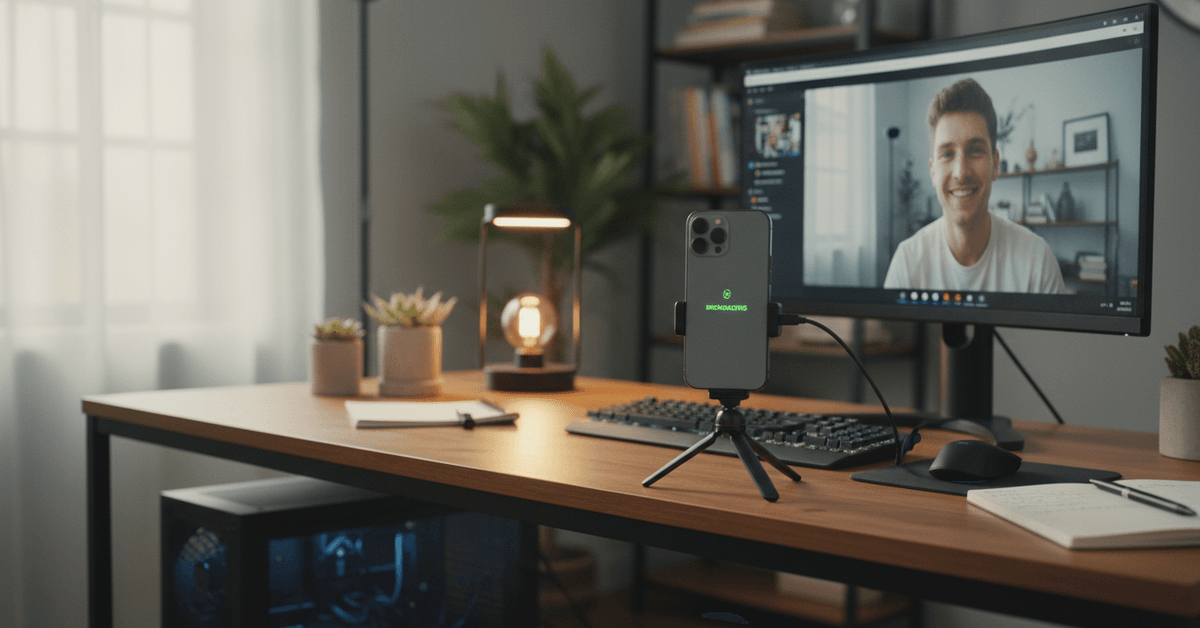
Your phone is always charged and within reach. All you need to do is set up a quick app and positioning. Plus, you can choose exactly where your phone sits for the most flattering angle—unlike fixed laptop screens.
Cost Savings
Why spend $50+ on a dedicated webcam? If your phone is already in your pocket, that’s money saved. There’s no downside if you already own a decent smartphone model.
Core Tools You’ll Need
The process is surprisingly simple. Here’s what you’ll want:
- Your smartphone (iPhone or Android)
- A USB cable (or stable Wi-Fi connection for wireless setups)
- A reliable webcam app (see below)
- Your PC or Mac with a compatible OS
- Optional: A phone tripod or desk mount for steadiness
Top Apps to Turn Your Phone Into a Webcam
Various apps bring this idea to life, letting your phone connect to your computer as a webcam source. Here are the biggest names to try:
DroidCam (Android/iOS)
One of the most popular solutions. DroidCam offers both free and paid versions. It connects over USB or Wi-Fi, which is handy. Installation is quite straightforward, though the app interface might feel dated.
EpocCam (iOS/Android)
Developed by Elgato, EpocCam provides both USB and Wi-Fi connections.
It integrates well with streaming tools like OBS Studio and works with Zoom, Skype, Teams, Google Meet, and others. There’s a free version with watermarks or a premium version for full features.
iVCam (iOS/Android)
This one’s feature-rich even in free mode, with better frame rates and resolution up to 4K. Desktop and mobile apps are clean, but you’ll see watermarks unless you pay.
Other Contenders
OBS (Open Broadcaster Software) can also use your phone via its camera integration tools but takes a little more setup.
There’s also Camo by Reincubate (more premium-focused, mainly for iOS), known for pristine image quality and granular controls. Some people swear by it.
A Step-by-Step Guide: Connecting Your Phone as a Webcam
1. Install the App on Your Phone
Download one of the webcam apps discussed above. Go with the one that best suits your needs and operating system. (i.e., DroidCam for Android, EpocCam for iPhone users, or another option if you prefer higher-end features.)
2. Install the Desktop Client
Each mobile app has a companion PC client or driver. Download this directly from the developer’s website, never third-party download sites (for security reasons).
3. Connect Your Devices
Plug in via USB if you want the lowest possible latency and stable video, or use Wi-Fi for cable-free convenience. Each app will display instructions keyed to its setup. Usually, you’ll just scan a QR code or enter an IP address to link devices.
4. Launch the Webcam App
After pairing, open the mobile app and start “broadcasting” as a webcam. Your phone’s camera view should now be available to your PC as a selectable input.
5. Enable in Video Chat or Recording Software
Open your favorite video conferencing tool (Zoom, Microsoft Teams, Google Meet, Discord). Go to its camera settings, and select your phone’s webcam app from the list. It might appear as "DroidCam Source", "EpocCam Camera", or similar.
Tips to Improve Video Quality and Stability
Just plugging in your phone isn’t the whole story. Here’s how to maximize your new webcam setup:
Find the Right Lighting
Light from a window or a desk lamp (indirectly aimed) will flatter your face. Smartphones perform best with adequate, soft lighting. Overhead or backlighting can turn you into a silhouette, so beware.
Stabilize Your Phone
If you can, use a desktop tripod or a flexible mount. While you can balance your phone against books or a mug, it’s not ideal. Shaky or lopsided video distracts from your message.
Use Rear Camera if Possible
Rear cameras generally have far better resolution and more features. But yes, it’s trickier since you can’t see yourself. Some apps provide a live mirror view or allow previewing before calls.
Adjust Resolution Settings
Most apps let you choose between HD, Full HD (1080p), and sometimes 4K. For smooth calls, try 720p first. 1080p looks crispest but uses more bandwidth; honestly, it depends.
Close Background Apps
Phones multitask but are not immune to slowdowns. Closing all other apps ensures the camera and connection run smoothly, avoiding stutter or crashes during important calls.
Common Problems and How to Fix Them
There will always come a time that your chosen will start to malfunction and you end up having to deal with troubleshooting these issues.
There are common problems about using your smart phone as your web cam. Here are some of the common problems and learn how to fix them.
PC Does Not Detect the Phone
This usually happens because of a weak cable, unstable Wi-Fi, missing permissions, or an app connection issue. Check the cable, restart the webcam app, confirm both devices are on the same network, and allow the needed camera permissions.
Video Looks Delayed or Laggy
Lag often comes from a weak Wi-Fi signal or too many apps running in the background. Switch to a USB connection, close unused apps, move closer to the router, and lower the video resolution if needed.
Audio Does Not Work Properly
Audio problems usually happen when the wrong microphone is selected in the video app. Open Zoom, Google Meet, Teams, or OBS, choose the correct phone or headset microphone, and test the sound before joining an important call.
Tech Compatibility: Does Your Setup Work?
Operating System Requirements
Most solutions work seamlessly with Windows 10/11 and macOS . For Linux users, options like DroidCam do exist but can require more tinkering. Always check the app’s compatibility list before starting.
Video Conferencing Platforms Supported
Leading webcam apps integrate with Zoom, Microsoft Teams, Google Meet, Skype, Discord, and others. OBS integration is often supported, letting streamers use phone video for overlays, which is nice for students or creators.
Frequently Asked Questions
Will this work with any smartphone?
As long as your phone can install the necessary app and connect to your PC, yes. Performance may vary on older devices.
Is the paid version worth it?
If you want watermark-free, higher resolutions, or priority support, premium upgrades can be worth it. For occasional users, the free version probably works fine.
Can I use my phone's mic too?
Most webcam apps offer this, but the experience isn’t always as good as dedicated mics. Worth a try, though, before buying new gear.
Conclusion
Using your smartphone as a high-quality PC webcam is a practical way to improve video calls without buying extra gear.
With the right app, stable connection, good lighting, and proper positioning, your phone can deliver sharper, cleaner video. Test settings before meetings so your setup stays reliable and professional overall.