Are you looking to expand the capabilities of your MacBook or iPad? The simplest, most versatile solution is often a USB-C hub.
With so many options, picking the right one can feel surprisingly complex, especially given how these tiny gadgets impact daily productivity.
This guide aims to help students, professionals, and tech enthusiasts find the ideal hub for their workflow. Expect practical advice, subtle insights, and a few things you might not have considered yet.
Why a USB-C Hub is Essential for MacBook and iPad Users
Both MacBooks and iPads have leaned heavily into USB-C ports. They offer incredible speed and flexibility, but also leave users relying on just one or two ports for everything. That’s where USB-C hubs step in.
Expanding Connectivity
With a single USB-C hub, you can instantly get access to HDMI, SD card readers, Ethernet, older USB-A ports, and more. It’s like rediscovering the full toolkit your laptop once had.
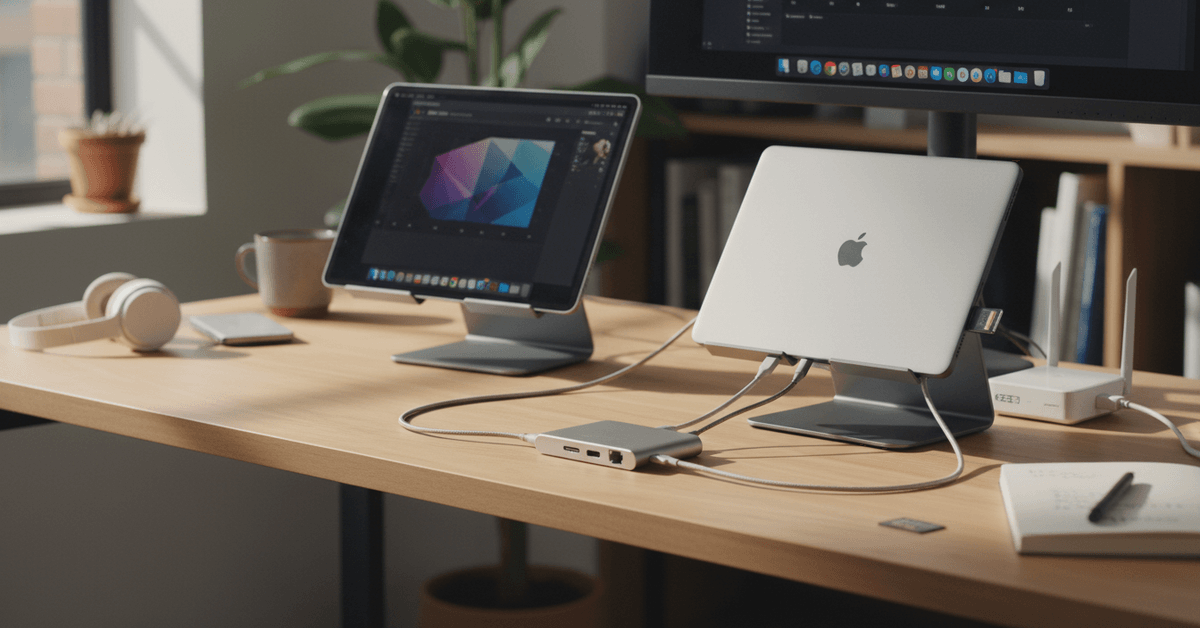
Keeping a Minimal Desk Setup
If you work in coffee shops, libraries, or between rooms, carrying dozens of adapters is not very practical. One compact hub can replace a whole bag of dongles—keeping your workspace clear and focused.
Making Remote Work Easier
Video calls, file transfers, external drives—modern workflows often need ports you don’t have natively. The right hub saves you constant unplugging and fiddling during busy days.
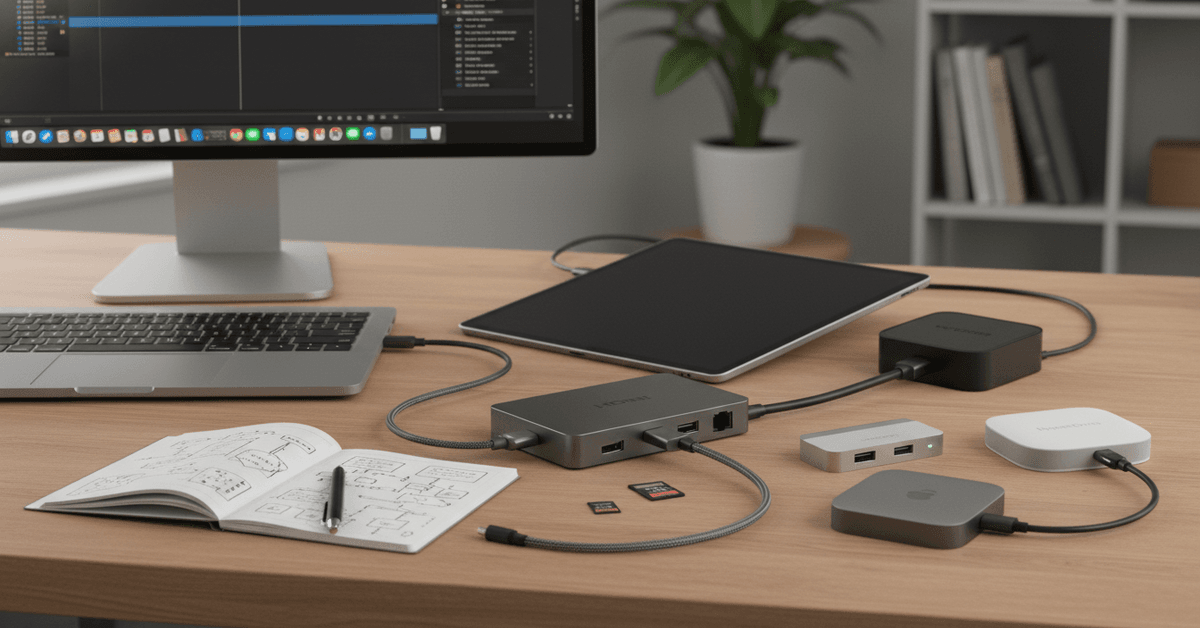
Key Features to Look for in a USB-C Hub
No two hubs are quite the same. Here’s an honest breakdown of features that really matter, whether you’re using a MacBook Air, MacBook Pro, or iPad Pro.
Number and Type of Ports
Start by making a list of everything you want to connect, like monitors, mice, or SD cards. Hubs can have two or ten ports, but more isn’t always better—it’s the right combination that matters.
- HDMI or DisplayPort for external monitors
- USB-A for legacy devices
- SD/MicroSD slots for cameras
- Ethernet for wired internet
Power Delivery (PD) Support
Some hubs can charge your device while in use, but not all deliver the same wattage. For a MacBook, look for 60W or higher. With less, you might find your battery barely charging—or even draining slowly.
Build Quality and Heat Management
Cheap plastic hubs can overheat, which, strangely, isn’t just bad for the hub—your laptop might throttle, too. Prefer hubs with aluminum shells and a bit of weight to them. They tend to last and handle heat better.
Compatibility with macOS and iPadOS
A critical detail: some hubs promise broad compatibility but don’t fully support iPadOS features like file transfer or external drive connections. Double-check reviews or manufacturer specs before you buy.
I personally learned this the hard way with a budget hub that didn’t play nice with my iPad’s file app—annoying, to say the least.
Data Transfer Speeds
Look at the specs. If you often move large files, you’ll want USB 3.1 Gen 2 ports or better (up to 10Gbps). Anything less, and large file transfers will take much longer than you expect—an easy frustration to avoid upfront.
Size and Port Placement
Some hubs dangle from short cables, others snap flush to the side of your MacBook. Think about your desk setup. Will a side-mounted or cable-based design fit best? There’s no perfect answer—just personal preference.
Common Use Cases: Matching Hubs to Your Needs
It’s easy to get overwhelmed by product specs. Let’s make it practical by pairing needs with recommended hub features.
Basic Productivity: Office, Classes, Note-taking
- 2-3 ports (USB-A, HDMI, SD card, power passthrough)
- Compact and lightweight design
- No need for Ethernet or multiple video outputs
Creative Pros: Photography, Design, Video Editing
- High-speed SD and microSD readers
- 4K HDMI (ideally 60Hz for smooth video)
- USB-A and USB-C 3.1 for fast external drives
- Extra power delivery
Remote Work and Multi-Monitor Productivity
- Dual HDMI or DisplayPort outputs (for two monitors)
- Ethernet port for reliable connection
- Plenty of USB-A and USB-C for keyboard, mouse, and webcam
- Automatic power passthrough
Not All USB-C Hubs Play Nice With Apple
Apple’s quirky about accessories, especially with iPad Pro. Some hubs work perfectly, others only half-function. Always check if the hub officially supports iPadOS or the latest macOS version.
Online forums, like the Apple Communities or Reddit tech threads, often reveal practical caveats you won’t find on packaging.
Beware of Sleep Issues
Aftermarket hubs can sometimes keep your Mac or iPad from sleeping properly. It's not common, but if your device heats up in your bag or battery drains too fast, this could be why.
Tips for Buying and Using a USB-C Hub
When it comes to buying and using a USB-C hub, you need to think about your daily setup first. Try to consider whether you will use it on your desk, in class, or for travel before you purchase one.
Check Compatibility Before Buying
Always read the product reviews before you buy especially from people who use the same device as yours. Some generic reviews might miss some issues with charging or support so always check for compatibility first before you make any purchase.
Test the Hub Early
When buying, check the return policy for the products that you're purchasing. This gives you more accessibility and versatility in choosing the right device for your entire setup.
Prioritize Function Over Looks
A matching color can look nice, but port layout, power delivery, and reliability matter more. Keep your macOS, iPadOS, and hub firmware updated because some issues are fixed through software updates.
Popular Brands and Top-Rated Models
While I’d love to give a magic answer, honestly, there is no single “best” USB-C hub. Nevertheless, certain brands stand out for reliability and compatibility again and again.
- Anker – Consistent performance and good customer support.
- Satechi – Sleek metal designs, often color-matched for Mac.
- HyperDrive – Known for flush-mount MacBook Pro hubs and full port arrays.
- Belkin – Slightly pricier, but Apple-certified options.
- UGREEN – Budget-friendly and often surprisingly robust.
It’s worth scanning the manufacturer’s official site for MacBook/iPad-specific models. For reviews and deep dives, websites like Wirecutter and The Verge do thorough roundups of best USB-C hubs every year.
Frequently Asked Questions About USB-C Hubs
Will a USB-C hub affect device speed or battery life?
Mostly, no—if you buy a quality hub. However, cheap hubs can cause slow charging or even conflict with data speeds, especially during large file transfers or video output.
Is a powered USB-C dock better than a portable hub?
Depends! Docks are great for permanent desks, offering more stability and ports. Hubs excel in portability. You might find some overlap, but in general, portability means fewer features.
Do all USB-C hubs work with iPad?
No. Check the hub specs for iPad Pro compatibility, especially if you rely on features like 4K HDMI or SD card transfer. Some hubs only provide basic charging/data on iPad.
What’s the real difference between a $20 and $100 hub?
Mainly build quality, customer support, and power/data throughput. Sometimes, the difference is small for basic use, but for demanding workflows, premium options usually win out.
Conclusion
Choosing the right USB-C hub for your MacBook or iPad means balancing ports, power delivery, build quality, and daily workflow. Check display support, charging capacity, data speed, and device compatibility before buying.
A well-matched hub keeps your setup cleaner, more flexible, and easier to use anywhere without unnecessary adapters overall.