Wireless mice, keyboards, and headsets have become essential for tech enthusiasts and productivity seekers. Yet even the best devices aren’t immune to input lag. That split-second delay between a click and an on-screen response?
It can frustrate anyone, from gamers to remote workers. If you’re relying on wireless peripherals day-to-day, understanding—and minimizing—lag isn’t just smart, it’s necessary.
This article demystifies input lag, explains why it happens, and shows you practical steps to reduce it.
Whether you’re trying to optimize a home office setup or aiming for crystal-clear response times in your favorite games, you’ll find actionable tips here. If you use Windows, Mac, or even Chromebooks, there’s something relevant.
What Is Input Lag and Why Does It Matter?
Input lag refers to the delay between a peripheral’s action—say, pressing a key or moving a mouse—and your computer processing it. Sometimes it’s just a few milliseconds.
Sometimes it’s surprisingly noticeable. High input lag isn’t just a gamer’s nightmare; for anyone working with design, video, code, or even day-to-day browsing, it can slow you down or make your workflow clunky.
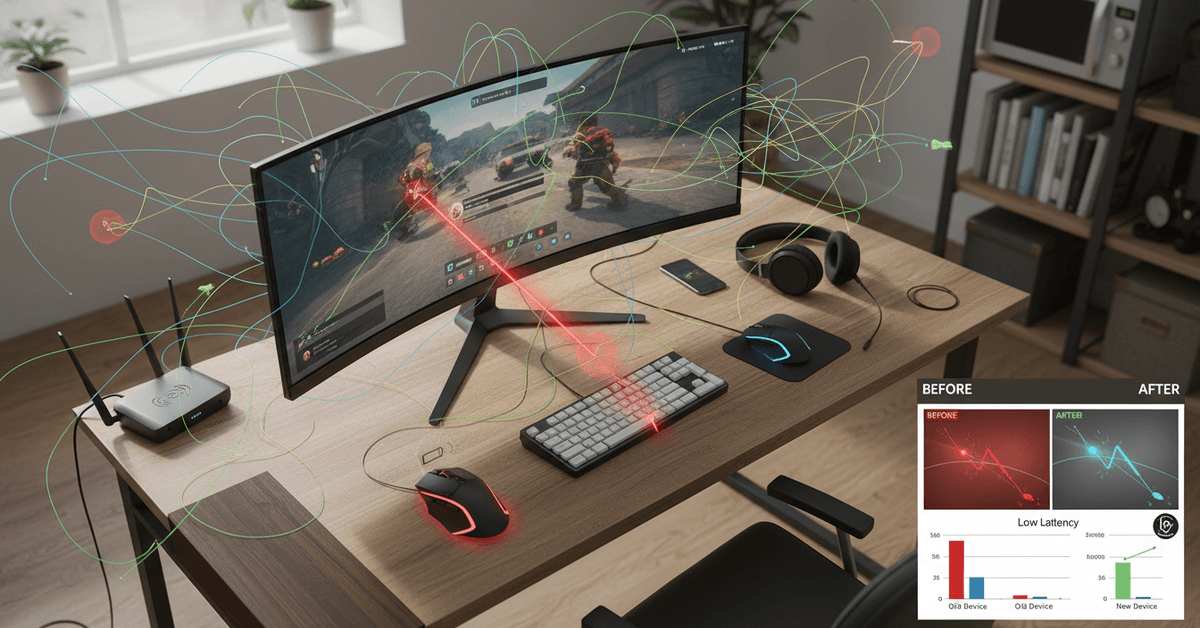
People may notice input lag differently. Some might only spot it during fast-paced tasks, while others see it in simple typing or video calls.
The impact? Broken concentration, extra correcting, or, quite honestly, a sense that your digital setup is holding you back. No one enjoys that.
Common Causes of Input Lag With Wireless Peripherals
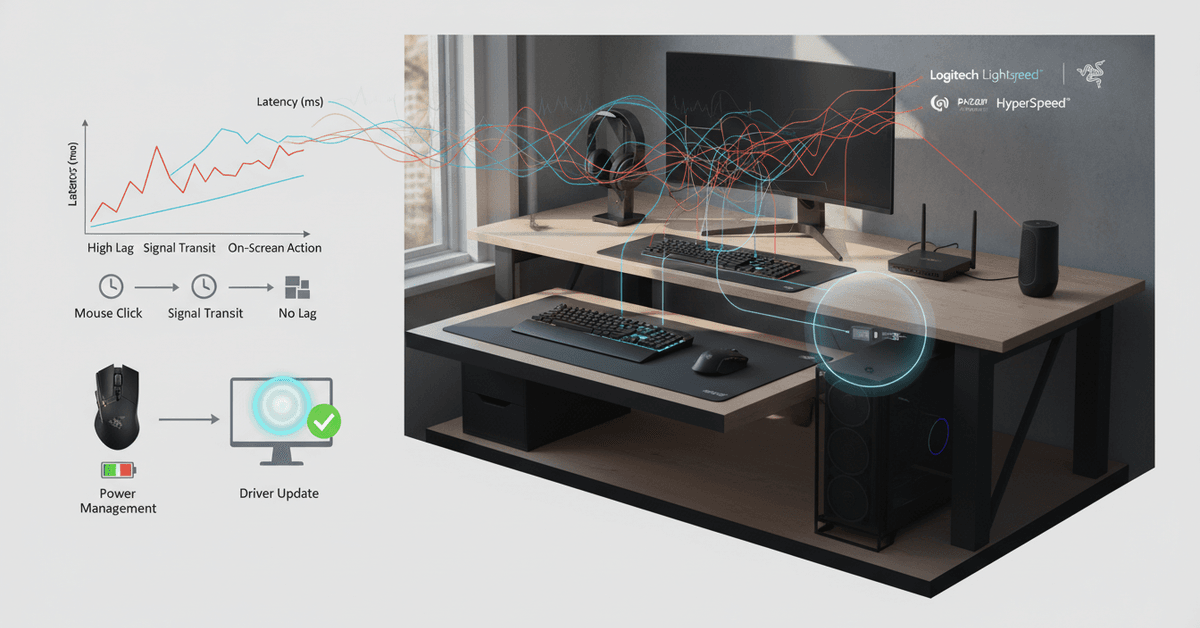
Why does wireless input lag exist? While wired devices transmit data directly, wireless ones add transmission, encoding, and sometimes even interference into the mix. Understanding these causes helps with troubleshooting and choosing new gear.
Wireless Protocol and Bandwidth Limitations
Older wireless peripherals often use Bluetooth or proprietary connections with lower bandwidth.
Sometimes, even WiFi-equipped mice or keyboards can experience lag if the frequency band is crowded. Cheaper devices might simply lack the latest chipsets.
Signal Interference from Nearby Devices
With so many wireless products—phones, routers, smart speakers, even microwaves—one device can interfere with another.
If your mouse and router both occupy the 2.4 GHz spectrum, confusion and congestion follow. That can add noticeable lag, especially at a distance.
Device Battery and Power Management
Low batteries can cause peripherals to conserve energy, potentially lowering polling rates or response speeds.
Sometimes users don’t notice until reaction times slip. Newer models signal battery issues, but not all do.
Software and Driver Issues
Outdated drivers may not fully support the latest OS features—or even cause input commands to queue up.
The same goes for software that manages macros or lighting. Updates aren’t glamorous, but they do matter here.
Range and Obstacles
Physical barriers like walls or even thick desks can weaken wireless signals. Most manufacturers claim generous range, but that’s in open space. Place your receiver on the far side of a setup and lag increases—sometimes unpredictably.
How to Measure Input Lag on Your Devices
Before fixing lag, it helps to know you have it. While some lag is subjective, there are ways to quantify your experience. For instance, you can use online input lag testers (like the one at humanbenchmark.com), or built-in tools for gaming mice.
For keyboards, try typing test sites and observe the gap between hitting a key and character appearance.
Mouse lag often shows up as stuttering or drifting cursors especially at high refresh rates. Remember though, small delays might not be bothersome for everyone—but if you notice, you’re not imagining things.
Top Tips to Reduce Input Lag With Wireless Peripherals
Let’s get to the solutions. Not every fix will apply to every device or scenario, and sometimes a little trial and error is necessary. Still, these strategies cover most situations:
Upgrade to Modern Low-Latency Devices
If your mouse or keyboard is more than a few years old, it might lack current technologies designed to minimize lag.
Modern devices boast low-latency Bluetooth 5.0 or wireless 2.4 GHz connections and feature higher polling rates (often 1000 Hz or above for mice). Investing in a new peripheral can sometimes be the single most effective fix.
Place Receivers Strategically
USB dongles or receivers are often plugged in at the back of desktops or behind crowded areas, blocking signals.
Move the receiver to a front USB port, or use a short extension cable to clear line-of-sight. The difference can surprise you. I once moved a dongle just a meter closer and lag vanished entirely.
Reduce Wireless Interference
Keep wireless peripherals away from routers, cordless phones, or even USB 3.0 hard drives.
These can all emit signals on overlapping frequencies. Sometimes, changing your WiFi router’s band (e.g., from 2.4GHz to 5GHz) can declutter that spectrum and free up communication for your peripherals.
Update Firmware and Software Drivers
Check the manufacturer’s site for your device. Install any available updates. Modern mice, for example, often include firmware improvements that directly affect latency.
The same applies to drivers, especially on Windows and Mac, where OS updates can sometimes break peripheral compatibility until drivers catch up.
Keep Batteries Fresh or Fully Charged
Rechargeable batteries are common in newer devices—a good thing. Low battery triggers power-saving, which can slow performance and increase lag. Make charging a routine, or keep a spare set of good-quality batteries nearby.
Switch to Wired (Temporarily or When Needed)
If you’re in a mission-critical situation—let’s say an esports event, live stream, or intensive editing session—it’s sometimes worth plugging in with a USB cable and bypassing wireless entirely for guaranteed zero-lag.
Some top wireless mice offer dual-mode use for this reason.
Adjust Polling Rate and Report Rate Settings
Many gamer-focused devices let you change the polling rate. While maxing it out (e.g., 1000 Hz) often delivers the lowest lag, it’s sometimes worth testing lower settings on older computers.
A high polling rate can use more system resources, sometimes causing sluggishness elsewhere—though most new systems handle it just fine.
Limit Multi-Device Pairing
Pairing your device with multiple computers, tablets, or even TVs might be convenient, but can cause the device to switch communication constantly.
If experiencing lag, remove unnecessary pairings. This step may not always be obvious but has yielded results for some users.
Choosing the Best Wireless Peripheral for Minimal Input Lag
Sometimes the most practical way forward is to start with a device designed with low latency in mind. Brands like Logitech (especially with their Lightspeed series), Razer (HyperSpeed), and Corsair have invested in lag-reduction tech.
When shopping, look for features that specifically mention “low latency,” “gaming grade,” or include quantifiable polling rate stats.
Avoid generic Bluetooth-only devices if lag-free response is a must. Checking user reviews or trusted review sites can also help—real-world experience sometimes tells you more than the specs.
Dedicated Gaming Models
These often carry premium price tags, yet deliver sub-1ms response times, even compared to some wired mice and keyboards.
Think twice before writing off peripherals marketed to gamers. They’re built for speed, but productivity users can benefit just as much.
Business-Oriented Wireless Devices
Many business-focused peripherals may not prioritize ultra-low latency, but some models (targeted for presentations or fast multi-computer switching) have improved considerably. Look for clearly labeled polling rate specs, even on non-gaming products.
Best Habits for Long-Term Performance
Wireless peripherals work better when you maintain these devices to its top shape.
There are small habits that you can do to reduce lag, prevent disconnections while also keeping your devices from feeling unresponsive especially when you're using them all day long.
Keep Devices Clean and Updated
Clean the sensors, keys, buttons and even the charging ports of these devices on a regular basis.
You need to update the drivers and other companion apps from official sources to keep them from becoming laggy.
Review any Bluetooth, USB, battery and power-saving settings from the device as updates can reset these preferences. This changes the way you connect to these devices which can also induce lag.
Use Wired Mode When Precision Matters
If you truly want a more precise performance, switch to wired mode especially for competitive gaming or when you have important tasks.
This gives you a more stable response that wireless connection cannot provide. While you may have to sacrifice moving around, it is still the best way to reduce input lag.
When to Seek Professional Help or Replacement
Occasionally, persistent lag can signal faulty hardware. If you’ve tried everything—from updates to fresh batteries to rearranging your workspace—and nothing improves, the device may be aging out or suffering from a defect.
Before giving up, test it on another computer. Sometimes OS quirks are to blame, not the hardware.
Don’t hesitate to reach out to manufacturer support, especially if the device is under warranty. Many offer surprisingly helpful diagnostics or exchange options—even if, sometimes, it feels like a last resort.
Conclusion
Reducing input lag with wireless peripherals comes down to smart setup and regular checks. Use reliable devices, keep batteries charged, update firmware, reduce signal interference, and place receivers close to the keyboard, mouse, or controller.
With the right habits, wireless gear can feel smooth, responsive, and dependable for daily work or gaming.