Setting up a dual-monitor workstation can transform your workflow. Whether you’re working from home, managing complex projects, or balancing creative and administrative tasks, two screens really do make a difference.
This article is for anyone—students, remote professionals, tech enthusiasts—looking to maximize productivity with an efficient multiscreen setup.
The main benefit? Increased workspace, smoother multitasking, and perhaps a touch of digital comfort you didn’t know you were missing.
Why a Dual-Monitor Setup Improves Productivity
You may wonder, is a second monitor really worth it? For most, the answer is yes.
Multiple studies and endless user stories support the idea that dual screens significantly boost output—once you work this way, it’s hard to go back.
Fewer Distractions, Faster Workflow
Switching between apps and tabs eats up precious seconds. With two displays, your main tasks can stay front and center on one while references, chat windows, or dashboards sit comfortably on the other. It keeps you in your zone.
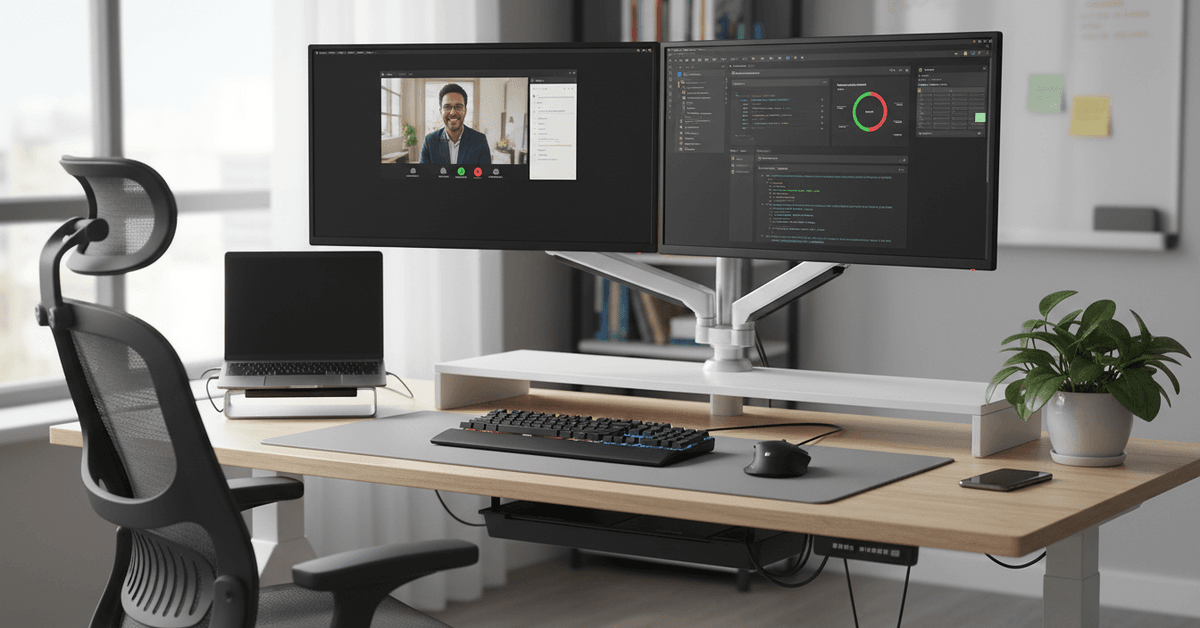
Enhanced Multitasking and Collaboration
Ever tried attending a video call, sharing your screen, and taking notes all at once? It’s tough on a single monitor.
A dual setup allows you to participate in meetings while keeping notes, emails, or research accessible without shuffling things around.
Reduce Repetitive Clicking and Window Management
With a dual-monitor setup, you’ll spend less time minimizing, maximizing, and hunting for hidden windows. That’s efficiency—perhaps it’s a subtle thing, but it adds up during long stretches of focused work.
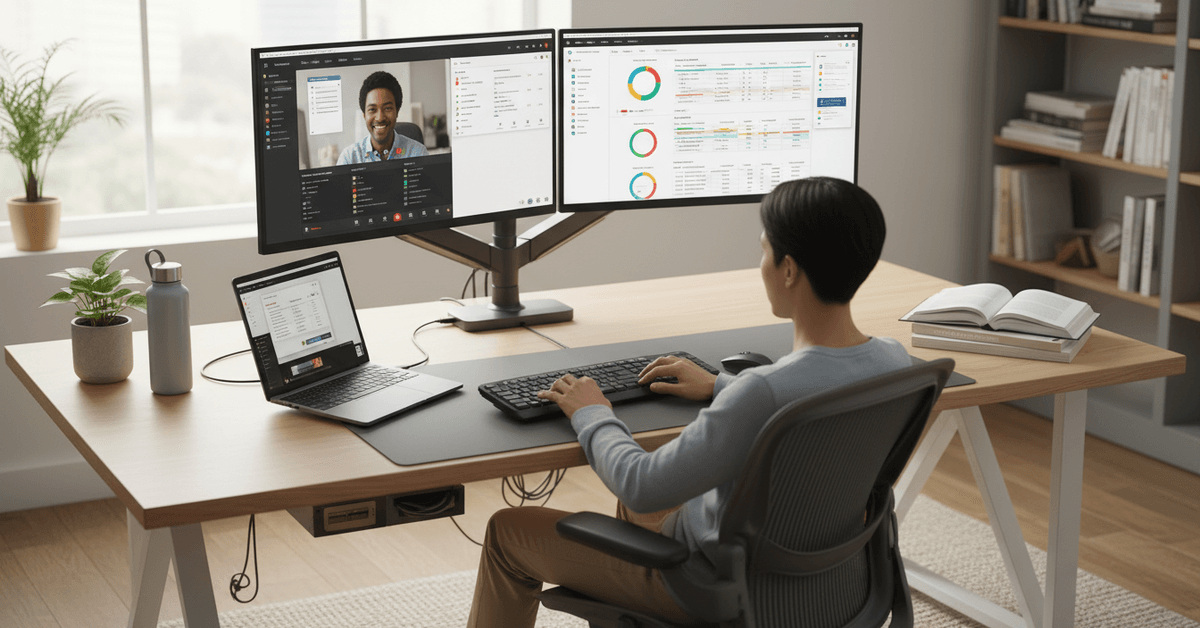
Choosing Your Dual-Monitor Hardware
The right hardware is crucial to getting the desired result. Your monitors, cables, and even your mounting system affect the entire experience. Not all combinations will serve you equally well, so let’s break it down a little.
Monitor Size and Resolution
Bigger isn’t always better. For most, two 24-27 inch monitors strike a sweet spot—big enough to see everything clearly, without overwhelming your desk. Pairing similar models often gives a cleaner visual line and easier transitions.
Resolution matters too. Aim for at least 1080p (Full HD) for both screens—higher if your work is graphically intensive or you’re branching into design, video editing, or gaming (where 1440p or 4K is compelling).
Panel Type and Refresh Rate
Most users are happy with IPS panels for color accuracy and wider viewing angles. TN panels, meanwhile, offer faster refresh rates, but they’re rarely necessary outside of high-speed gaming. Don’t overthink panel types unless your work demands it.
Desk Space and Ergonomics
Your desk shapes your experience more than you’d expect. Consider the width you have available and whether the monitors will sit flat or angled. Adjustable arms let you float your monitors and easily tweak placements—it’s surprisingly satisfying.
Essential Accessories
- Quality cables (HDMI, DisplayPort, USB-C—choose what matches your hardware)
- Monitor risers or adjustable arms for ergonomic adjustments
- Docking station, if using a laptop
- Cable management solutions to keep your setup tidy
Connecting and Configuring Your Dual Monitors
This bit can be surprisingly simple or unexpectedly finicky, depending on your machine and monitors. Generally, setup doesn’t take long, but every device seems to have quirks.
For Windows Users
1. Connect both monitors to your PC—HDMI and DisplayPort are common options.
2. Right-click the desktop and choose “Display settings.”
3. Detect the monitors if they don’t appear.
4. Rearrange your screens via the UI to match your physical setup.
5. Choose “Extend desktop” for maximum space.
For Mac Users
1. Attach both screens via Thunderbolt/USB-C or HDMI.
2. Go to Apple Menu > System Settings > Displays.
3. Drag monitors to match your arrangement.
4. Select “Use as separate displays” to extend your desktop—not mirror.
With laptops, you may want to close the lid and work exclusively on monitors. Just be sure your system supports this and stays cool during extended sessions.
Setting Up for Comfort and Focus
Arguably, this is as important as any technical tweak. Comfortable positioning helps reduce fatigue and, honestly, encourages you to stick with your setup for longer stretches without interruption.
Monitor Height and Distance
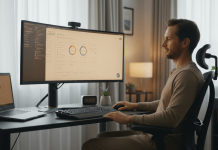
Monitors should be at eye level, about an arm’s length away. If you wear glasses—especially for reading—adjust until your neck feels neutral and you don’t have to crane.
Lighting and Glare Reduction
Avoid placing screens directly in front of windows or bright lights, which can cause glare and eye strain. Consider using a desk lamp with a warmer tone to balance out your workspace.
Chair and Keyboard Placement
Keep your posture relaxed. Wrists should stay straight; arms at 90 degrees. Even with split attention, a good chair helps—your back and shoulders will thank you after long hours.
Optimizing Your Digital Workflow
The goal of having a dual-monitor workstation is make your work more productive. This gives each screen a clear purpose and for you to work better instead of just constantly switching tabs.
Visibility and organization can be achieved with your work now that you have a dual-monitor workstation.
However, there are still things that you can do to optimize your digital workflow with the help of a dual-monitor workstation.
Use One Screen for Primary Work
The best way to achieve optimal workflow is to keep your main task at the center or on your most comfortable monitor. This monitor can be used for managing reports, writing, editing spreadsheets and many other important tasks.
Place the main task right infront of you so reduce any stress on your neck and help you keep your focus.
Use the Second Screen for Support Tools
The second monitor should be used for references like checking our email, chat, research, calendar, research and even your video calls.
This setup makes it easier for you to check and compare for information without having to interrupt your main work done at the main monitor.
Organize Windows by Task
Another way to optimize your workflow using a dual-monitor workstation is creating a simple system where you know where each app belongs.
You can keep all communication tools on one side and your active tools on another. It reduces the visual clutter that truncates your workflow and helps you finish your tasks faster.
Review Your Setup Regularly
Try to adjust your setup according to your needs whether it is the brightness of the monitors, the height, window placement and scaling.
Your workflow changes with these settings and having them at the level of your comfort allows for better workflow.
Key Challenges and How to Address Them
No setup is flawless. Common issues include mismatched resolutions, color inconsistency, or quirky cursor behavior across screen borders.
Sometimes you’ll lose track of which audio device is active or forget where you put your mouse pointer—frustrating, but usually fixable.
Color Calibration and Scaling
Using two different monitors? Adjust brightness and color temperature for consistency. Windows and MacOS both offer scaling settings to make fonts readable across both screens, though it can take trial and error.
Managing Cables and Desk Clutter
It’s tempting to ignore, but tidy cables and a clean desk minimize distractions. Velcro straps or under-desk trays work wonders. And yes, you’ll feel better sitting down each morning.
Dealing with Compatibility Hiccups
If one monitor isn’t detected, try switching cables or ports. Update your graphics drivers—often neglected, but vital. Older machines may need an external adapter or dock. With patience, most setups can be made to work.
Best Practices and Advanced Tips
Once you’ve got things positioned, tuned, and running smoothly, there’s still room for improvements—especially if you’re looking to squeeze out every bit of efficiency.
Use Software Utilities
Tools like PowerToys (Windows) or BetterSnapTool (Mac) let you snap, zone, and manage windows far beyond default settings. Try a few; they can dramatically streamline your multitasking.
Consider a Vertical Monitor
Writers, coders, and anyone reading long documents might benefit from rotating one screen vertically. It’s a quirk not everyone loves, but when it works, it works well—think endless scrolling on code or articles.
Save Display Arrangements
For laptops or hot-desking, save your display settings. On Windows, “Display Profiles” let you switch between home and office setups. On Mac, consider third-party tools for similar results.
Explore Automation
Some power users automate monitor layouts using tools like AutoHotkey (Windows) or AppleScript (Mac). Not essential, but worth exploring if your routine rarely changes—small gains add up.
Conclusion
Setting up a dual-monitor workstation can make daily tasks faster, cleaner, and easier to manage.
Choose the right monitor placement, adjust display settings, organize windows by task, and keep cables tidy. With a balanced setup, you can reduce switching time, improve focus, and create a smoother productivity workflow.