If you’ve noticed your laptop running hotter than usual, you’re not alone. Overheating is a common tech headache, especially for students, remote workers, and anyone relying on laptops for productivity.
A hot laptop slows down performance, increases the risk of damage, and wears down internal components faster.
The good news? Most causes are fixable with some know-how and patience. Let’s break down why your laptop gets hot and what you can do about it.
Why Is Your Laptop Overheating? The Most Common Reasons
Laptops are compact, and managing heat is a challenge by design. Even so, seeing your device overheat can be frustrating.
The following are the top five reasons for laptop overheating, plus DIY steps to resolve each one.
1. Dust Buildup in Vents and Fans
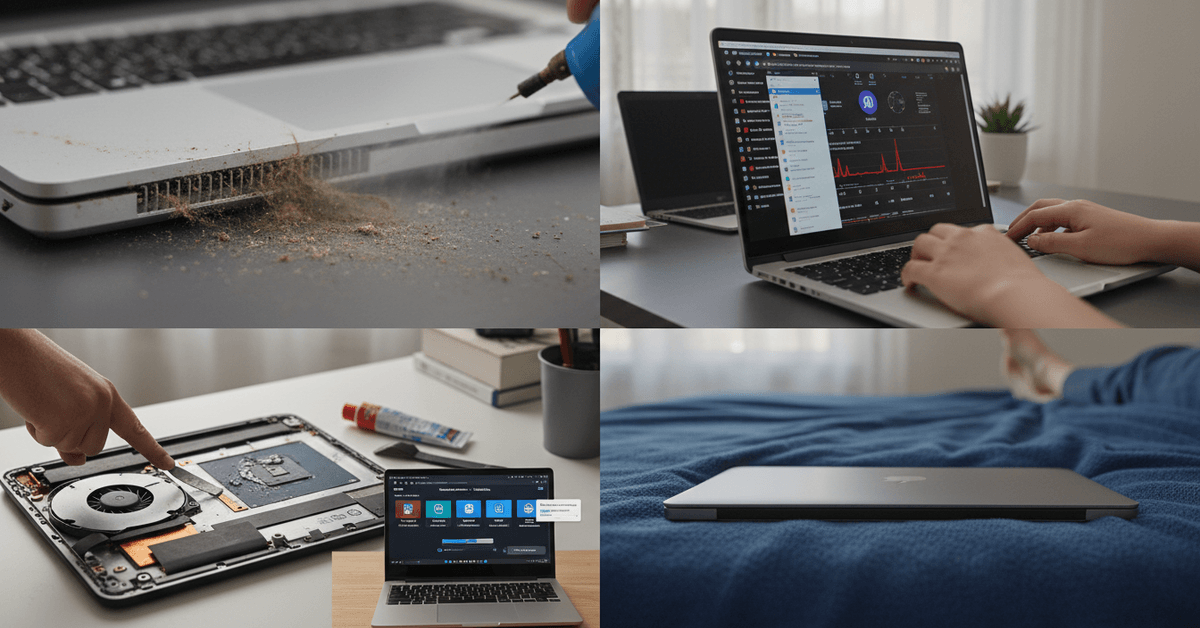
One of the most frequent, overlooked culprits is dust blocking the cooling system. Over time, lint and pet hair get trapped in air vents and coat the internal fans.
This restricts airflow, making it harder for heat to escape—and, honestly, it’s often worse if you use your laptop on a bed or couch.
- Visible dust around fan vents
- Noisy, rattling fan sounds
- Laptop gets hot faster, even during light use
How to Fix Dust Problems
- Turn off and unplug your device.
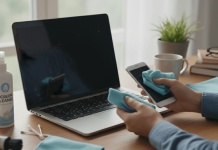
- Use a can of compressed air to gently blow out vents and keyboard gaps.
- If you’re comfortable, open the back panel to deep-clean fans with a soft brush.
Even a light clean does wonders. But if you’re not sure how to do this safely, check the manufacturer’s manual or a trusted tutorial—many laptops have simple guides on YouTube.
2. Intensive Software or Background Processes
Another common reason? Too many programs running at once. Sometimes, background apps (often unnoticed) drag down performance and make your processor work harder.
Maybe it’s a browser with 20 tabs open. Or heavy video-rendering software.
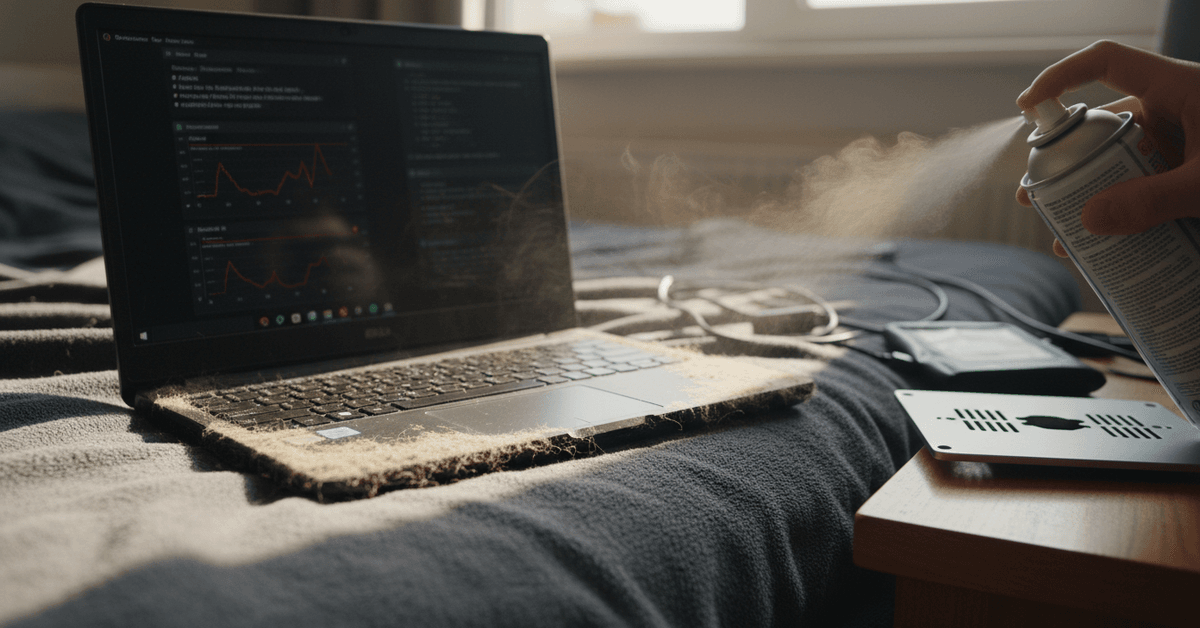
- High CPU or memory usage in Task Manager/Activity Monitor
- Unexpected overheating even when doing simple tasks
- Battery drains faster than usual
How to Reduce Software Load
- Close unused tabs and programs regularly.
- Check for background apps in Task Manager (Windows) or Activity Monitor (Mac).
- Disable startup apps you don’t need.
- Consider lightweight Chrome extensions or alternative productivity tools—reviewed in our chrome-extensions-for-productivity guides.
Honestly, it’s surprising how much difference just a couple of tweaks can make. You might not notice that background syncing, for example, is hogging unexpected resources.
3. Failing or Insufficient Cooling System
Sometimes, hardware itself is to blame. Laptops rely on small internal fans and heat sinks.
If a fan fails or thermal paste (the goop that helps transfer heat from the CPU) dries out, efficiency drops. I once had to replace a laptop fan when it simply stopped spinning; symptoms were near-instant overheating and frequent shutdowns.
- Fan doesn’t spin or makes odd grinding noises
- Laptop shuts down with a “thermal warning” message
- The case feels excessively hot in specific spots (usually above the CPU)
How to Address Hardware Cooling Issues
- If under warranty, contact your laptop’s support for repair.
- Seek help from a certified technician for fan or thermal paste replacement.
- As a quick fix, consider a laptop cooling pad—many options are reviewed in tech accessories categories.
While DIY repair is tempting, sometimes opening a laptop can void warranties or lead to more problems. If you’re unsure, professional service is the safest route.
4. Poor Ventilation and Surface Placement
Believe it or not, where you place your laptop matters a lot. Soft surfaces (beds, couches, carpets) block bottom vents, trapping heat inside.
Laptops need flat, hard surfaces for best airflow, but let’s be honest, it’s easy to forget this rule when working from home or studying late at night.
- Laptop overheats after sitting on soft surfaces for long periods
- Device feels hotter on the bottom panel
- Fans run constantly, even without heavy use
How to Improve Laptop Ventilation
- Always use your laptop on a flat, hard surface (desk, table, or dedicated stand).
- Consider portable stands for better airflow. Some are foldable for travel.
- Keep vents unblocked and away from clutter.
Over time, better placement habits mean less stress on your hardware. Screen risers or stands are a surprisingly affordable upgrade if your workspace is cramped.
5. Outdated BIOS, Drivers, or Operating System
Software matters for hardware health. Outdated system drivers and BIOS firmware can disrupt how thermal management works.
Manufacturers regularly release updates to improve power usage and fan curves. This one caught me out early in my laptop journey—an update can genuinely change thermal performance overnight.
- Random overheating after major OS upgrades
- Spontaneous fan activity unrelated to use
- Recent driver installation issues or ignored update prompts
How to Update System Software
- Check for Windows Updates or macOS updates regularly.
- Download manufacturer utilities to update firmware/BIOS and device-specific drivers.
- After updating, monitor your laptop’s temperature for improvements.
Security patches also help—so think of updates as a two-for-one: safer and cooler performance. Most modern laptops let you automate this process, but it’s worth a manual check now and then.
Other Contributing Factors (And What’s Next)
Of course, these aren’t the only things that can cause laptop overheating. Age, battery health, heavy software (like gaming or video editing), and even just ambient temperature all play a role, sometimes unpredictably.
In rare cases, overheating can be a sign of a defective battery or motherboard—not common, but it does happen.
- Extreme heat can shorten the life span of internal parts.
- If fixes don’t help and your laptop is quite old, it might be time to consider a replacement or professional diagnostics.
- For more hardware troubleshooting tips, look out for our future guides on battery care and safe internal cleaning.
Bonus Tips to Keep Your Laptop Running Cool
Keeping your laptop cool is not just about fixing problems when they happen. It can also be about simple habits that reduce heat, protect parts inside the laptop and even with the performance.
Use Lighter Settings for Simple Tasks
Use power-saving plans for your laptop if you are just browsing, writing or doing light work or tasks.
This setting helps you reduce the thermal load from your laptop and helps the fans work less. Try to close unused browser tabs as they heavily put more effort into your laptop.
Protect Battery and System Health
This might be a controversial take but avoid charging your laptop to 100% the entire day especially if it is not important to do so.
Restart the laptop several times a day to refresh the processes. This stops hidden apps from using more memory and power from your device.
Be Careful With Hardware Changes
Back up important files before cleaning internal parts or changing hardware. Staying proactive helps you prevent bigger issues and extend your laptop’s lifespan.
Conclusion
Laptop overheating is usually caused by dust buildup, blocked vents, heavy background apps, poor airflow, or aging thermal paste.
Fixing it starts with cleaning vents, using a flat surface, closing unnecessary programs, checking fan performance, and updating system settings. With regular maintenance, your laptop can stay cooler, faster, and more reliable.