In today’s fast-moving digital world, every second can make a difference. If sluggish boot times or long file transfers frustrate you, it might be time to embrace a newer storage technology.
This article explores the clear advantages of upgrading to a Solid State Drive (SSD)—especially when it comes to real-world speed.
This guide is ideal for anyone striving to boost their computer’s performance, whether for work, productivity, or simply smoother everyday use.
If you’re curious about hardware upgrades and crave a tangible improvement, keep reading—there are benefits you might never have expected.
Understanding the Basics: SSDs vs HDDs
Let’s start with the fundamentals: SSDs (Solid State Drives) and HDDs (Hard Disk Drives) are both used for storing files, apps, and operating systems. But under the hood, they’re very different.
How Traditional HDDs Work
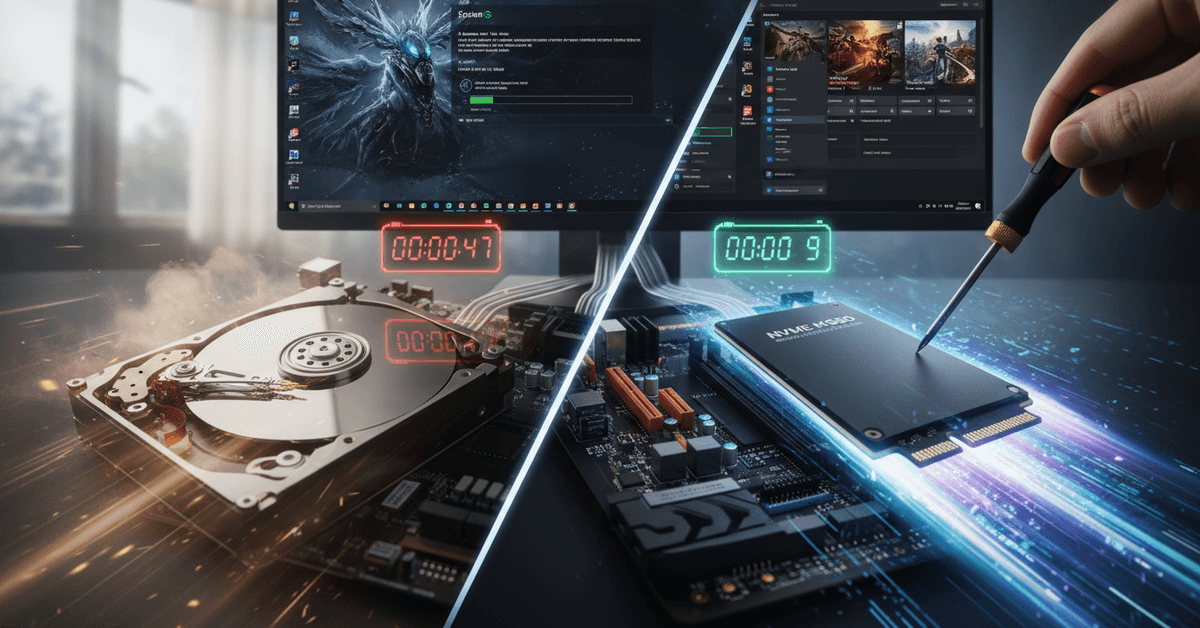
An HDD uses spinning disks and moving arms to read and write data. This mechanical process hasn’t changed much in decades. It’s reliable, but keeps things limited by their physical speed—think of it like reading a book with a single finger, one page at a time.
How SSDs Work
By contrast, SSDs store data on flash memory chips. With no moving parts, an SSD can access information almost instantly. It’s somewhat like having a full bookshelf and being able to grab any book in a flash (pun intended).
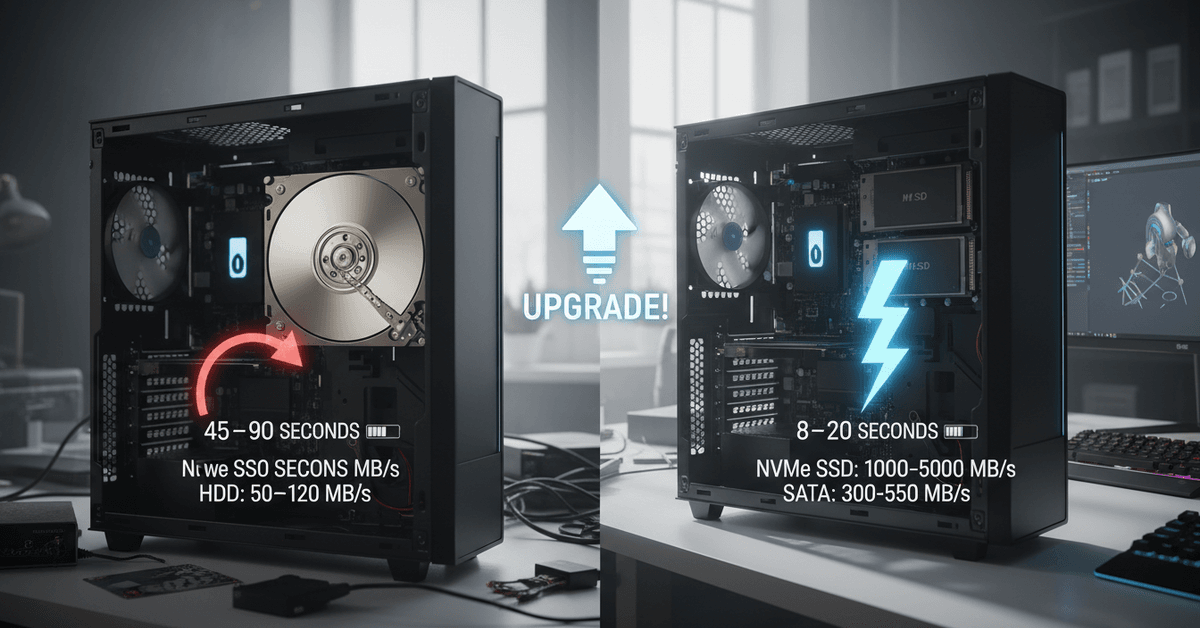
The result? SSDs provide noticeably faster speeds . But just how much faster? Let’s examine the real world numbers.
SSD Speed Comparison: Real-World Scenarios
Numbers make things clearer. Here’s a typical speed comparison between classic HDDs and modern SSDs in four common cases.
1. Boot Times
- HDD: 45–90 seconds to boot to desktop
- SSD: 8–20 seconds to boot
The difference is often dramatic. Waking up your computer can actually mean getting started on your day, not waiting for progress bars.
2. File Transfers
- HDD: 50–120 MB/s (megabytes per second)
- SATA SSD: 300–550 MB/s
- NVMe SSD: 1000–5000 MB/s or more
Transferring large files—like videos or backups—can take minutes or even hours on an HDD. With an SSD, the wait is often slashed to a fraction.
3. App and Game Loading
Ever felt your computer freeze when launching a big program or game? SSDs nearly eliminate this lag. Photoshop, Chrome, or Windows itself all launch in seconds with SSDs. Games that once took minutes to load can become snappier than you’d expect.
4. Multitasking & Responsiveness
Opening a bunch of tabs, running virtual machines, or even just switching quickly between apps? This is where the benefit gets obvious. SSDs provide a level of responsiveness that sometimes feels hard to describe—apps react as soon as you click.
Why SSDs Boost Productivity and Experience
If you hop from task to task or rely on tech for work, those little delays add up. A classic hard drive almost feels like a bottleneck after you’ve tried an SSD. But why does that really matter for productivity?
Less Time Waiting, More Time Doing
Waiting for software to open, or large files to move, drains momentum. Moments like these interrupt creative flow and add up over the days and weeks. An SSD reduces these tiny roadblocks.
Better Stability (and Less Frustration)
Traditional hard drives are prone to slowdowns when they’re almost full or when multitasking heavily. SSDs handle workloads more smoothly, leading to fewer crashes or freezes—which, if we’re honest, often come at the worst possible times.
Factors to Consider Before You Buys an SS
There are a lot of things that you need to consider when it comes to choosing the right SSD. You need to factor your budget, the type of SSD, the compatibility, the performance and many other things.
The best SSD depends on the device that you have as well as your needs. In this guide, you'll learn more about the factors that you need to consider when choosing the right SSD so you don't waste your time and money.
Storage Capacity
Choose an SSD depending on your storage needs. There are several choices that you can choose from which include a 256GB SSD or a 500GB SSD.
There's even a 1TB SSD that offers more than adequate storage capacity. This depends on the work that you need to do like schoolwork or documentation.
SSD Type and Compatibility
Check what your computer supports before buying. Common options include 2.5-inch SATA SSDs, M.2 SATA SSDs, and M.2 NVMe SSDs. Older laptops usually support SATA, while newer PCs often support NVMe, which is much faster.
Speed and Performance
Speed matters if you want faster startup, quicker app loading, and smoother file transfers.
NVMe SSDs are usually faster than SATA SSDs, but SATA can still make a big difference compared with a traditional hard drive. For basic use, SATA is fine; for gaming, editing, and heavy multitasking, NVMe is better.
Durability and Lifespan
Look at the SSD’s endurance rating, often shown as TBW or terabytes written. This tells you how much data the drive is expected to handle over time. A higher TBW rating is better for users who save, move, or edit large files often.
Brand and Warranty
Choose a reliable brand with good reviews and a solid warranty. A longer warranty can give more confidence, especially if the SSD will store important files. Always back up important data because no drive is completely failure-proof.
Budget
The cheapest SSD is not always the best choice. Compare price, capacity, speed, warranty, and durability before deciding. A balanced SSD that fits your computer and daily needs is usually better than paying extra for speed you may not fully use.
Should You Upgrade to an SSD?
Upgrading sounds appealing, but there are points to consider. Not every user has the same needs, after all. Let’s weigh them out a bit.
Who Gets the Biggest Benefit?
- Students running research tools or heavy browsers
- Remote workers or freelancers multitasking with big files
- Gamers wanting smoother, faster loading
- Anyone trying to revive a slow, aging PC
I think even casual users notice the upgrade. But for professionals, the boost can feel almost transformative.
Are There Any Downsides?
Modern SSDs are more affordable than ever, but still cost more per gigabyte than HDDs. For archiving huge media libraries, an HDD can make more sense.
Also, while SSD technology has matured, very cheap models or very old drives might have reliability concerns—so it’s wise to research brands and models before you upgrade.
Types of SSDs: Which One Is Right For You?
SSDs come in several flavors, and not all are created equal. It pays to know the basics before you shop.
SATA SSDs
These use the same connectors as hard drives, making them a simple swap in most desktops and laptops. They’re much faster than HDDs, but not quite as blistering as newer types.
NVMe SSDs
These connect via PCIe, skipping legacy bottlenecks. The result: next-level speeds—often ten times or more faster than SATA. But you’ll need a compatible motherboard (most modern PCs have the slot now).
External SSDs
Perfect for expanding storage or speedy file transfers on the go. Many plug in via USB-C. They’re also fantastic as scratch drives for video pros or creators who need portability and performance.
Installation Tips: How to Upgrade Smoothly
Feeling a bit daunted? Don’t worry. Upgrading is usually less complicated than expected. Here are some basics:
- Check your system specs or manufacturer’s site for SSD compatibility
- Back up important files before starting
- Install your SSD—desktop users often just need a screwdriver
- Clone your old drive to the new SSD, or do a fresh reinstall of your OS
- Adjust BIOS settings to boot from the SSD
If you’re not comfortable, seek a local repair shop or tech-savvy friend. But once it’s done, the difference is instantly noticeable.
Conclusion
Upgrading to an SSD is one of the simplest ways to make a computer feel faster. Compared with an HDD, an SSD can improve boot times, file transfers, app loading, and overall responsiveness.
For everyday users, the speed difference is noticeable, especially on older PCs that feel slow during basic tasks.