
Finding the best free video editors for low-end PCs in 2026 can feel a little overwhelming. Especially if you’ve got an older computer that struggles with big files or flashy effects. But honestly, there’s hope.
Even basic machines can make impressive videos these days. This article is for anyone with a modest laptop or desktop who still wants to create and share cool video content.
Maybe you’re a student, freelancer, or just testing out YouTube. Let’s dive into the options and see how easy—and lightweight—editing can be.
Why You Need Lightweight Video Editors in 2026?
I think most of us know the frustration: your PC heats up, freezes, or crashes when you open standard editing software. Not everyone can (or wants to) invest in high-end hardware just for editing.
In 2026, the trend of powerful-but-efficient apps continues, thanks to the rise of cloud tools and more optimized local software. Having these streamlined options really changes who can participate in digital creativity.
Hardware Barriers Are Real
Many classic video editors like Adobe Premiere or DaVinci Resolve are fantastic—they just need a lot of resources.
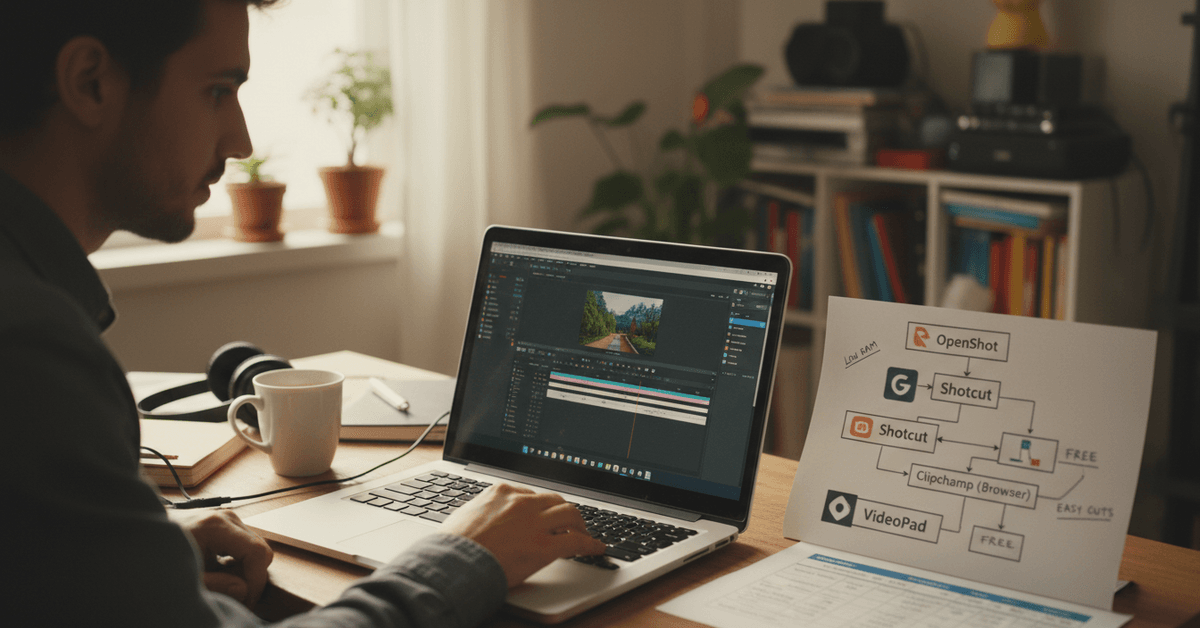
If you’re working with a machine under 4GB RAM and no dedicated GPU, your choices shrink fast. Free, lightweight editors fill this gap.
Cloud and Hybrid Tools Are More Accessible
In recent waves, some apps run in your browser or sync with lightweight processes on your machine. This opens access to people on older hardware. Of course, internet speed now plays a bigger role, but the flexibility is worth noting.
Top Picks: Best Free Video Editors for Low-End PCs in 2026
Choosing the right editor means balancing features and performance. Below, you’ll find a selection of video editing apps that work well on aging laptops and desktops. Each one is completely free , and you don’t need the latest PC specs to get started.
1. OpenShot Video Editor
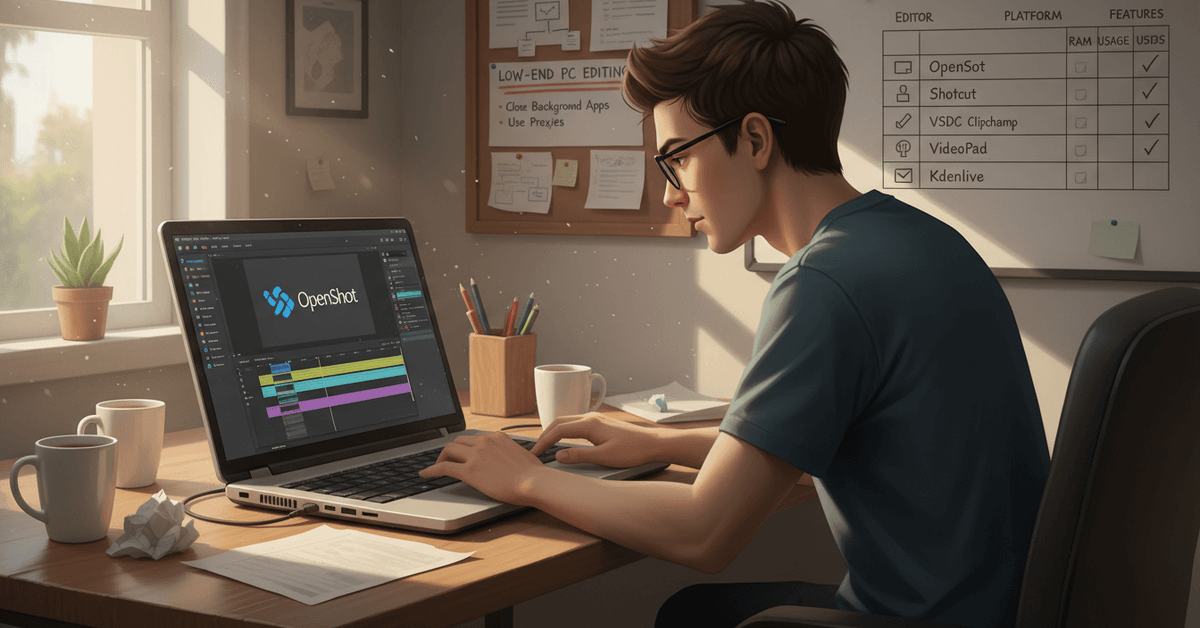
OpenShot is a consistent favorite for low-end systems. It’s open-source, user-friendly, and runs on Windows, Mac, and Linux. Editing timelines and basic effects are smooth even on limited RAM setups.
- Pros: Simple interface, active community, decent export options
- Cons: Occasional glitches, fewer advanced effects
- Best for: Beginners or simple YouTube projects
2. Shotcut
Shotcut looks a bit plain at first, but don’t let that fool you. This editor can handle HD footage on underpowered PCs—especially if you tweak playback settings.
It also supports a wide range of formats. Some people think it’s tough to learn at first, but once you customize the workspace, it’s really flexible.
- Pros: Wide format support, customizable UI, portable install available
- Cons: Learning curve, minor lag on older CPUs
- Best for: Intermediate users, experimental editors
3. VSDC Free Video Editor
Exclusive to Windows, VSDC has continued to improve its performance on old hardware. It offers more powerful features than you’d expect from a “free” tool, like motion tracking, chroma key, and audio visualization.
I’ve found the interface a bit busy, but it runs surprisingly well on hardware from as far back as 2010.
- Pros: Feature-rich, fast exports, doesn’t require strong GPU
- Cons: Windows only, steep UI for total beginners
- Best for: Windows creators wanting advanced effects
4. Clipchamp (Free Online Editor, Microsoft)
Microsoft’s online video editor continues to win fans in 2026, thanks to its gentle system impact. Clipchamp works entirely in your browser, meaning there’s zero installation or updates.
If your PC can handle modern websites, it’ll handle Clipchamp fine. The free version has watermarks on some export options, but it’s still functional for short projects.
- Pros: Web-based, accessible from any device, drag-and-drop features
- Cons: Some premium features require payment, watermark on some exports
- Best for: Quick edits, users with fast internet
5. VideoPad Video Editor (Free Version)
VideoPad is another easy-on-the-CPU option, known for its no-nonsense timeline and wide export range. The free version is limited for home use, but it still delivers solid tools with basic transitions.
It’s perfect for students or people who need to create simple content, maybe a slideshow or montage.
- Pros: Very low system requirements, easy to learn, fast startup
- Cons: Features locked behind pro version, occasional prompts to upgrade
- Best for: Beginners, quick projects
6. Kdenlive (Lightweight Builds)
Kdenlive’s big feature set can run on older PCs—if you download the “light” app image or use portable versions tailored for low-end systems.
It suits users who want both speed and advanced functionality. Some lag is unavoidable with larger projects, but for basic editing, it shines.
- Pros: Modular, frequent updates, tons of effects
- Cons: Occasional bugs, heavier on RAM for big edits
- Best for: Aspiring creators dabbling with effects
Must-Have Features for Low-End PC Editors
Not all free editors are created equal. Here’s what to look for if you don’t want to wreck your aging PC:
- Low RAM usage during editing and export
- Offline/portable versions available
- Intuitive timeline (drag-and-drop preferred)
- Export to standard formats (MP4, MOV, etc.)
- Basic trimming, cuts, and text overlays
- No hidden costs or watermarks on essential features
Tips to Avoid Lag and Crashes When Editing Videos
Even the best free video editors for low-end PCs in 2026 can struggle with big or complex projects. I’ve picked up a few “survival skills” for keeping my system healthy during editing:
Close All Other Programs
This one sounds obvious, but you’d be surprised. Shutting down browsers, games, and even background updaters can free up precious RAM and CPU cycles.
Use Proxy or Low-Resolution Files for Editing
Some editors (like Shotcut and Kdenlive) let you use proxy files—low-res copies for editing, which you can swap for full-quality footage only when you export. That means less lag throughout your project.
Export in Batches, Not All at Once
If a full project crashes, try exporting short sections at a time and later merge them. It saves time—and headaches—if your computer struggles halfway through a render.
Install Latest Graphic and Audio Drivers
Just keeping drivers fresh can unlock small speed or stability boosts. Most people forget this step, but it makes a difference on older machines.
Comparison Table: Editors at a Glance
Frequently Asked Questions About Free Video Editors for Weak PCs
Can I edit 4K or HD video on a low-end PC?
Technically, yes, but it’ll be slower, and previews will lag. Downscaling footage for editing and exporting only in HD—or even 720p—can make it manageable. Proxy workflows help.
Which editor has the lowest system requirements?
VideoPad and OpenShot generally win for minimal hardware. Web-based editors like Clipchamp are also good, but need a stable internet connection.
Are there hidden costs in these free editors?
Some, like VSDC or Clipchamp, offer extra effects for payment, but you can stick to the free tier for basic editing. Watch out for watermarks or export limits—always check before spending hours on a project.
Final Lightweight Video Editing Guide
Free video editors for low-end PCs can help students, beginners, freelancers, and creators produce simple videos without expensive hardware.
The best choices usually focus on low RAM use, basic editing tools, standard export formats, and stable performance on older machines.
It is also important to reduce lag by closing background programs, using lower-resolution files, and avoiding overly complex effects.
With the right editor and careful workflow, even a modest PC can handle practical video editing tasks in 2026.





