Let’s be honest: working at the computer, whether for studies or professional projects, often turns into a battle against distractions.
This guide is for anyone who struggles to stay focused—students, remote workers, creators, or entrepreneurs.
In the next few minutes, you’ll learn tried-and-true strategies for setting up a distraction-free environment on your Mac or PC that actually maximizes productivity, not just promises to.
Why Digital Distractions Are So Hard to Beat?
Modern computers are powerful, yes, but they’re also packed with attention-grabbing notifications, endless tabs, and tempting apps.
Social media, emails, or even background apps can steal your focus before you know it. If you’ve ever opened your laptop to work and found yourself—half an hour later—scrolling aimlessly or replying to memes, it’s not just you.
Main Sources of Distraction on Computers
Notifications
Your computer loves to notify you: chats, emails, calendar reminders. Each alert pulls your attention away, even for just a few seconds.
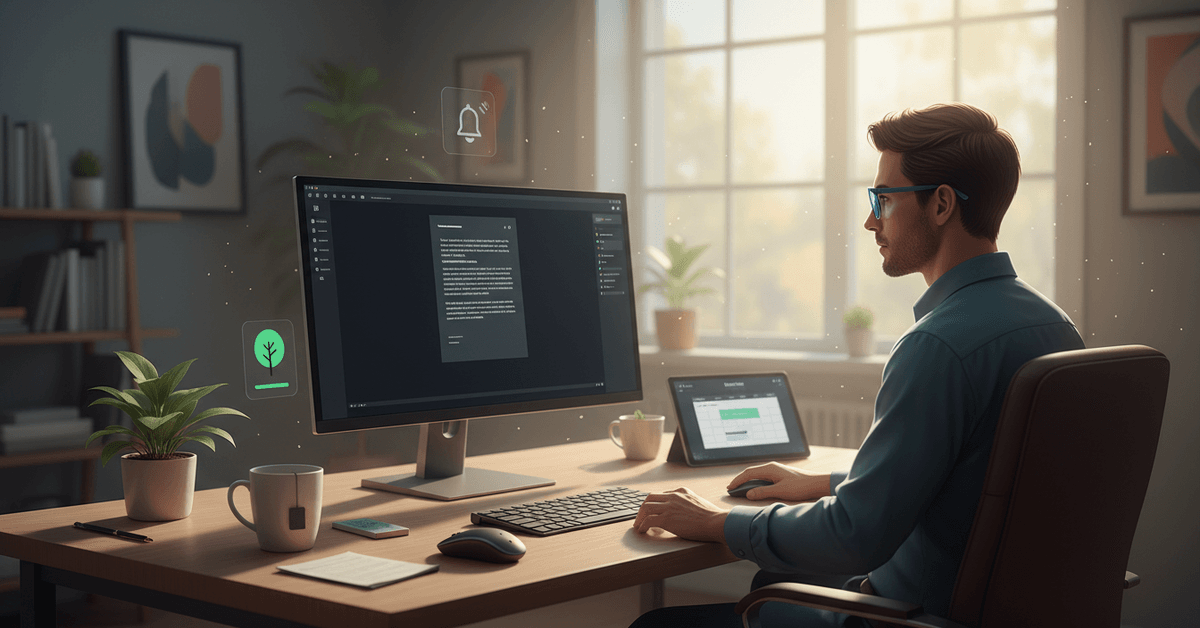
Background Apps and Processes
Sometimes, background apps use bandwidth, CPU, or simply pop up with prompts. The problem is, you may not realize how much these contribute to your cognitive overload.
Web Browsers and Tabs
Many of us work with multiple windows. Keeping a dozen tabs open is a productivity killer. Switching between them—a shortcut to distraction.
Task and App Overload
Having too many apps installed or running can tempt you to jump between tasks constantly. It’s a silent productivity drain.
Core Steps to Set Up a Distraction-Free Environment
1. Declutter Your Desktop
Start by eliminating desktop clutter. A messy desktop is visually stressful and actually makes it harder to focus.
Create folders for old files, group items by project or type, or move them to cloud storage like Google Drive or OneDrive.
2. Limit Your Taskbar or Dock
Pin only essential applications to your dock (Mac) or taskbar (Windows). Remove unused or rarely used programs. It might feel odd at first, but visually, it makes a difference.
3. Tame Your Notifications
Notification management is non-negotiable. On Mac, use Do Not Disturb or Focus Modes. Windows offers Focus Assist.
Both help filter or silence notifications—experiment to see which setting lets through only what matters.
4. Use Dedicated Focus Modes or Third-Party Tools
If your device supports it, activate Focus Mode or Do Not Disturb during deep work sessions. For more control, try apps like Freedom , Cold Turkey (PC), or Focus (Mac)—these let you block websites, set timers, or even whitelist only certain apps.
5. Manage Browser Distractions
Browsers can be your worst enemy. Extensions like StayFocusd (Chrome) or LeechBlock (Firefox) help limit time-wasting sites. Also, try session managers, which let you save work setups and avoid reopening tabs mindlessly.
Hidden Features and Settings Worth Trying
Mac: Harness Focus & Do Not Disturb
Since macOS Monterey, Focus lets you filter notifications based on your current activity—work, studying, or downtime.
Set up custom Focus sessions through System Settings, allowing only specific contacts or apps. This really cuts down mental noise.
Windows: Master Focus Assist
On Windows 10/11, Focus Assist hides notifications except for those you allow. To customize, go to Settings > System > Focus Assist. Set it to activate during key times or when using certain apps, like PowerPoint or any full-screen tool.
Night Shift, Dark Mode, and Visual Tweaks
While these features aren’t about distraction directly, Night Shift and Dark Mode both reduce eye strain. Less fatigue usually means less need to take “quick” breaks that sometimes spiral out into distractions.
Task View and Mission Control
Windows’ Task View and Mac’s Mission Control help by keeping windows organized. Use virtual desktops—one for work, another for personal browsing. It’s easier to compartmentalize and return focus if your spaces are organized intuitively.
The Power of Minimalism: Apps & Extensions
Minimalist Writing Apps
Apps like Typora (cross-platform), Ulysses (Mac), or even Notion in focus mode can eliminate formatting, menus, and notifications for a blank-slate writing environment. For code, Sublime Text or Visual Studio Code can enter Zen Mode.
Distraction Blockers
- Cold Turkey – Blocks apps/sites (Windows)
- Freedom – Cross-platform, blocks distractions on all devices
- FocusTo-Do – Combines Pomodoro timer with site blocking
Tab Managers & Extensions
- OneTab – Collapse all tabs into a single list
- Tabli – Simple tab management (Chrome)
- Tab Wrangler – Auto-close tabs after inactivity
New Chrome Extensions and AI Tools to Try
Motion – AI-Powered Focus Scheduling
Motion uses AI to schedule tasks at your most productive hours, automatically rearranging your calendar and blocking social media.
Forest – Focus Gamified
Forest lets you plant virtual trees if you stay off your phone or stick to work tabs. It’s surprisingly motivating, especially for students.
RescueTime – Automatic Distraction Tracking
Tracks what you do on your computer and gives feedback on focus time versus distractions. Seeing the stats can be a reality check.
Troubleshooting Common Challenges
Overblocking & Lockouts
Be careful with extreme blocking. Sometimes you’ll need access to a site or app you didn’t expect—plan for overrides or scheduled breaks, so you’re not completely stuck.
Falling Back into Old Habits
It’s easy to relapse into multitasking and distraction—the brain sometimes seeks novelty. Maybe it helps to leave a sticky note on your screen, or end sessions with a quick reflection: "Did I stay focused today?"
Tips for Sustained Focus Over Weeks and Months
Routine-building
Set up recurring Focus Mode sessions and block tempting sites at specific times—say, 9 a.m. to noon. After a while, focused work feels more natural.
Frequent Check-Ins & Adjustments
Your needs will change. If a setting feels annoying, adjust it. Don’t aim for perfection from day one; small improvements are a win.
Physical Workspace Counts Too
Even with software help, cluttered desks, poor lighting, or noisy backgrounds can undermine productivity. Tidy up, use good headphones, and maybe add a touch of greenery.
Final Focused Computer Setup Guide
A distraction-free computer setup can help students, remote workers, creators, and professionals stay focused for longer periods.
The most useful changes include decluttering, managing notifications, limiting open tabs, and using focus tools when needed. It is also important to adjust your setup over time instead of trying to make everything perfect at once.
With simple digital habits, your Mac or PC can become a calmer workspace that supports better productivity.