
Dark mode has become a practical feature for people who spend long hours using laptops, smartphones, tablets, and productivity apps.
It changes bright backgrounds into darker tones, which may feel more comfortable during work, study, or late-night browsing.
Many users turn it on to reduce glare, save battery on certain devices, and create a cleaner digital experience. Understanding how dark mode works across platforms can help you use it more effectively instead of treating it as just a visual preference.
Why Dark Mode Matters Beyond Appearance?
Dark mode is often praised for its modern look, but its value goes beyond style. It can support comfort, focus, and battery efficiency depending on the device and environment.
For users who spend many hours reading, writing, browsing, or editing, small screen adjustments can make a noticeable difference. However, dark mode is not perfect for every situation, so it works best when used with the right expectations.
Reducing Eye Strain During Long Screen Sessions
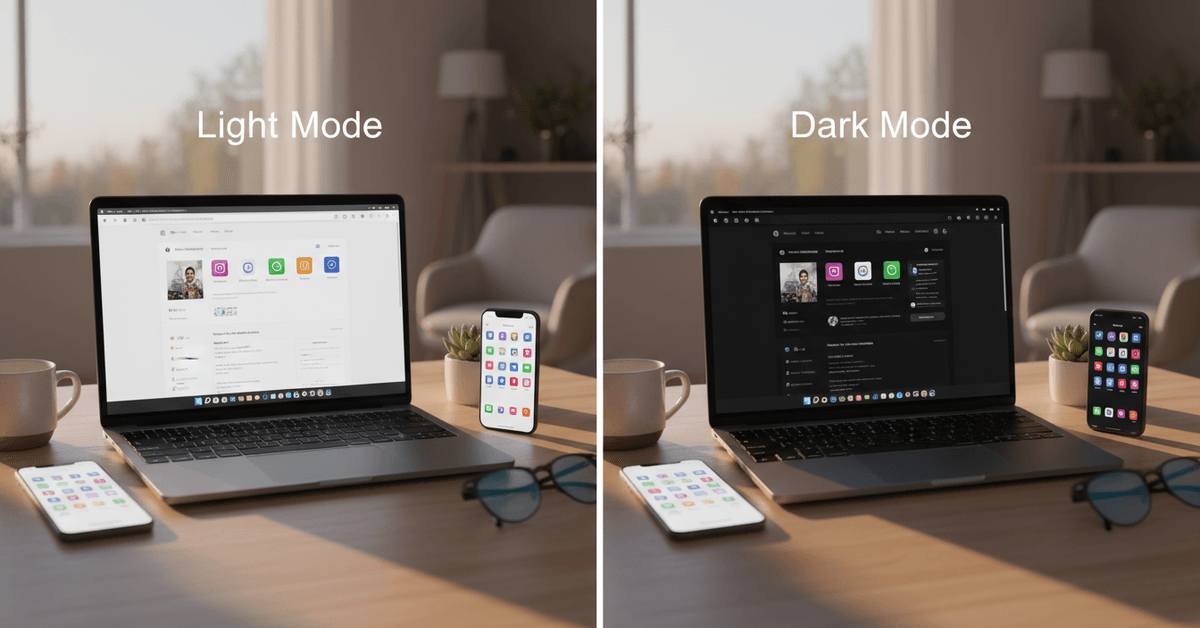
Bright white screens can feel tiring during long work sessions, especially in dim rooms or at night. Dark mode replaces intense white backgrounds with softer dark tones, which may make reading and scrolling feel less harsh.
Many users find it helpful for email, coding, writing, messaging, and casual browsing. Still, comfort varies from person to person, so it is worth testing dark mode in different lighting conditions.
Saving Battery Life On Modern Devices
Dark mode can help save battery on devices with OLED or AMOLED screens. On these displays, black pixels use less power because they can be turned off or dimmed significantly.
The battery benefit may be more noticeable when using apps with true black backgrounds for long periods. Users with LCD screens may notice less impact, but dark mode can still improve comfort and visual consistency.
Reducing Blue Light Exposure
Dark mode may reduce the brightness of your screen, but it should not be treated as a complete blue light solution. A dedicated blue light filter or night shift setting is usually more useful for late-night screen use.
Dark mode can still make screens feel gentler in low-light spaces. For best results, it can be combined with reduced brightness, warmer color temperature, and regular screen breaks.
Creating A Cleaner Digital Experience
Dark mode gives apps and operating systems a more polished and distraction-free appearance. Many people prefer it because it makes interfaces feel calmer and more focused.
It can also help create a consistent look across devices and apps. For users who enjoy customizing their workflow, dark mode can be part of a cleaner and more organized setup.
How To Enable Dark Mode On Major Operating Systems?
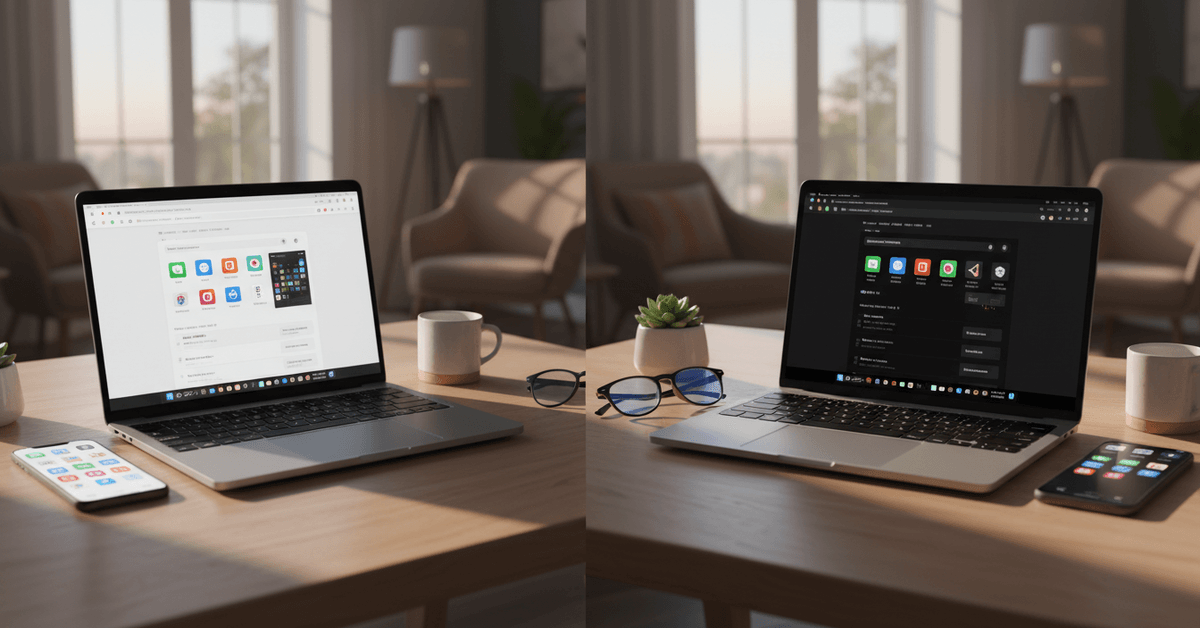
Most major operating systems now include built-in dark mode settings. This means users no longer need complex tools or technical adjustments to activate it.
The exact menu names may change slightly depending on the software version. Still, the general process is simple across Windows, macOS, iOS, iPadOS, and Android.
Windows 10 And Windows 11
On Windows 10 or Windows 11, dark mode can usually be enabled through the personalization settings. Users can go to Settings, open Personalization, choose Colors, and select Dark under the color mode option.
This changes the appearance of supported system areas and apps. File Explorer, Microsoft Edge, and many Windows apps may update automatically after the setting is applied.
macOS
On macOS, dark mode can be enabled through System Settings. Users can open the Apple menu, select System Settings, go to Appearance, and choose Dark.
There is also an Auto option that changes the theme based on the time of day. Finder, the menu bar, and many Apple apps will switch to the darker interface.
iOS And iPadOS
On iPhone and iPad, dark mode is available under Display and Brightness. Users can open Settings, choose Display and Brightness, and select Dark.
The Auto option can also switch between light and dark mode based on sunrise and sunset. Most native Apple apps apply the theme immediately.
Android
On Android devices, dark mode is usually found under Display settings. Users can open Settings, tap Display, and choose Dark Theme or Dark Mode.
Many Android phones also allow scheduling, quick toggles, or automatic switching. The effect may vary depending on the device brand and Android version.
Using Dark Mode In Browsers
Browsers often follow your system theme, but not every website supports dark mode properly. Some websites stay bright even when your device is set to dark mode.
This is where browser settings and extensions can help. With the right setup, web browsing can become more comfortable and consistent.
Built-In Browser Dark Mode
Google Chrome, Mozilla Firefox, and Microsoft Edge all support dark mode in different ways. Chrome often follows the system theme, while Firefox includes appearance controls and theme options.
Microsoft Edge can follow the Windows theme or be adjusted through its own settings. These built-in options are usually the safest starting point.
Browser Extensions For Dark Websites
Some extensions can force websites into darker themes when they do not support dark mode naturally. Popular options may include tools that adjust brightness, contrast, and background colors across websites.
These extensions can be useful for people who visit many bright web pages daily. However, users should review permissions and privacy policies before installing any browser extension.
When Browser Dark Mode Needs Adjustment
Forced dark mode does not always work perfectly on every website. Some images, charts, logos, or buttons may look strange after colors are inverted.
If a website becomes harder to read, it may be better to disable the extension for that specific page. The goal is comfort, not forcing every screen into dark mode at all costs.
Dark Mode In Productivity Apps
Productivity apps are often used for long sessions, so dark mode can be especially useful in this category. Email platforms, document editors, note-taking apps, and task managers now commonly include dark themes.
Some apps support dark mode directly, while others depend on system settings or browser extensions. Checking app-specific settings can help you create a more consistent workflow.
Google Workspace Apps
Gmail includes theme settings that allow users to choose a darker interface on web and mobile. Google Keep also offers a direct dark theme option.
Google Docs, Sheets, and Slides support dark mode more clearly in mobile apps, while web users may rely on browser or system settings. Users who work heavily in Google Workspace may need to adjust settings app by app.
Microsoft Office Apps
Microsoft Word, Excel, Outlook, and other Office apps support dark mode in recent versions. Users can usually find this option under account or theme settings.
Outlook also works well with dark mode across desktop and web versions. Older Office versions may have limited support, so updating the software can improve the experience.
Notion, Todoist, And Note Apps
Notion makes dark mode easy with a keyboard shortcut or settings toggle. Todoist includes theme controls that allow users to switch between light and dark appearances.
Evernote and OneNote also provide dark mode settings in their apps. These tools are useful for users who write, plan, organize tasks, or manage projects for long periods.
Advanced Dark Mode Tweaks And Automations
Built-in dark mode settings are helpful, but some users want more control. Automations can switch themes based on time, location, focus mode, or app activity.
Accessibility settings can also improve readability by adjusting contrast and colors. These advanced options help users build a setup that feels more personal and practical.
Scheduling Dark Mode Automatically
Scheduling dark mode can make your device switch themes without manual effort. Many systems allow dark mode to turn on at sunset and turn off in the morning.
This setup is useful for people who prefer light mode during the day and dark mode at night. It creates a balanced experience without needing constant adjustments.
Using Automation Tools
Automation tools can add more flexible dark mode controls. iOS Shortcuts can trigger theme changes based on focus modes or time.
Android Tasker can switch dark mode based on Wi-Fi networks, app launches, or schedules. Desktop tools may also help Windows and Mac users create smoother theme transitions.
Improving Readability With Accessibility Settings
Dark mode is not always readable by default, especially with thin fonts or low-contrast designs. Accessibility settings can help by adjusting contrast, color filters, and text size.
Some users may prefer dark gray instead of pure black backgrounds. Testing different combinations can make dark mode more comfortable for daily use.
Productivity Tips For Using Dark Mode Better
Dark mode works best when it becomes part of a thoughtful screen routine. It should support focus, comfort, and organization rather than simply changing how apps look.
Small habits can make the experience more useful. Combining dark mode with other screen settings often creates better results.
Match Dark Mode With Your Schedule
Using light mode during daytime and dark mode at night can create a comfortable balance. This setup works well for people who move between bright and dim environments.
Automatic scheduling makes the transition easier. It also prevents the need to manually change settings every day.
Combine Dark Mode With Blue Light Filters
Dark mode can reduce glare, but a blue light filter can make late-night screen use more comfortable. Warmer screen tones may feel easier on the eyes before sleep.
Reducing brightness also helps avoid harsh screen exposure. Together, these settings can create a gentler nighttime setup.
Customize Settings By App
Not every app needs the same theme. Some apps may look better in dark mode, while others may be easier to use in light mode.
Customizing settings per app gives you more control over your workflow. This approach is especially useful for writing tools, design apps, browsers, and email platforms.
Legal And Security Considerations
Switching to dark mode is generally safe, especially when using official settings from your device or app. However, extra care is needed when using browser extensions or third-party theme tools.
These tools may request access to website data, so users should review permissions carefully. Choosing reputable tools helps protect privacy and reduce security risks.
Use Official Settings First
Official dark mode settings are usually the safest option. They are built directly into the operating system or app and require fewer privacy concerns. Users should start with these settings before installing extra tools. This keeps the setup simple and more secure.
Review Extension Permissions
Browser extensions can be helpful, but they should be chosen carefully. Some may request access to browsing data or website content.
Users should check reviews, update history, developer reputation, and privacy policies. If an extension seems suspicious, it is better to avoid it.
Consider Shared Devices
On shared computers or family devices, theme changes may affect only one account or the entire device depending on settings. Users should check whether dark mode changes personal preferences or system-wide appearance.
This avoids confusion for other users. Clear account settings are helpful when multiple people use the same device.
Conclusion
Dark mode can improve comfort, reduce glare, modernize your digital space, and help save battery on compatible screens.
It is useful across operating systems, browsers, email platforms, productivity tools, and mobile apps. However, it works best when adjusted to your environment, device type, and reading preferences.
With the right setup, dark mode can become a simple but effective part of a healthier and more organized digital workflow.





