
Everyone’s talking about security these days, and for good reason. Data breaches are growing, and passwords aren’t as foolproof as we’d like.
Two-Factor Authentication (2FA) adds that extra layer of safety you might not realize you really need. If you want to keep your accounts—and, frankly, your sanity—safe from hackers, it’s worth learning how to set up 2FA the right way.
This guide is for tech enthusiasts, students, busy professionals, or anyone curious about cutting-edge digital security and looking for practical, up-to-date advice. Ready to take the next step? Let’s get into it.
What is Two-Factor Authentication and Why Does It Matter?
Before diving into setup, what exactly is 2FA? Simply put, it’s a method that asks you for something you know (your password) and something you have (like a phone) before letting you in.
The logic is simple—even if someone guesses your password, they can’t get in without your second factor. This is especially crucial if you’re using cloud productivity tools, social media, or managing sensitive files online. You might think 2FA is a hassle, but just one data breach changes your mind fast.
Key Benefits of Setting Up 2FA Correctly
Stronger Account Security
2FA creates a powerful roadblock for would-be attackers. Even leaked passwords aren’t enough because there’s a second proof required. Don’t underestimate this.
Peace of Mind for Sensitive Apps
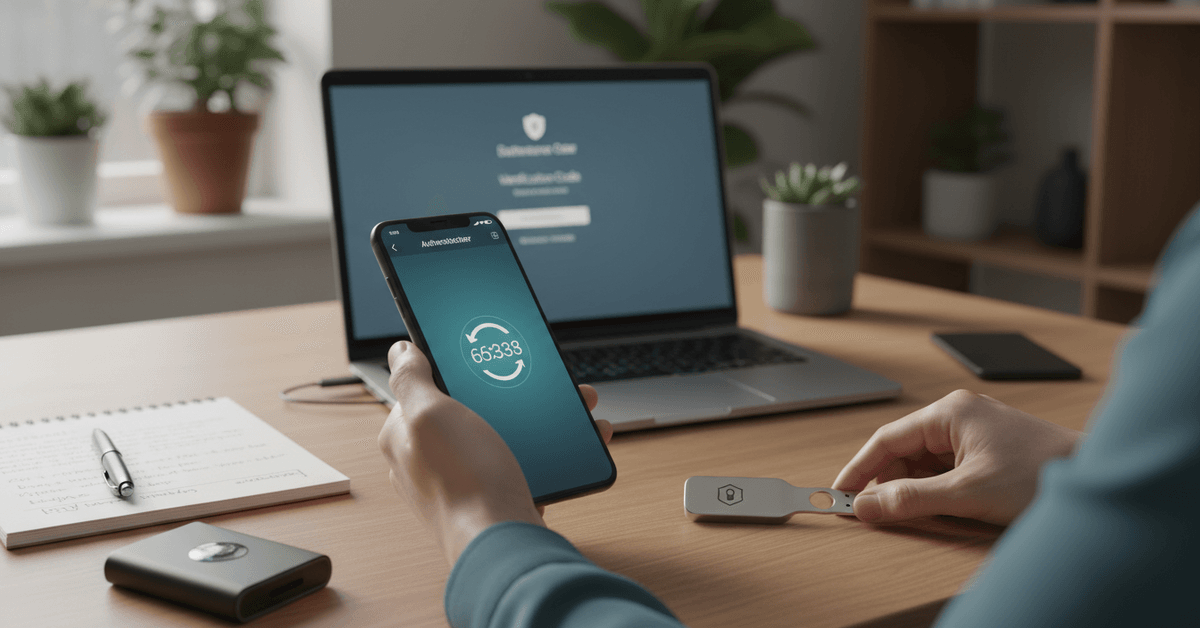
Apps like Gmail, Dropbox, or your banking services keep valuable info. Adding 2FA feels a bit like locking your bike and taking the seat with you—strange but highly effective.
Compliance with Modern Standards
Many workplaces now require 2FA to meet data-handling guidelines. If you’re trying to stay compliant with privacy or IT regulations, proper 2FA is almost always mandatory.
How Does Two-Factor Authentication Work?
The Two Factors Explained
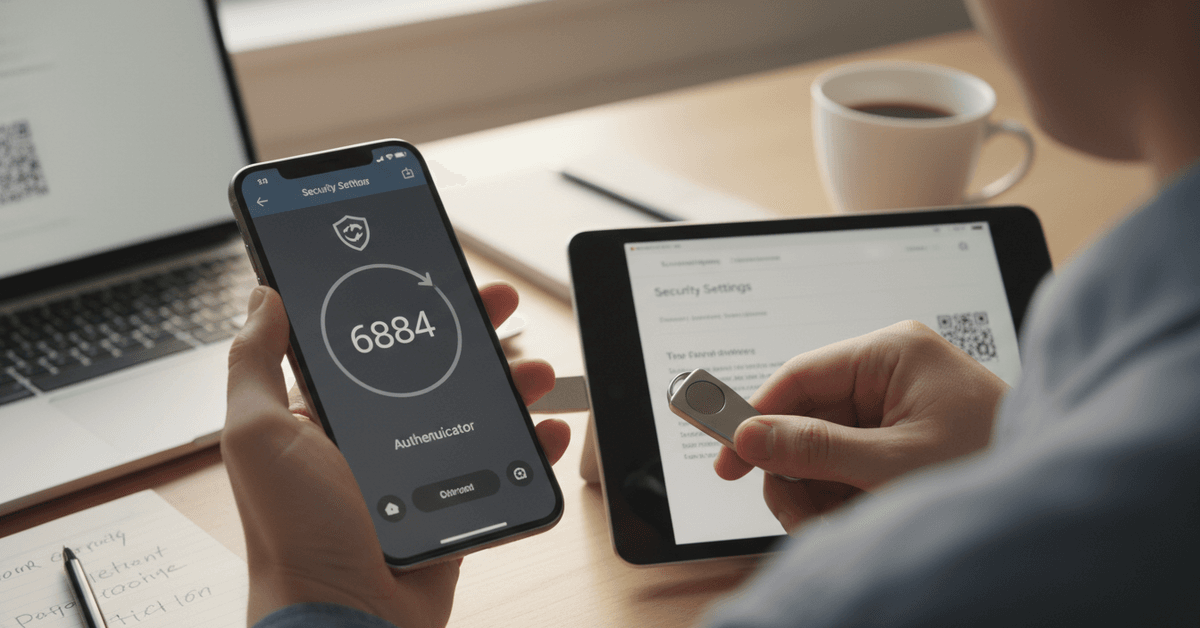
There are usually three types of factors: something you know (password), something you have (a device or code), and sometimes something you are (like a fingerprint).
Most setups use the first two. This isn’t as complex as it sounds—think of your ATM card and PIN: both are needed to access your account.
Common 2FA Methods
- Authenticator apps (e.g., Google Authenticator, Authy)
- SMS codes sent to your mobile number
- Hardware security keys like YubiKey
- Email-based codes or app push notifications
It’s worth noting, SMS-based 2FA is handy but can be less secure—SIM-swapping is a thing. Authenticator apps are a safer long-term choice, and hardware keys are even better for the truly security-conscious.
How to Set Up Two-Factor Authentication The Right Way?
Step 1: Choose Your Services Carefully
Start with your most important accounts. Consider email, password managers, banking, and file storage.
Don’t forget social media if you care about reputation or privacy. Each service handles 2FA differently but most make setup easy these days—a welcome trend.
Step 2: Select a Reliable Second Factor
- Download an authenticator app like Google Authenticator or Authy.
- If you prefer physical security, research USB-based hardware keys (like YubiKey).
- Use SMS codes only when other options aren’t available.
Personally, I found Authy convenient because it allows backup and device sync, whereas Google Authenticator can feel a bit limiting if you swap phones often.
Step 3: Find and Enable the 2FA Setting
Usually you’ll see this in the Security or Account Settings page of each service. Look for a section marked “Two-Factor Authentication,” “2-Step Verification,” or similar wording.
Step 4: Link and Verify Your Second Factor
Follow the instructions to add your chosen method. With an app, you’ll typically scan a QR code. Hardware keys involve registration through your browser.
Each service walks you through the process, though if you’re new, the prompts can feel a little daunting—which is totally normal.
Step 5: Save Backup Codes or Recovery Methods
Don’t ever skip this part. Most 2FA systems provide backup codes or ask for an alternate contact. Store these somewhere very safe. I sometimes store them in a password manager just for peace of mind.
Step 6: Test Your Setup
After enabling 2FA, log out and back in to check everything works. Maybe you won’t get it right on the first try; most people don’t, and that’s okay. If there are issues, look for “help” resources from your provider or community forums.
Best Practices for 2FA Security and Productivity
Keep Authenticator Apps Up to Date
It’s easy to ignore app updates, but security patches can really matter. Sometimes vulnerabilities are discovered in popular apps. Updating promptly reduces your risk.
Avoid Using Just SMS 2FA
It’s tempting (everyone gets texts), but SMS is easier to compromise. SIM card fraud isn’t just theoretical—people lose accounts all the time because of it. When possible, stick to app- or hardware-based factors.
Regularly Review Connected Devices
Most services display a list of devices that accessed your account. Kick off any you don’t recognize. It’s a bit like cleaning out old browser extensions—out of sight, out of mind, but important for safety.
Don’t Share Your Backup Codes Casually
This should go without saying, but sometimes we share things without realizing the risk. Keep recovery codes private. If you feel uncomfortable, store them offline or even print and lock them away.
Common Pitfalls and How to Avoid Them
Losing Access to Your Second Factor
Accidents happen—phones break or get lost. If you haven’t saved recovery codes, you might get locked out. Always, always have a backup. It’s minor effort now, major relief later.
Forgetting to Update 2FA When Changing Devices
If you switch phones and don’t migrate your authenticator app, you could end up locked out. Plan ahead. Some apps like Authy streamline device transfer; Google Authenticator, less so. Perhaps consider exporting or syncing codes before device upgrades.
Thinking 2FA Means You’re Invincible
No security is perfect. 2FA is an important layer, but don’t reuse passwords or skip basic digital hygiene. Hackers adapt, after all. Stay sharp and keep learning.
Bonus: Automation and Productivity Tips
Using Password Managers
Pairing a password manager with 2FA makes logins safer without added hassle. Some even integrate directly with 2FA apps, reducing the number of steps to access your data.
Syncing Authenticator Apps Across Devices
If you use multiple devices, some tools let you sync 2FA codes across your laptop and phone. This is a blessing for busy students or multitaskers. Just be sure your sync method is secure.
Integrate 2FA with Single Sign-On (SSO) at Work
If your workplace uses SSO systems (like Okta), enable 2FA wherever possible. This combines convenience with robust security, ideal for corporate or remote settings. In my experience, it cuts down on password resets big time.
Final Two Factor Security Guide
Two-factor authentication helps protect online accounts by adding a second security step beyond the password. The safest setup usually includes authenticator apps, hardware keys, backup codes, and regular device reviews.
It is also important to avoid relying only on SMS when stronger options are available. With proper setup, 2FA can reduce account risks and make everyday digital security much stronger.





