
The digital age brings countless conveniences, but it also comes with new risks—especially when it comes to your home Wi-Fi network.
With every device you connect, from laptops and phones to smart fridges or even door cameras, you open doors for hackers. This guide is for anyone who uses Wi-Fi at home and wants practical, easy steps to stay safe.
If you care about not only privacy but also keeping your personal info locked away from prying eyes, keep reading.
You might be surprised by just how vulnerable even a brand-new router can be, and with a few tweaks, you’ll enjoy peace of mind while browsing or working from your kitchen table.
Why Strong Wi-Fi Security Matters in 2024?
Every year, cyberattacks get smarter. Many people don’t realize that their home Wi-Fi network is an easy target—sometimes because we forget to change default settings or rely on weak passwords.
As we add more smart gadgets, the risk increases. Hackers can intercept traffic, steal passwords, or even monitor online activities without you noticing.
That’s unsettling, maybe even a bit scary, but it’s not a reason to give up on new tech. Instead, it’s about getting proactive and making small changes that make a real difference.
Main Threats Targeting Home Wi-Fi Networks
Let’s start with the basics. What are you actually up against? Understanding the risks helps you see why even “minor” precautions can carry a lot of weight.
Simple Password Attacks
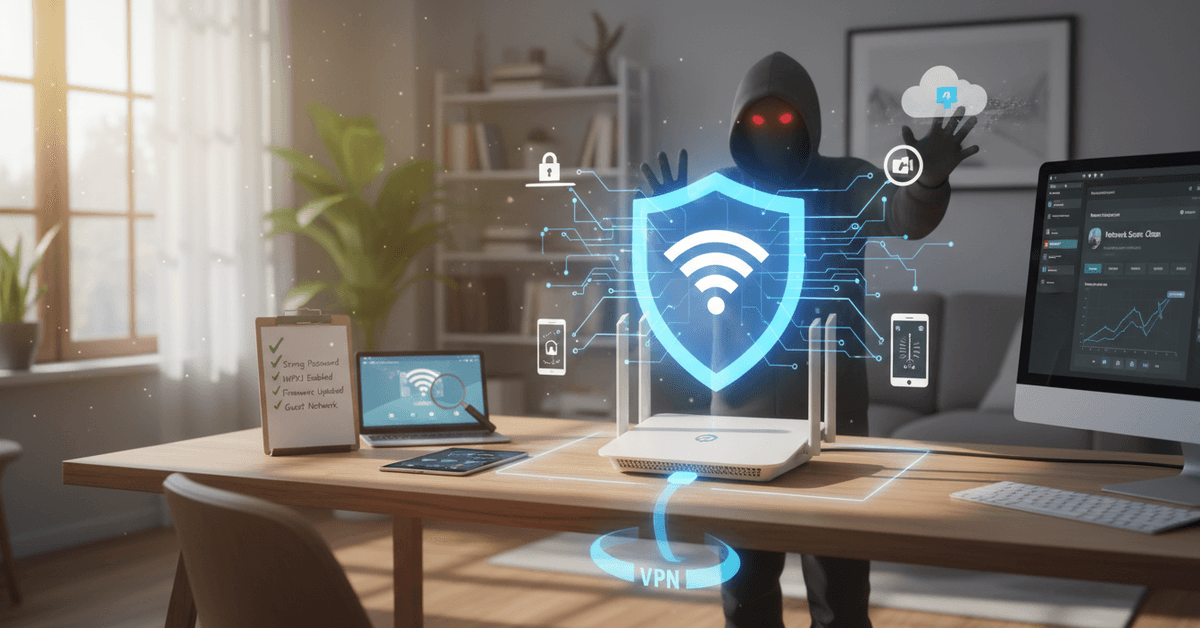
This sounds obvious, but weak or default passwords are an open invitation. Automated scripts can quickly guess passwords like “admin123” or “password.” Once in, hackers can access everything on your network.
Eavesdropping and Packet Sniffing
Hackers sometimes just listen in to your Wi-Fi traffic. If your network isn’t encrypted, it’s not hard for someone nearby to intercept data—emails, online banking sessions, even saved logins.
Device Hijacking
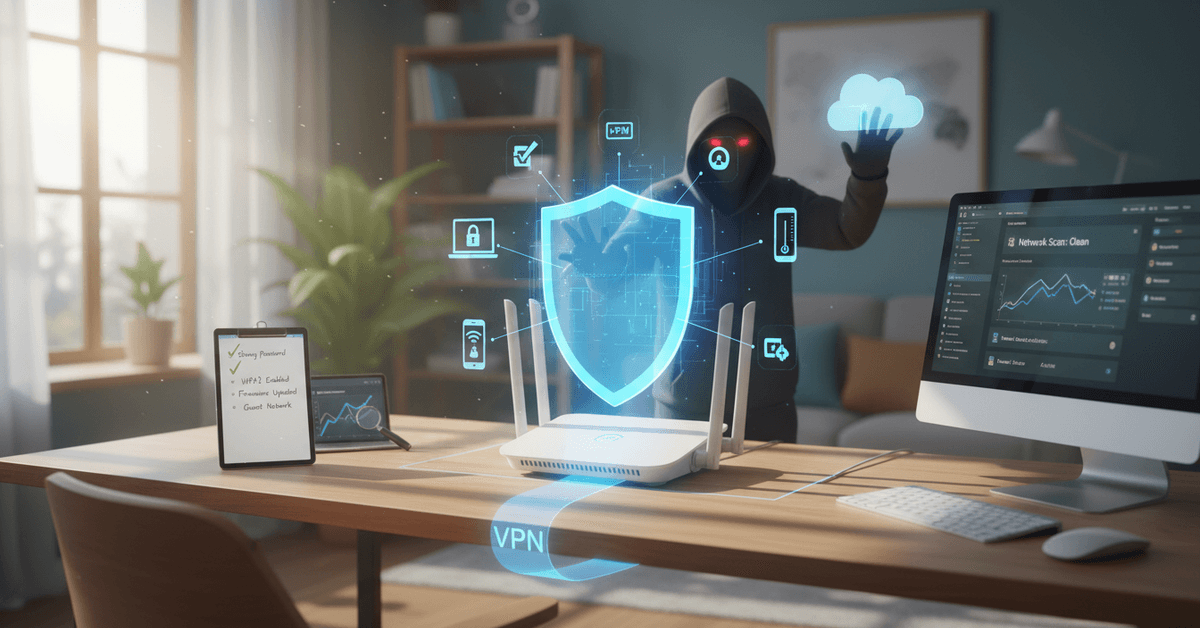
Connected devices are expanding targets. Whether it’s a smart speaker, thermostat, or security camera, once compromised, these devices can be gateways into the rest of your digital life.
Man-in-the-Middle Attacks
This is where attackers insert themselves between you and your connection target. Maybe that means redirecting you to fake websites or intercepting sensitive data mid-transfer. It’s sneaky and, unfortunately, more common than many realize.
Steps to Secure Your Home Wi-Fi Network
It’s easier than ever to boost your Wi-Fi security. Below, I’ll share what really matters, including a few habits I had to pick up the hard way. You might find that the most powerful changes are also the simplest.
Change Default Login Credentials
First up: change your router’s default username and password. It’s tempting to gloss over this, but most router admin panels come with set, predictable logins. A unique password goes a long way.
Use Strong, Unique Wi-Fi Passwords
Make your Wi-Fi password something genuinely hard to guess. Forget birthdays, names, or common words. Instead, try for random combinations of letters, numbers, and symbols—at least 12 characters long. Maybe even use a password manager.
Enable WPA3 Encryption (If Available)
Encryption is your main guardrail. WPA2 is better than nothing, but if your router supports WPA3 encryption, turn it on. It secures your data stream so even if someone is snooping, what they capture will be unreadable.
Update Your Router’s Firmware Regularly
Manufacturers release updates to patch vulnerabilities. But routers don’t usually update themselves automatically. Make a habit of checking for new firmware on your router’s admin page at least a couple of times per year.
Turn Off WPS (Wi-Fi Protected Setup)
WPS seems helpful, but it’s a well-known weak spot. Many hackers exploit it to break into networks. Disabling it makes things a bit less convenient, but far safer.
Hide Your Network SSID
This step isn’t foolproof, but hiding (or disabling broadcast of) your network name makes your Wi-Fi less visible to casual attackers. Of course, determined hackers can still find it, but it adds a layer.
Assign a Guest Network
I’ve found it best not to mix household devices with those belonging to visitors. Set up a separate guest Wi-Fi network. That way, if a friend’s device is vulnerable, it won’t compromise your main network.
Disable Remote Management
Remote management lets you tweak your router from afar, but it’s rarely needed for home users and opens a bigger target window. Turn it off for extra peace of mind—unless you have a very specific reason to keep it on.
Advanced Security Practices for Tech-Savvy Users
If you’re comfortable with more technical setups, consider going the extra mile. Some of these aren’t necessary for everyone, but they might come in handy if you’re working from home or managing lots of devices.
Set Up a Firewall
Most routers have a basic firewall, but you can take it a step further by enabling advanced settings or even adding a separate device just for network filtering. Look for options like “SPI firewall.”
Monitor Connected Devices
I’ll sometimes check my router dashboard to see which devices are online. If you see something strange (unknown device names or lots of new entries), it could be time to reset your password or investigate further.
Use MAC Address Filtering
This lets you manually approve which devices can connect, based on their unique identifiers. It’s more work up front but can dramatically cut down unwanted connections. Just know that determined attackers can sometimes spoof these addresses.
Schedule Wi-Fi Downtime
Some routers let you turn off Wi-Fi automatically at night or when you’re not home. Less uptime means fewer chances for an opportunistic attack, though your smarter gadgets may not like the interruptions.
How Software Tools Help Secure Your Network?
Beyond the router, smart apps can help. For example, several Wi-Fi analyzer tools (like Fing or NetSpot) can show who’s connected and check for odd behavior. Security suites from brands like Norton or Bitdefender sometimes include network vulnerability scans, which is a nice safety net.
Run Regular Security Scans
Set a monthly reminder to check for malware on all your devices. Many threats come from an infected laptop or phone connected to your Wi-Fi, not just from outside attacks.
Install Browser Extensions for Privacy
Extensions such as HTTPS Everywhere or uBlock Origin can help block malicious sites and stop tracking scripts while you browse. These don’t replace network security, but they raise your overall defenses.
Extra Steps for Working or Studying from Home
If you use your home network for remote work or online classes (and who doesn’t, these days?), pay extra attention to VPNs.
Using a virtual private network not only hides your activity from outsiders but also encrypts traffic between you and any remote servers. Most universities and many large companies provide guidance—don’t ignore those emails!
Consider Two-Factor Authentication
Some routers now support 2FA for access to their admin panels. If yours does, enable it. It’s another small hassle, perhaps, but it puts another roadblock in a hacker’s way.
Common Wi-Fi Security Myths – And the Truth
It’s easy to fall for misconceptions that circulate in forums or in conversation with friends. Here are a few I hear all the time:
- Myth: Hiding your SSID makes your network invisible. Truth: It’s only less obvious—it’s still discoverable to anyone who knows how to look.
- Myth: Hackers only target businesses, not homes. Truth: Automated attacks scan for new devices anywhere, not just at big companies.
- Myth: If nobody lives nearby, you don’t need strong Wi-Fi security. Truth: Attacks can come from several houses over—or even from drones or parked cars.
This stuff isn’t meant to make you paranoid, but it helps to question easy answers. I often see friends who think they’re too “small” to be a target. That’s simply not the case.
When to Consider Upgrading Your Router?
Sometimes, older hardware just can’t keep pace with newer security standards. If your router doesn’t support at least WPA2 (ideally WPA3), or you can’t update its firmware, it might be time to invest in a replacement.
Look for brands with regular security updates and good customer reviews—don’t just buy whatever’s on sale without doing a bit of research. I upgraded my own router last year, and the peace of mind alone was worth it.
Quick Checklist – Securing Your Wi-Fi Network
- Change default admin credentials
- Create a strong, unique Wi-Fi password
- Turn on WPA2 or WPA3 encryption
- Update router firmware twice a year
- Disable WPS and remote management
- Separate devices via guest networks
- Check for strange or new connected devices
- Consider using MAC address filtering
- Install privacy-focused browser extensions
- Scan devices for malware each month
Best Practices for Digital Productivity and Trends
Securing your home Wi-Fi doesn’t just keep hackers out; it also unlocks a smoother experience with the latest Chrome extensions, AI learning tools, and hidden productivity tricks—topics we regularly review here.
Fast, safe Wi-Fi is the backbone of so many tech trends, from remote learning to smart home automation. Stay ahead of hackers, and you stay ahead of the curve, too. Perhaps a little extra effort today could save a massive hassle down the line.
Practical Home Wi-Fi Security Tips
- Change default router login details.
- Use strong unique Wi-Fi passwords.
- Enable WPA2 or WPA3 encryption.
- Disable WPS and remote management.
- Check connected devices regularly.
Conclusion
Securing your home Wi-Fi helps protect personal data, connected devices, smart home tools, and daily online activity from unwanted access.
The most important steps include strong passwords, updated firmware, modern encryption, guest networks, and regular device checks.
It is also smart to disable risky features like WPS or remote management unless you truly need them. With consistent security habits, your home network can become safer, more stable, and better prepared for remote work, study, and everyday browsing.





