
Feeling frustrated by a sluggish browsing experience? Chrome is known for its speed, but sometimes things slow to a crawl. This article is for anyone who relies on Chrome for productivity, study, or digital creativity—and needs things running fast.
You'll learn five simple, practical steps to boost performance and reclaim a smooth browsing experience. Whether you're a student with dozens of tabs open or a professional juggling multiple Chrome profiles, these fixes could help you save time (and a bit of sanity).
Why Does Chrome Get Slow? (Understanding the Problem)
Let's be honest: most of us probably blame Chrome first when web pages take ages to load. But is it always Chrome's fault? Sometimes. Sometimes not. Honestly, it's a mix of factors.
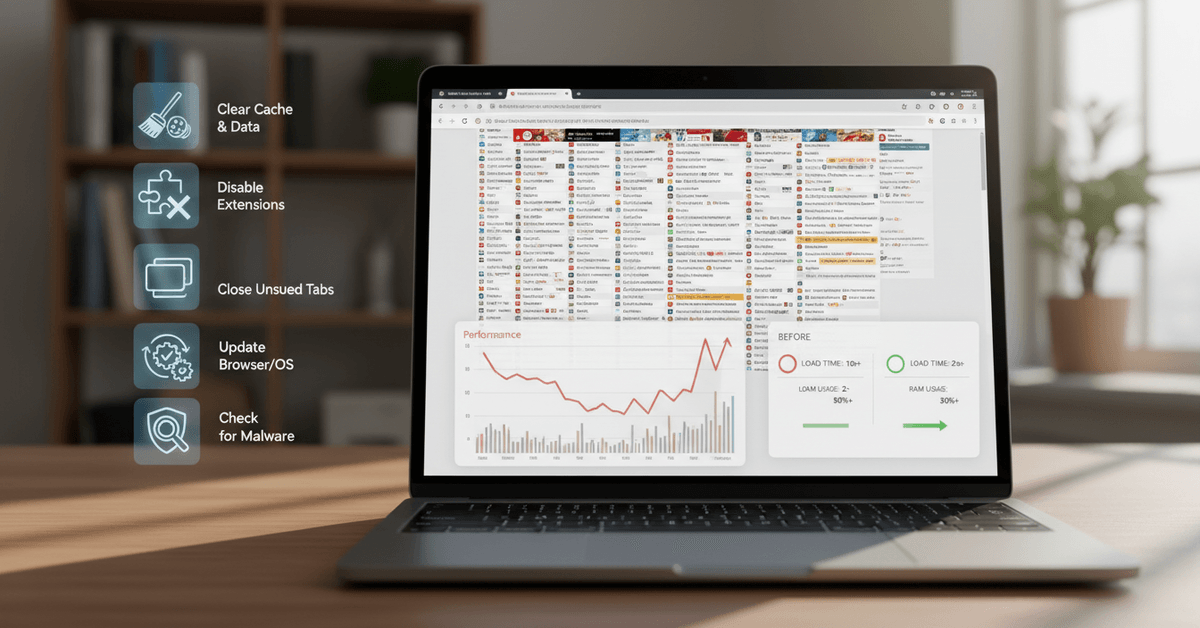
Chrome is a resource-heavy browser. If you open lots of tabs or run many extensions, it can slow down. Old hardware, bloated cache, outdated software, or even malware may be to blame. It's not always obvious at first glance.
This article focuses on solutions that work for the vast majority of slowdowns that aren't caused by hardware limitations. These are realistic fixes, not magic tricks, and I've personally used most of them (maybe too often, honestly).
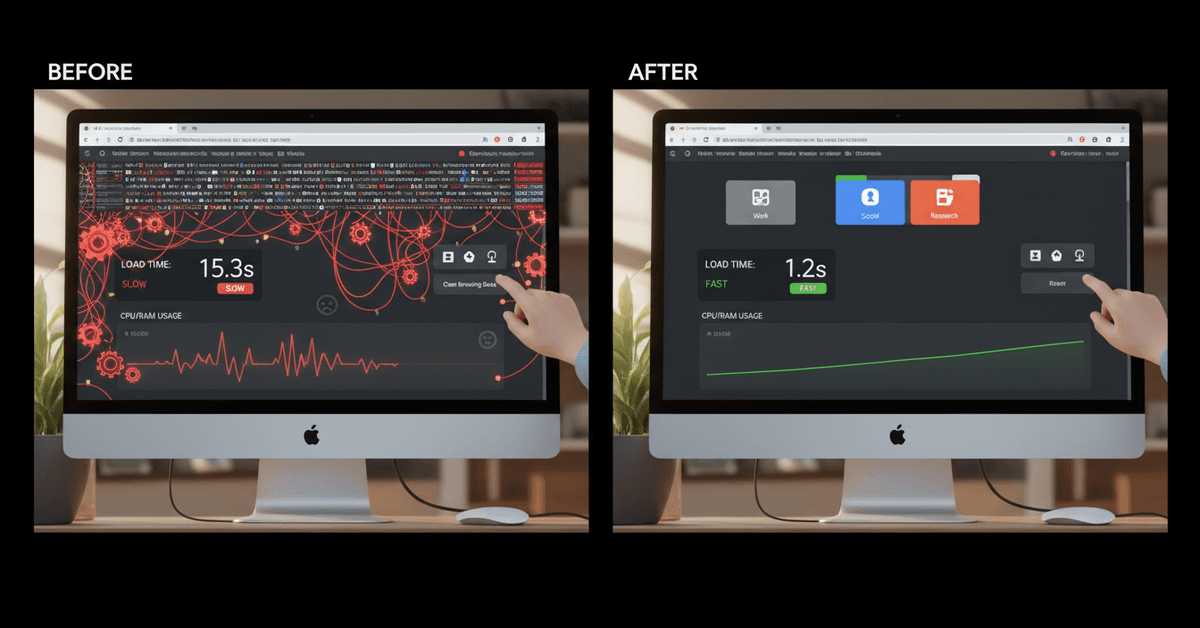
1. Clear Your Cache and Browsing Data
First things first: a cluttered cache can make Chrome stumble. Cached images, files, cookies—they add up over months of use. You might not notice at first, but eventually browsing feels sticky and slow.
Here's how to clear Chrome’s cache and data:
- Click the three-dot menu in the top right corner of Chrome.
- Go to Settings > Privacy and security.
- Choose Clear browsing data.
- Select ‘Cached images and files’, and optionally, cookies.
- Pick a time range (try 'All time' for a fresh start) and hit Clear data.
After clearing, you'll notice websites may load a bit slower for a moment—just while Chrome reloads its cache. But performance should improve right away.
Sometimes, I hesitate to clear cookies, since it may sign you out from websites, but a full sweep is worth it if things are really lagging.
2. Disable Unnecessary Extensions
Extensions are fantastic (we love to review them here!). But they can be a double-edged sword for performance. Every active extension uses memory—even some, you might not remember installing.
To see what's running:
- Go to the three-dot menu > More tools > Extensions.
- Scan your extension list. Do you recognize them all?
- Toggle off or remove any you don’t actively use.
Some people keep dozens enabled, "just in case." Personally, I try to keep it under ten. I sometimes leave a couple of niche tools just because I feel like I might use them, which is probably not best practice.
If in doubt, disable one at a time to watch for changes. Ad blockers and heavy productivity plugins are major culprits.
And yes, even the cool AI-powered tools sometimes contribute to slowness. Try to balance features and speed.
3. Close Unused Tabs (and Use Tab Management Features)
Ever counted how many tabs you have open? It's usually more than you think. Chrome uses a separate process for each tab, so memory use grows fast. Dozens of tabs = lag.
Try these tips:
- Close tabs you’re not using right now. Obvious, but easy to forget.
- Right-click a tab and choose Close other tabs to declutter quickly.
- Try Chrome’s built-in Tab Groups to organize by project or topic.
- Consider third-party extensions for vertical tab layouts or advanced grouping (check recent reviews on this site for ideas).
Sometimes, having lots of tabs feels productive, but it’s actually a drain. Perhaps, you’ll notice after a clean-up that certain pages reload much faster. It's not a miracle, but it is effective. Just don’t forget where you put things—use bookmarks if you’re afraid of losing links.
4. Update Chrome and Your Operating System
Outdated software can quietly slow Chrome down. New releases fix performance bugs and close security holes. It’s easy to miss Chrome updates if you keep windows open for days at a time. (Guilty as charged!)
To check for updates:
- Open the three-dot menu > Help > About Google Chrome .
- If an update is available, Chrome will prompt you to restart. Do it.
Similarly, ensure your system—Windows, Mac, ChromeOS, or Linux—has the latest patches. While not every update makes things faster, a surprising number address browser compatibility or memory leaks. If you’re worried about updates breaking things, back up important data first, but don’t skip security or performance releases for too long.
5. Check for Malware and Unwanted Programs
Malware and potentially unwanted programs (PUPs) can hijack Chrome, inject ads, and eat up resources. If Chrome is still slow after trying previous fixes, malware could be lurking underneath.
- Open Chrome’s three-dot menu > Settings > Reset and clean up.
- Click on Clean up computer.
- Click Find and let Chrome search for harmful software.
If you aren’t sure, running a second opinion scan with tools like Malwarebytes or Windows Security can catch what Chrome misses. Sometimes, I think a quick malware scan is the most overlooked fix—could save you a ton of time later.
Bonus: Additional Tips for Hardcore Productivity
Already tried everything else? Here are a few more tweaks to consider if you demand top speed from Chrome every single day:
- Bookmark frequently visited sites to reduce typing and address bar lag.
- Enable Hardware Acceleration in Settings (though try disabling if you experience stuttering or page glitches—Chrome can be picky).
- Use Chrome’s built-in Task Manager (Shift+Esc) to spot hungry tabs or extensions.
- If RAM is limited, check for background apps not needed in Chrome’s Settings > System.
- Consider lighter browsers (like Edge or Brave) for less critical, occasional browsing sessions. Not a perfect solution—but not every site requires full Chrome horsepower.
And honestly, sometimes you just need to restart Chrome—or even your whole PC. It’s not glamorous, but a fresh reboot undoes a lot of digital junk in the system. Especially if you don’t restart often.
Final Chrome Performance Improvement Guide
Chrome can slow down because of cluttered cache files, too many tabs, heavy extensions, outdated software, or unwanted programs.
The most effective fixes include clearing browsing data, managing extensions, closing unused tabs, updating Chrome, and checking for malware.
It is also helpful to use Chrome’s task manager or tab groups when you need better control over daily browsing. With regular maintenance, Chrome can run faster, feel smoother, and support more productive browsing sessions.





