
Do you ever catch yourself manually turning on Wi-Fi, lowering brightness at night, or sending the same text to family?
Tasker for Android is one of those hidden gems that can turn these tedious actions into seamless, automated routines.
If you’re curious about automating repetitive Android tasks, this article breaks it down for anyone looking to save time, reduce phone friction, and free up some mental bandwidth.
This guide is perfect for productivity enthusiasts, tech tinkerers, or honestly, anyone tired of tapping the same buttons over and over. We’ll show you how Tasker can add more “smart” to your smartphone—no coding required.
What Is Tasker and How Does It Work?
Tasker is a powerful Android automation app. At its core, it lets you set up triggers (events, locations, times, or actions) so that your phone takes action automatically—almost like having a personal assistant for Android.
Instead of endlessly navigating menus or fumbling through settings, Tasker handles the busywork for you.
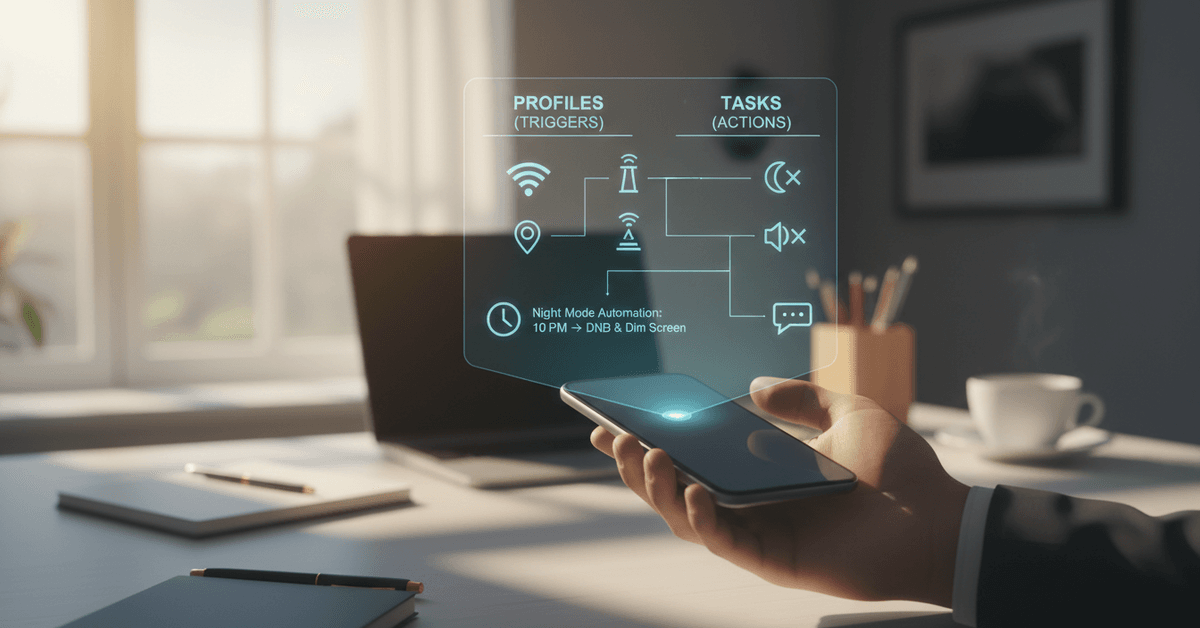
Imagine your lights dimming and phone silencing when you open your favorite meditation app. Or perhaps your phone reading out your notifications while you're driving.
It’s more about setting conditions that make sense for your day, then letting Tasker handle the details.
Why Automate Android Tasks? Key Benefits
Before diving into setup, it's fair to ask, "Is automation really worth it?" From what I've experienced, and from what countless users share, the answer is a strong yes. Here's why:

Save Time & Mental Energy
The minutes you save skipping repetitive tasks add up quickly. More importantly, it reduces digital fatigue—one less thing to remember every day.
Boost Consistency & Accuracy
Automation does exactly what you’ve planned, every single time. No accidental missed texts or forgotten settings.
Personalize Your Device
Your phone adapts to your actual habits—not the other way around. For instance, some folks set their Wi-Fi to auto-toggle at work, or have battery settings kick in during commutes.
Improve Productivity & Focus
This one feels subtle, but powerful. By automating distractions or setting up focus modes, your attention remains on what really matters—at work, study, or even leisure.
Getting Started: Setting Up Tasker on Your Android Device
Tasker is a paid app available on Google Play. There is a trial version on the official website, but supporting developers helps keep this amazing tool alive. After installing, Tasker introduces you to profiles (triggers) and tasks (actions).
Install Tasker
- Head to Google Play and search for "Tasker".
- Download and install the official app by João Dias.
- Optionally, grab the trial from tasker.joaoapps.com.
First Launch & Permissions
- On first run, Tasker requests several permissions—accessibility, notifications, location, storage, and Wi-Fi state—so it can work its magic. Grant these carefully, reading each one so you understand what’s happening.
- If privacy is your thing, only enable what you'll use. You can always tweak permissions as you go.
Core Concepts: Profiles, Triggers, and Tasks
Before building automations, let’s quickly demystify Tasker’s logic. There’s a learning curve, yes, but the basics aren’t as intimidating as they look.
Profiles (Triggers)
Profiles are the “when” or “if” events—like when you connect to a certain Wi-Fi, or your battery drops below 20%. They start the automation process.
Tasks (Actions)
Tasks are the “do” part—the actual command or series of commands Tasker executes. Think: send a message, enable silent mode, adjust volume, or launch an app.
Scenes (Optional)
Scenes allow for custom user interfaces—but let’s keep things simple for now. Most beginner automations won’t use them.
Beginner-Friendly Ideas: Simple Automations You Can Create
Not sure where to start? Here’s a handful of everyday automations you can set up in minutes.
- Automatic Wi-Fi Toggle: Wi-Fi turns on at home and off when you leave, saving battery.
- Silence Phone at Work: Phone automatically switches to vibrate in your workplace.
- Message Family When Leaving: An SMS is sent when you leave a specific location.
- Volume Control by App: Lower music volume when opening study apps, then raise it for games.
- Auto-Night Mode: Reduce brightness and enable night filter at sunset.
Building Your First Tasker Automation: Step-by-Step Example
Let’s walk through a simple automation—a classic Timer Night Mode that dims your screen and silences notifications at bedtime.
- Add a Profile: Open Tasker, tap the “+” at the bottom. Choose Time as the trigger. Select the start and end time—say, 10:30 pm to 7:00 am.
- Create a New Task: When prompted, enter a task name (“Night Mode”).
- Add Actions:
- Tap “+”, select Display , then “Display Brightness”. Set brightness lower.
- Add another action: Audio > Silent Mode . Set to “On”.
- Optional: Add App > Launch App if you want a meditation app to open at bedtime.
- Save: Tap the back arrow, then check the profile is enabled (green checkmark).
Voila! Now every night, your Android device preps for rest, hands-free.
Popular Tasker Use Cases Among Productivity Seekers
Some automations get repeated love from techies and students alike. Here are several “waves” of productivity trends Tasker fits right into:
- Smart Home Integration: Auto-control lights or thermostats with Google Assistant routines triggered from your device’s events.
- Study Mode Activators: Block distracting social media for pre-set study intervals, then re-enable notifications. A lifesaver for students!
- Commute & Travel Helpers: Auto-send ETA texts when you leave work. Pull up maps or podcasts as soon as your morning car Bluetooth connects.
- Digital Wellbeing: Limit screen time for entertainment apps. Schedule daily app usage summaries delivered via notification.
Tip:
Combine Tasker with third-party plugins—like AutoApps or Join —to expand its magic. You can automate notifications between devices, or even trigger desktop workflows from your phone.
Best Practices for Reliable and Effective Automations
Sometimes you want to tinker endlessly, but sometimes it’s best to aim for practical reliability. Here are a few things I wish I’d learned sooner:
- Start Simple: Overly complex “chains” can break. Nail down your basics, then layer on advanced actions.
- Test, Test, Test: Run your automations manually a few times before relying on them daily. Android background management can interfere with triggers.
- Grant Necessary Permissions: Missing permissions often block actions like changing Wi-Fi or notifications. Recheck after updates.
- Document Your Automations: Give each profile and task a clear name, so you’re not guessing later.
Advanced Tips: Unlocking Tasker’s Productivity Potential
Ready to go beyond basics? Here’s where things get interesting. Some of these have a steeper curve, but the rewards can be dramatic for productivity geeks.
Location-Based Automations
Use Tasker to trigger actions only at certain places—like work, home, or your favorite café.
App Integrations & API Calls
If you use specific productivity apps, see whether Tasker can tie in (e.g., auto-log hours in a work tracker, or check off tasks in ToDoist when you enter/leaving a location). Some possibilities require plug-ins, or a willingness to experiment a bit.
Custom Notification Triggers
Want to change device behavior not just by time or location, but by specific incoming notifications? Tasker handles that with ease.
Is Tasker Safe, and What About Privacy?
It's smart to wonder about privacy. Tasker requires deep device access, but processes data only on your phone—nothing is sent to external servers.
Read each permission prompt, and review security settings inside the app regularly. If you need more control, Tasker’s built-in “Data” actions can help restrict what’s shared.
Alternatives to Tasker for Android Automation
Tasker is the veteran, but there are also a few worthy rivals and simpler apps if you don't need as much power:
- IFTTT: Good for cross-platform automations, though less powerful on Android without extra plugins.
- Automate: Uses a visual flowchart builder—easier for some, though less advanced than Tasker.
- MacroDroid: Great for beginners, pre-built macros for popular actions.
Final Tasker Automation Guide
Tasker can help Android users save time by automating repeated actions like Wi-Fi changes, night mode, app settings, messages, and focus routines.
The best approach is to start with simple profiles, test each action, and add more advanced automations only when the basics work reliably.
It is also important to review permissions carefully because Tasker needs access to specific phone features to function properly.
With thoughtful setup, Tasker can make your Android device more personal, efficient, and easier to manage every day.





