Staying productive often means juggling work across multiple devices. Honestly, it can get overwhelming—emails on your laptop, notes on your phone, photos everywhere else. But syncing your smartphone with your PC can change the game entirely.
Whether you're a busy professional, student, or just craving more organization, learning to seamlessly link your devices removes friction from your daily workflow.
In this guide, we’ll clarify how anyone can bridge the gap between mobile and desktop, unlocking a smoother working life.
Why Syncing Matters for Productivity
Ever emailed yourself a document just to open it on another device? It’s a hassle, and probably far too common. Syncing your smartphone with your PC eliminates those clunky workarounds.
You get instant access to essential files, notes, or notifications, no matter which device is in hand. For students, this can mean an easier transfer of lecture recordings or scanned notes.
For remote workers, rapid device syncing boosts collaboration. Of course, the underlying purpose is pretty universal: fewer interruptions, less searching, and a more seamless workflow overall.
Popular Methods to Sync Smartphone and PC
The best sync method depends on your devices and what, exactly, you want to keep in lockstep. Let’s review several proven ways to connect your smartphone and PC, with options for all major platforms.
Cloud Storage Services
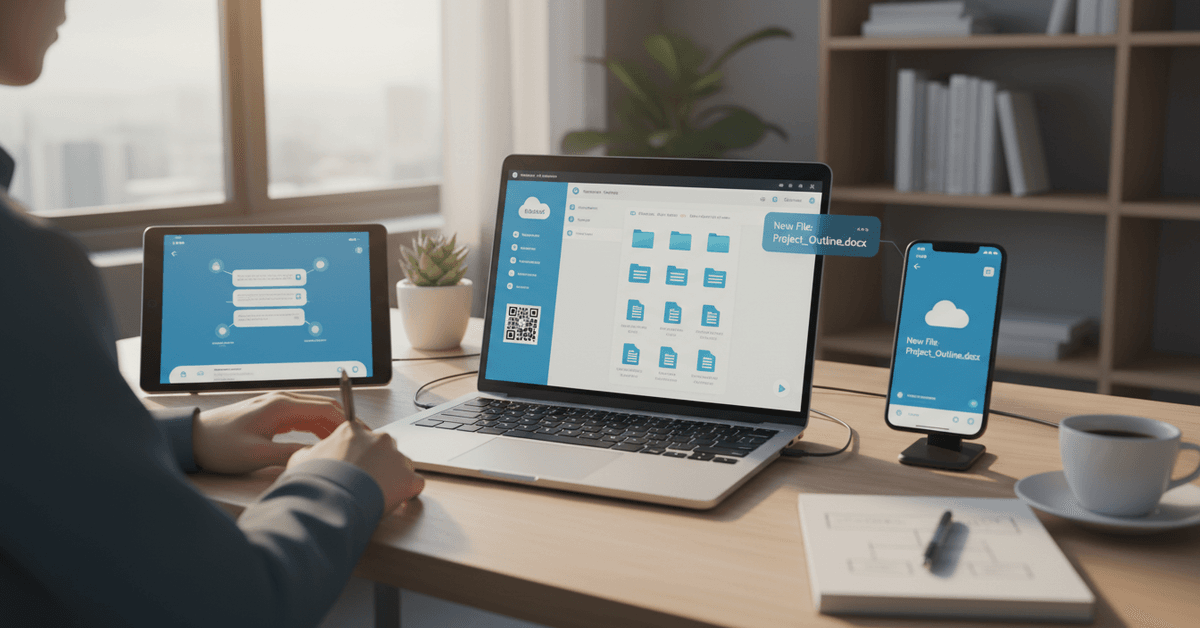
Cloud storage remains a reliable choice. Services like Google Drive, Microsoft OneDrive, and Dropbox allow you to store files and access them across devices, almost instantly.
For instance, snap a photo on your phone, and it's ready to use on your PC right away—no cables, no delay. It doesn’t matter if you use Android, iOS, Windows, or Mac; these cloud apps work almost everywhere.
- Simple upload/download across devices
- Easy sharing with colleagues or classmates
- Strong backup and recovery features
Native Sync Apps: Windows Phone Link & Apple Continuity
If you’re invested in one ecosystem, native apps are even better. Windows Phone Link (previously Your Phone) lets Android users connect their smartphones directly with their Windows PC.
You can send texts, receive notifications, drag files, and even mirror your phone screen on your laptop. It almost feels like magic—well, when it works fluently, anyway.
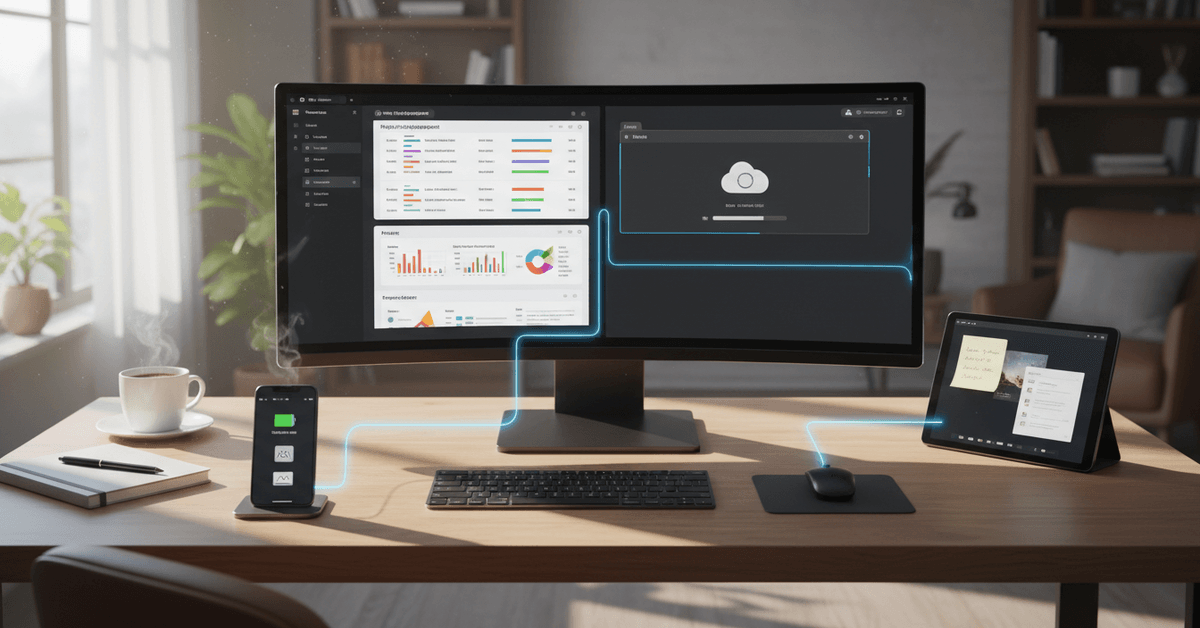
On the other hand, Apple’s Continuity suite is equally convincing for iPhone and Mac users. Features like Handoff, Universal Clipboard, and iCloud sync let users start a document on their phone and finish it on their computer, or vice versa.
Messages stay aligned regardless of which device is open. It’s not quite perfect, but I think it’s close.
Web-Based Tools and Chrome Extensions
Let’s not overlook browser-based syncing, which is quietly powerful. Chrome extensions like Pushbullet, Join, and AirDroid let you send links, notifications, photos, or snippets between your phone and PC, blending web and hardware.
Many students swear by these tools for sharing quick notes, but anyone can benefit from having continuity, especially if you’re always working in Chrome anyway.
- Quickly text from your computer
- Copy-paste between devices
- Transfer small files, instantly
How to Set Up Device Syncing – Step by Step
It’s easy to feel uncertain about where to begin. Here’s a straightforward guide to syncing that works for most people.
Step 1: Decide What Needs to Sync
Are you syncing contacts, files, messages, or all of the above? This will shape which ecosystem or app fits best. Sometimes it’s just about not missing texts during meetings; other times, you’re regularly editing documents on both devices.
Step 2: Choose the Right Tools
Pick one or two methods that fit. Here’s a quick comparison:
| Type | Best For | Popular Options |
|---|---|---|
| Cloud Storage | Files, photos, shared projects | Google Drive, Dropbox, OneDrive |
| Native App | Messages, notifications, fast file transfer | Phone Link (Windows), Apple Continuity |
| Chrome Extension | Links, notes, small transfers | Pushbullet, AirDroid, Join |
Step 3: Install and Link Devices
Download the required apps on both your phone and PC. Sign in with the same account or follow device pairing prompts. Some, like Phone Link, require you to scan a QR code.
For Chrome extensions, you’ll need to authorize both browser and mobile app integrations.
Step 4: Test It Out
Try sending a text, transferring a file, or copying some text to see syncing in real time. It might feel a little underwhelming the first time, but trust me: the convenience builds up, and soon you’ll wonder how you worked any other way.
Best Apps for Seamless Device Sync
New apps appear every day, but a few have earned special mention for their reliability and features. Here’s a practical overview:
For Android and Windows Users
- Phone Link – Deep system integration, great for texts and file transfer
- AirDroid – Wireless file swapping, notifications, even screen mirroring
- Google Drive – Familiar and universally available
For iPhone and Mac Users
- Apple Continuity & Handoff – Near-instant transitions between devices
- AirDrop – Lightning-fast, no-cable file drops between Apple gadgets
- Dropbox – Reliable, with easy third-party sharing
For Cross-Platform Households
- Pushbullet – Works with Android, iOS, Windows, and Mac
- Microsoft OneDrive – Decent integration for Office and files everywhere
- Join – Especially useful with Chrome
Tips to Stay Organized and Secure While Syncing
Putting all your digital eggs in one sync basket can raise concerns—what if you lose a device, or sync the wrong document by accident? Here are practical habits I think anyone should keep in mind:
- Always set up two-factor authentication on synced accounts
- Check what folders or files are shared across each device
- Regularly review app permissions to avoid privacy leaks
- Try not to rely exclusively on one syncing tool—redundancy helps
- Consider encrypting sensitive files before cloud upload
The line between convenience and risk isn’t always clear. Sometimes, syncing everything is worth it, but other times, you might prefer to keep a few things, like medical records or private journals, entirely offline.
Troubleshooting Common Sync Issues
You can save a lot of your time by syncing your smartphone with your PC but there will also be common glitches. This could be messages not appearing or photos stop uploading. Fortunately, these are rather small glitches that can be easily fixed.
Restart and Update Both Devices
Start by resetting your phone and computer. This refreshes both systems allowing for these temporary issues to be cleared.
Check if both apps are updated and synced as older app versions might have caused these issues in the first place.
Refresh the Sync Connection
You can also try to refresh the connection by logging out and logging back in.
It forces the app to reconnect your account to the system thus rebuilding the connection. Clear the app cache and restart to see if it also works.
Check Network and Security Settings
Review the Wi-Fi connection, your physical cable connection or your Bluetooth connection if file transfers fail.
Some of these devices might not be properly connected. Check your VPN settings, firewall and even your security programs to see if they might have blocked syncing.
Key Productivity Gains from Syncing Devices
The real-world benefits go beyond just saving a few minutes. Here’s what you might notice over time:
- Increased flexibility—switch between devices without losing context
- Better teamwork—share files or notes instantly with classmates or coworkers
- Reduced errors—no more copying the wrong version or losing an important message
- More focused work sessions—fewer excuses to get distracted by technical hiccups
There’s a slight learning curve, and not every sync feature works as seamlessly as the ads promise. Still, the overall lift in productivity can be surprisingly large. I’d argue even hesitant users benefit from syncing the basics, like calendars and important docs.
Conclusion
Syncing your smartphone with your PC can make daily work smoother by keeping files, messages, photos, and tasks within reach. Use trusted apps, enable secure cloud sync, manage permissions, and test transfers regularly.
With the right setup, switching between devices feels faster, cleaner, and more reliable throughout your workflow daily.