For anyone working long hours in design or content editing, choosing the best mouse might seem like a small detail. Yet, this choice quietly shapes both your daily productivity and your health.
This article is meant for creative professionals and tech-savvy multitaskers who want to boost their efficiency and comfort.
If you've ever found your wrist aching mid-project or have wondered why your mouse makes editing slower rather than easier, you're in the right place.
Today, let’s dive into the tension between ergonomic design and advanced features, uncovering the real must-haves for digital creators.
Why the Right Mouse Matters for Designers and Editors
It’s easy to overlook how much impact your mouse has—until you use the wrong one. For designers sketching for hours, or editors slicing up video timelines, every click and scroll counts.
Not just for getting work done, but for, I’d say, long-term well-being. It's almost surprising how much a mouse can shape our work experience.
Daily Usage Scenarios
Think about editing intricate vector graphics or fine-tuning color in Photoshop. A sluggish or uncomfortable mouse could slow your creative flow.
For editors—especially video pros—fast access to shortcuts is crucial, while fluid movement often trumps showy specs. The right mouse simply helps you focus on the work, not the hardware.
Productivity and Prevention
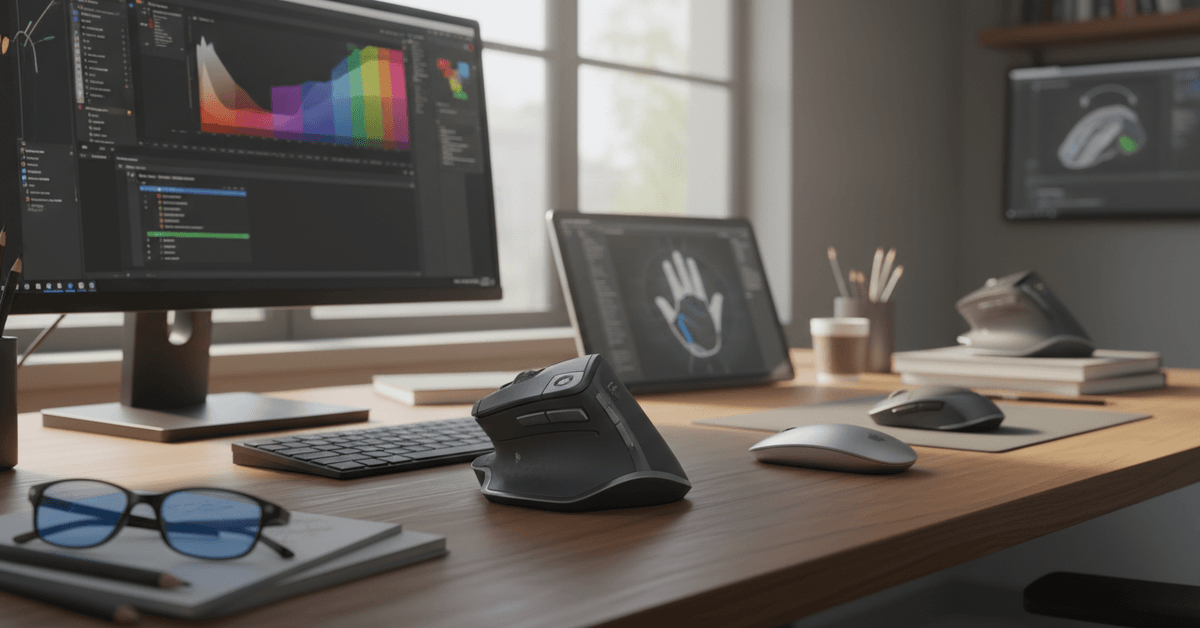
More than comfort, a well-matched mouse helps prevent repetitive strain injuries (RSI). Precise sensor tracking and customizable controls can boost workflow speed. After all, what’s the point of AI-powered design tools if your hardware is holding you back?
Understanding Ergonomics: What Really Matters?
Ergonomics is more than a marketing buzzword. For designers and editors, it’s about lasting comfort and injury prevention.
An ergonomic mouse is shaped to reduce wrist flexion, minimize finger strain, and support your hand naturally. But does every fancy-looking mouse live up to its promise?
Types of Ergonomic Mice
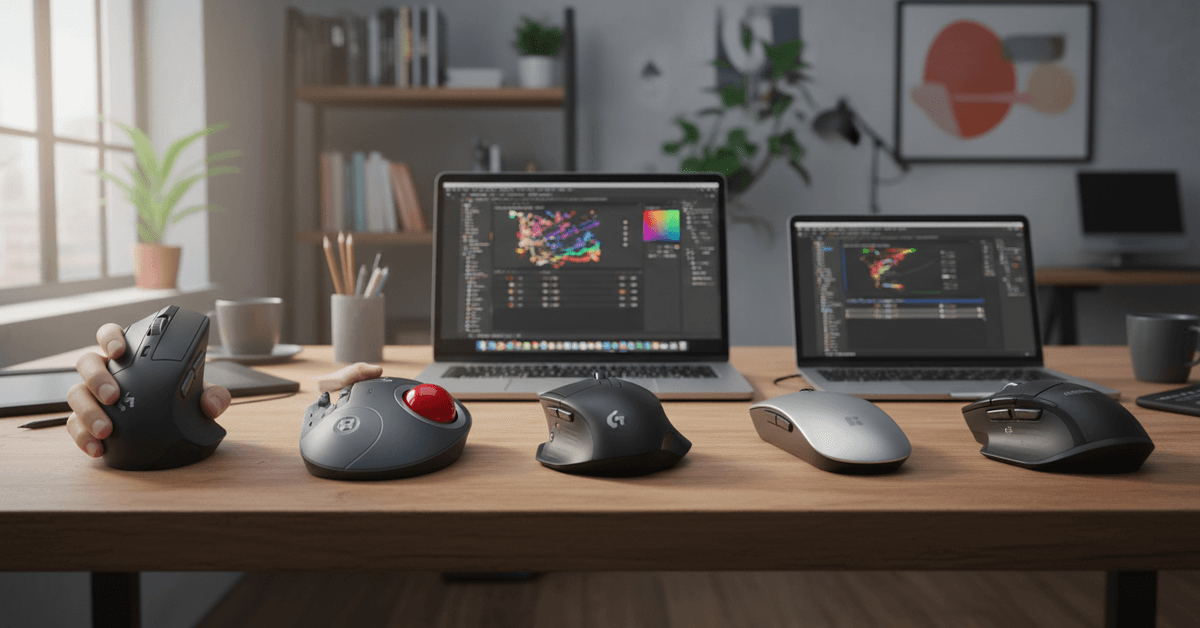
- Vertical Mice: Angle the hand upright, reducing wrist pronation. Popular among those with chronic pain.
- Trackballs: Stay still on your desk; you move the cursor with your thumb or fingers. Some swear by these for tight workspaces—or after years of strain.
- Sculpted Contour Mice: Molded to fit different hand sizes, often with thumb rests and gently curved buttons.
Finding the Right Fit
Fit varies—smaller hands sometimes struggle with mainstream models, and left-handed users still have fewer options.
Plus, some of us honestly never get used to trackballs, even if they’re “better.” Sometimes, you just have to try a few before you find one that feels right.
The Case for Advanced Features in Creative Work
Not every mouse is created equal—especially for digital creators. Features like programmable buttons, high-resolution sensors, and wireless connectivity can massively affect your workflow.
I think experienced editors will tell you that the right shortcut key, just a thumb-flick away, can save hours over weeks.
Key Features to Consider
- DPI Sensitivity: Higher DPI means faster cursor movement. Designers often want pixel-perfect precision, so mice with adjustable DPI can be invaluable.
- Programmable Buttons: Assign frequently used actions, like brush size or “undo,” to side buttons or wheels. Most creative suites support deep customization.
- Scroll Wheel Quality: Some mouse wheels switch between smooth and notched scrolling, helpful when scrubbing timelines or zooming on canvas.
- Software Integration: Custom drivers or pairing software enable custom profiles for apps like Adobe Photoshop, Illustrator, or Premiere Pro.
- Wireless and Battery Life: Modern wireless mice have virtually no perceptible lag, but battery issues (especially with RGB lights) are still a concern.
Ergonomics vs. Features: Is There a Real Trade-off?
This is where things get murky. Some ergonomic mice skip advanced controls for a cleaner shape.
Others cram buttons everywhere, sacrificing comfort. There’s rarely a perfect balance, and, oddly, your priorities may shift with different projects or workloads. If you’re editing audio one day and retouching images the next, you might long for a second mouse.
Hybrid Models—A Compromise?
Recently, brands like Logitech or Microsoft have tried to bridge this gap. Mice such as the MX Master series offer pronounced thumb rests and a comfortable contour, while also boasting a suite of programmable controls and smooth-as-butter scroll wheels.
Still, not everyone clicks with their size or handedness bias.
When to Favor Ergonomics
If you’ve felt tingling in your fingers, wrist tension, or even shoulder pain after long sessions, prioritizing ergonomics is probably wise.
Features become less valuable if ongoing discomfort slows you down—or worse, sends you for an actual doctor visit.
When Features Win Out
If you’re already comfortable—and often switch between complex software—a mouse with a robust set of assignable buttons and app profiles might amplify your speed more than a marginally comfier shape.
Sometimes, small inefficiencies in comfort are worth it for performance boosts.
Top Mouse Models Designers and Editors Should Know
Let’s breakdown some widely recommended mice that score high—either for comfort, control, or sometimes both. Note that preferences can be subjective; what’s right for me might not be ideal for you.
Logitech MX Master Series
MX Master 3S and its predecessors are a go-to for many professionals. The sculpted grip suits most right-handed users, boasts fast USB-C charging, and offers app-specific customizations.
The horizontal thumb wheel is a rare but surprisingly useful addition for timeline scrubbing or side-scrolling large canvases.
Microsoft Surface Precision Mouse
This mouse emphasizes minimal strain, soft clicks, and high-res tracking. Perhaps not quite as many programmable options as some rivals, but it fits those who want a gentle, smooth feel and solid performance within the Windows ecosystem.
Logitech MX Vertical
Perfect for those who want to avoid traditional wrist positions. The vertical grip isn’t for everyone, but if you've endured wrist pain, it’s at least worth a try. Sacrifices a few side buttons, yet still keeps essentials close.
3Dconnexion CadMouse
Mainly for 3D designers. It includes extra thumb controls and a second scroll wheel. Dedicated for users of CAD suites, but its high-end sensor and sturdy build make it usable for serious vector or animation work too.
Apple Magic Mouse
Divisive yet popular among Mac users for its touch-sensitive surface and simple design. Super slim, but not exactly ergonomic for everyone.
Gesture support is intuitive for many Apple-native workflows. For long sessions, however, some find the low profile fatiguing.
Tips for Choosing the Right Mouse
There is no single best mouse for every designer or editor. The right choice depends on your hand size, software, desk setup, comfort needs, and the controls you use most during daily work.
Test the Fit Before Buying
Try the mouse in person when possible, especially at office supply or electronics stores with display models.
Pay attention to grip style, button placement, weight, and whether your wrist feels relaxed. If you buy online, check the return policy because a few days of real use can reveal comfort issues quickly.
Match Features to Your Workflow
Think about the controls you actually use every day. A horizontal scroll wheel, DPI toggle, side buttons, or programmable shortcuts may be useful for design timelines, editing panels, spreadsheets, or large canvases.
Avoid paying extra for features that do not support your real tasks.
Check Battery and Accessibility Needs
Consider battery life, charging method, and left-handed support. Some advanced features can drain batteries faster than expected.
How Mice Integrate With eXtension Tools and Productivity Setups
Modern productivity tools, including Chrome extensions for designers or Windows/Mac automation scripts, often pair well with high-customization mice.
For instance, with tools like AutoHotkey (Windows) or BetterTouchTool (Mac), programmable mouse buttons can launch actions, manage windows, or trigger macros.
This synergy can help creative pros move fluidly across tasks, even when using the latest SaaS or AI aids for students and creators.
Conclusion
The best mouse for designers and editors should balance comfort, precision, and useful controls.
Ergonomics matter for long sessions, while features like programmable buttons, high DPI, smooth scrolling, and reliable connectivity can speed up detailed work.
Choose the mouse that supports your workflow without causing hand, wrist, or focus strain.