
Most Windows 11 users are operating at about 30% of what their machine can actually do. That number feels real the moment you watch someone slowly right-clicking to rename files one by one.
Power users know the keyboard shortcuts. But the tools are buried a few layers deeper? That is where the real workflow gap lives.
This one is for the people who live on their PC. IT folks, productivity obsessives, and the person in every friend group who gets called when something breaks.
Knowing what Windows 11 is quietly capable of is not optional anymore. It is the difference between managing your machine and being managed by it.
PowerToys Is Basically a Second Operating System
Microsoft built PowerToys as an official utility suite, and somehow it remains one of the least-talked-about tools for Windows power users. I think most people skip it because "utility suite" sounds like homework. It is not.
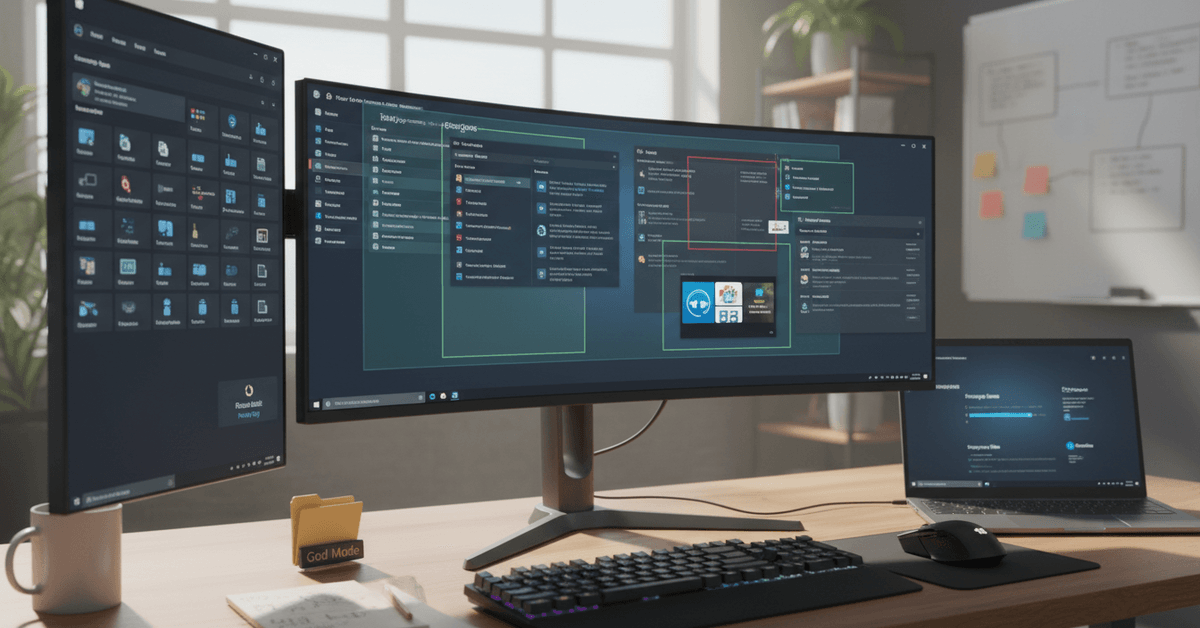
FancyZones alone is worth the install. It lets you define custom window layouts and snap apps into them with a drag. Multi-monitor setups, ultra-wide workflows, reference-heavy research sessions. All of it becomes genuinely manageable.
PowerRename handles batch file renaming without any third-party apps. PowerToys Run is a spotlight-style launcher that opens apps, runs calculations, and searches files directly from a keyboard shortcut. No mouse required.
The Clipboard Feature Nobody Mentions First
Before jumping into more tools, one thing deserves more attention than it gets: Clipboard History.
Press Win + V and you get a running panel of up to 25 recently copied items, including images and formatted text. Most articles treat this as a footnote. I think it is one of the three most impactful daily-use features in Windows 11, full stop.
Once you stop losing copied content between pastes, going back to single-slot clipboard feels absurd.
Virtual Desktops Are Not Just for Minimalists
The common advice is to use Virtual Desktops for "work-life balance." That framing undersells them badly.
I genuinely disagree with the idea that virtual desktops are a focus tool for distracted people. They are a workflow architecture decision.
The better use case: keep your research environment, your writing environment, and your communication environment on separate desktops and context-switch without touching a single window.
Press Win + Tab to open Task View, create a new desktop, and switch between them with Win + Ctrl + Left/Right Arrow. After about two weeks, it starts feeling mandatory.
Snap Layouts Go Deeper Than the Maximize Hover
Snap Layouts show up when you hover over the maximize button on any window. Six layout grids appear. Most people pick one, snap their windows, and forget it exists.
The real move is combining Snap Layouts with intentional app groupings. Research browser on the left third, notes app in the center, a second reference tab on the right. That setup can reduce the time spent repositioning windows by a significant margin across a full work session.
Try it with Edge, Notion, and a reference PDF open simultaneously. The productivity shift is not dramatic in any single moment. It compounds across hours.
The Settings Most Users Never Touch
Focus Assist Actually Has a Schedule
Focus Assist is not a button you hit when you want quiet. It has a rules engine most people never open. You can set priority-only contacts, schedule automatic quiet hours, and define whether alarms still break through.
The common recommendation is to just toggle it on before important meetings. That advice skips the scheduling entirely. Setting automatic quiet hours for deep work blocks means the protection happens without any decision on your part. Behavioral design beats willpower every single time.
Find it by right-clicking the notification icon in your system tray and opening Focus Assist Settings.
Storage Sense Runs Itself If You Let It
Storage Sense does not require any ongoing attention once configured. Open Settings > System > Storage, toggle it on, set a cleanup frequency, and it handles temporary files and system clutter automatically.
It also integrates with OneDrive to move unused files to cloud storage when local space gets tight.
The setup takes about four minutes. Most people never do it because it does not feel urgent until the "low disk space" warning shows up.
| Feature | Manual Action Required | Runs Automatically |
|---|---|---|
| Storage Sense | Setup only | Yes, on schedule |
| Focus Assist | Toggle per session | Yes, with scheduling |
| Dynamic Refresh Rate | None | Yes, hardware-dependent |
These three features share a pattern: one-time configuration delivers ongoing returns with zero friction.
Hardware-Level Features Worth Checking
Dynamic Refresh Rate Is a Real Battery Win
Dynamic Refresh Rate is buried in Settings > System > Display > Advanced display. If your hardware supports it, Windows 11 automatically shifts between 60Hz and 120Hz depending on what you are doing.
Scrolling and gaming get the high refresh. Static reading dials back to save battery.
The battery and smoothness improvement is modest but consistent. High-end laptops increasingly support this, and the option is either visible in settings or it is not. Five seconds to check.
Windows Terminal Is Not Just for Developers
Windows Terminal is now the default shell for PowerShell, Command Prompt, and Windows Subsystem for Linux.
The jump in usability over the old Command Prompt window is significant: tabbed sessions, color themes, custom keyboard shortcuts, and a modern rendering engine.
Even for occasional scripting tasks, the experience is noticeably different. Right-click the Start button and select Terminal to open it directly.
Two Features That Sound Gimmicky but Are Not
File Explorer Tabs Took Too Long to Arrive
Tab support in File Explorer landed in Windows 11 after years of community requests. Open multiple folders in a single window with Ctrl + T, drag files between tabs directly.
Cross-folder file organization no longer requires side-by-side windows eating up screen space.
It sounds like a small thing. The reduction in friction across repeated file operations throughout a day adds up fast.
The God Mode Folder Is Exactly What It Sounds Like
Create a new folder anywhere and rename it to:
GodMode.{ED7BA470-8E54-465E-825C-99712043E01C}
The folder becomes a single control panel containing hundreds of Windows settings organized by category. Every control panel section, every system preference, every advanced display and network option in one place.
It is not a party trick. For anyone who regularly accesses settings in different corners of Windows, this cuts search time down to nearly zero.
Questions People Ask About Hidden Windows 11 Features
Q: Is PowerToys safe to install from GitHub? PowerToys is an official Microsoft project maintained on their GitHub repository. It is not a third-party tool. Installation from the official Microsoft repository or through the Microsoft Store is safe and supported.
Q: Do Virtual Desktops slow down your PC? Each virtual desktop does consume a small amount of memory for open apps, but the impact is negligible on any modern machine with 8GB or more RAM. The workflow clarity typically outweighs any resource cost.
Q: Can Android apps run on any Windows 11 device? The Windows Subsystem for Android requires a device with at least 8GB RAM, an SSD, and a supported processor. Not all apps are available through the Amazon Appstore, and performance varies by app. Check the Microsoft Store for current compatibility details.
Q: Does Clipboard History save content after a restart? Clipboard History clears on restart by default. Content is stored temporarily during a session. For persistent snippet storage across sessions, a dedicated clipboard manager app handles that better.
Q: Is Dynamic Refresh Rate available on desktop monitors? Dynamic Refresh Rate currently applies to displays connected via internal panels on laptops. External monitors with variable refresh rate technology use different Windows graphics settings rather than the Dynamic Refresh Rate toggle.
Conclusion
Windows 11 rewards the people willing to spend one afternoon actually looking around inside it. Most of these features have been sitting there since launch, waiting.
The gap between a default Windows user and a configured one is not technical skill. It is just curiosity applied in the right direction, and that is always worth following.





