A blurry, faded photo sitting in a shoebox is not a lost cause anymore. AI photo restoration has crossed a threshold in 2026 where the results are genuinely good, not just "good for free software."
The audience this is written for is not photographers. It is the person who found a box of their grandparents' photos during a move and wants to do something meaningful with them, fast.
The tools covered here range from zero-effort mobile apps to open-source software for the technically adventurous. Every option has been sorted by what matters for non-professionals: simplicity, privacy, and whether the result actually looks like a person.
Let us get into it.
AI Photo Restoration Has a Dirty Little Secret
Most articles about AI photo tools will not say this directly. The results are impressive, but AI restoration is interpretive, not archival.
The software is not recovering lost data. It is making educated guesses based on millions of other faces and textures it has seen before.
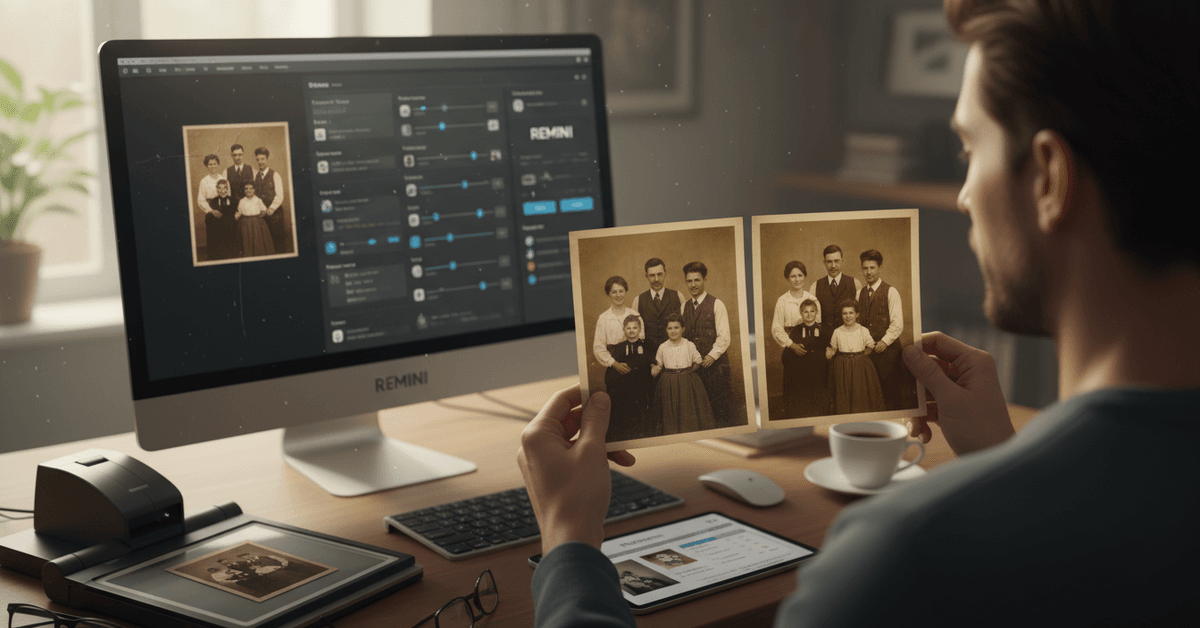
That distinction matters. Restored photos look better. They do not look more accurate.
I think this is fine for sharing with family on a WhatsApp group. I would be more cautious about using an AI-restored image in a published family history book without clearly labeling it as enhanced.
The Plastic Face Problem Nobody Talks About
One pattern that shows up across every tool on this list: faces sometimes come out looking weirdly smooth. Skin texture disappears. Eyes look slightly too symmetrical. The overall effect can tip from "restored" into "uncanny."
Remini is the biggest offender here, which is interesting because it is also the most downloaded mobile restoration app. The face enhancement is tuned for selfies and portrait photography, not for old paper prints with natural grain and imperfection.
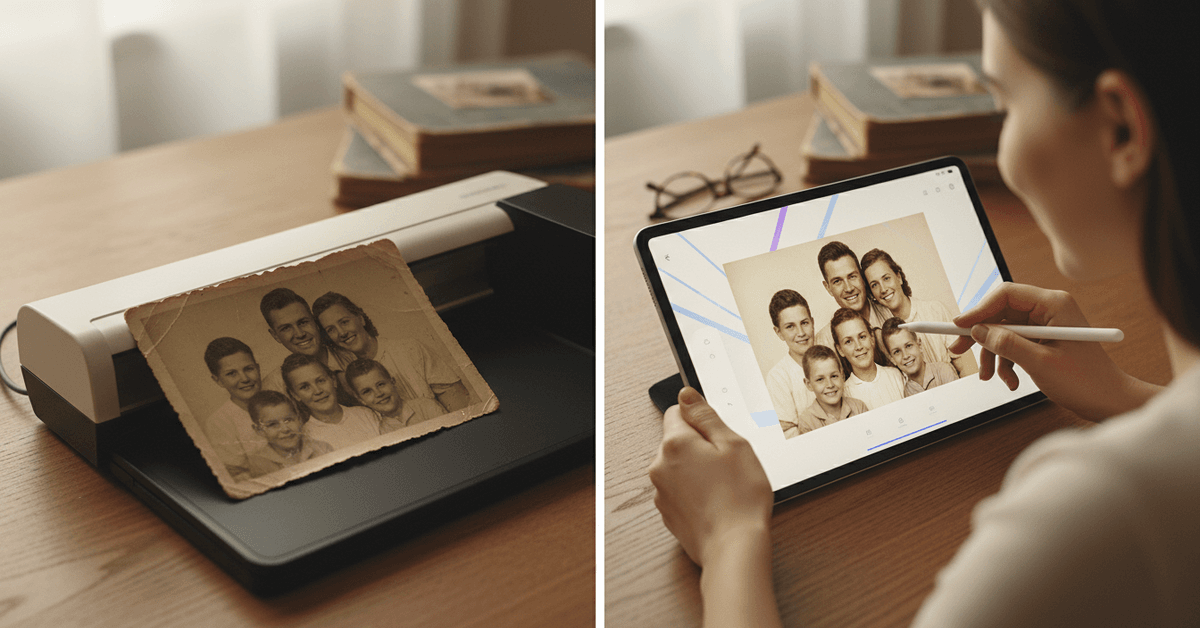
The fix is simple. Dial down the enhancement intensity if the tool allows it, or try a second tool on the same image and compare. Most people never do this because the first result looks passable. Passable is not the same as good.
Does Colorization Actually Help or Just Distract?
Colorization is the flashiest feature in this space, and I genuinely disagree with the consensus that it should be a default step in every restoration workflow.
MyHeritage Deep Nostalgia colorizes and animates faces, which generates strong reactions. Relatives love it at first viewing. Looking at it a week later, many people find it unsettling rather than touching.
A 1940s photo has a specific visual grammar. Adding algorithmically-guessed color changes how a viewer emotionally processes it.
My take: colorize for sharing moments, not for archiving. Keep the grayscale version as the primary file.
A Real Breakdown of the 7 Best Tools Right Now
No tool does everything perfectly. The table below compares them across the criteria that actually matter for a home archive project.
| Tool | Restoration | Upscaling | Colorization | Platform | Free Tier |
|---|---|---|---|---|---|
| Remini | Yes | Yes | Partial | Mobile/Web | Yes |
| MyHeritage Photo Enhancer | Yes | No | Yes | Web | Limited |
| VanceAI Photo Restorer | Yes | Yes | Yes | Web | Yes |
| Let's Enhance | Partial | Yes | Partial | Web | Yes |
| DeOldify | No | No | Yes | Web/Open-source | Yes |
| Pixbim Color Surprise AI | Yes | No | Yes | Desktop (offline) | Trial |
| Fotor AI Enlarger | Partial | Yes | No | Web/Desktop | Yes |
The offline-only option, Pixbim, is underrated precisely because it is the least talked about. Privacy is the reason to choose it.
Remini: Best for Faces, Worst for Purists
Remini excels at one thing: turning pixelated portraits into something that looks modern. Load a blurry grandparent photo, wait thirty seconds, and the result is genuinely impressive for a free mobile app.
The trade-off is the smoothing effect described above. It is also worth knowing that Remini's privacy policy allows for data use in model training, which matters if you are working with rare historical images.
Best use case: quick social sharing with family. Not ideal for a museum-quality archive.
MyHeritage: The Emotional Experience Tool
The Photo Enhancer sharpens and colorizes faded black-and-white prints with solid results. Deep Nostalgia goes further, generating short animated videos where a still face appears to move and look around.
Free users hit limits fast with MyHeritage. One or two photos per session is the realistic expectation without a subscription. For that single cherished image of a great-grandparent, it can produce a genuinely moving result worth the upload.
VanceAI: The Batch Processing Option for Whole Albums
VanceAI Photo Restorer covers scratches, tears, noise reduction, and resolution upscaling in a single web-based tool. The batch feature is what makes it distinct for anyone restoring dozens of prints from a single family album.
Some premium processing features require payment, but the free functions handle most standard restoration tasks. For a student or someone on a tight budget tackling a family archive project, this is the practical starting point.
Let's Enhance: Built for Print Quality
The name is accurate. Let's Enhance handles tiny, low-resolution scans particularly well when the goal is a large print or a family history photo book.
Upload a small JPEG, wait about a minute, and the exported file is sized for printing at significantly larger dimensions.
Color balancing options give some control over the final look, though very fine artistic details in backgrounds can shift slightly. Let's Enhance is the right call when the endpoint is physical print, not just a digital file.
DeOldify: For the Tech-Comfortable User
DeOldify is open-source, which means it is free indefinitely and gives technically minded users full control over the colorization process. Running it locally on your own machine is the privacy-ideal scenario.
The web implementation is decent. The real power shows up when someone runs it in their own environment with adjusted settings. For a non-technical user, the learning curve is steep enough that another tool on this list is probably a better fit.
Pixbim: The Privacy-First Choice
Pixbim Color Surprise AI processes photos entirely on your local machine. Nothing uploads to a cloud server. For anyone dealing with genuinely rare or sensitive historical images, that matters more than any feature comparison.
Results are occasionally surprising in unexpected ways, but the colorization generally adds warmth and life to faded prints.
The offline nature makes it the best choice for anyone who has hesitated to use web-based tools because of where the images end up.
Fotor AI Enlarger: When Bigger is the Only Goal
Sometimes the only problem with an old photo is size. A small scan that looks fine on a phone looks terrible printed at 8x10. Fotor's AI upscaler handles this specific use case cleanly, with a clear interface that does not require any technical knowledge.
Restoration effects are basic compared to dedicated tools like VanceAI. For pure resolution increase before printing, Fotor delivers without unnecessary complexity.
Scanning Practices That Determine Everything
AI tools can only work with what they are given. Scanning quality sets a ceiling on every result that follows.
- Scan at a minimum of 600 DPI for standard prints; go to 1200 DPI for smaller prints or slides
- Clean the scanner glass before every session. Dust adds artifacts that look like film grain to the AI
- Scan in TIFF format when possible, not JPEG. JPEG compression discards detail before the AI even starts working
- Save the original scan separately before any AI processing touches the file
- For extremely fragile prints, a flatbed scanner with a diffused light source reduces the risk of physical damage compared to phone camera scanning
The last point is specific and worth emphasizing: phone camera scans, even with a good app, introduce lens distortion and uneven lighting that AI tools struggle to correct cleanly. A flatbed scanner is a better starting point every time.
Questions People Ask About AI Photo Restoration
Q: Will the AI change what my relative actually looked like? The honest answer is yes, slightly. AI restoration fills in detail it cannot truly recover by referencing other faces in its training data. The result looks more like your relative, but some features may be subtly altered. Always keep the original unedited scan.
Q: Is it safe to upload old family photos to these websites? Safety varies by platform. Most web-based tools delete files after processing, but their privacy policies differ significantly. If privacy matters for a specific image, Pixbim processes locally with no upload required, which eliminates the concern entirely.
Q: Can AI fix a photo that is torn or water-damaged? Yes, with varying quality. VanceAI and Remini both handle tears and water damage well for moderate damage. Severely degraded images where large sections are missing produce inconsistent results and may need manual editing after the AI pass.
Q: Do paid tiers actually make a meaningful difference? For single photos, the free tiers on most tools produce results that are good enough for family use. Paid plans matter for batch processing (restoring 50 photos from an album, for example) and for the highest output resolution needed for large prints.
Q: Should I colorize every black-and-white family photo I restore? Keep the original grayscale restoration as the primary archived file. Colorization works well for sharing and presentation but adds an interpretive layer that some family members may find inaccurate or emotionally off. Offer both versions when sharing.
Conclusion
The best tool for restoring family photos is the one a person actually finishes using rather than abandoning after one confusing upload.
Starting with a free tier on VanceAI or Remini takes about four minutes and produces a result that makes the next step obvious.
One restored photo tends to pull the rest of the album off the shelf, and suddenly a weekend project turns into something the whole family wants to be part of.