
Google Drive is a gift until it is not. One day you are breezing through files, the next you are staring at a red storage bar and a notification that tells you something you already know: you are out of space.
This one is for the person who refuses to pay for more storage before trying everything else first. Power users, students, remote workers juggling shared folders. People who know the files are in there somewhere and want them out, not deleted.
Most articles hand you a list of things to delete. This article shows you how to move, convert, hide, and restructure so your Drive breathes again without you losing a single byte of actual work.
The good news: Google gives you more tools than it advertises. Most people never open half of them.
Why Google Drive Fills Up Faster Than You Expect
Google Drive is not just a folder on the internet. It pulls in data from Gmail attachments, Google Photos, Android app backups, and any file you upload from a desktop. Every single one of those sources eats from the same storage quota.
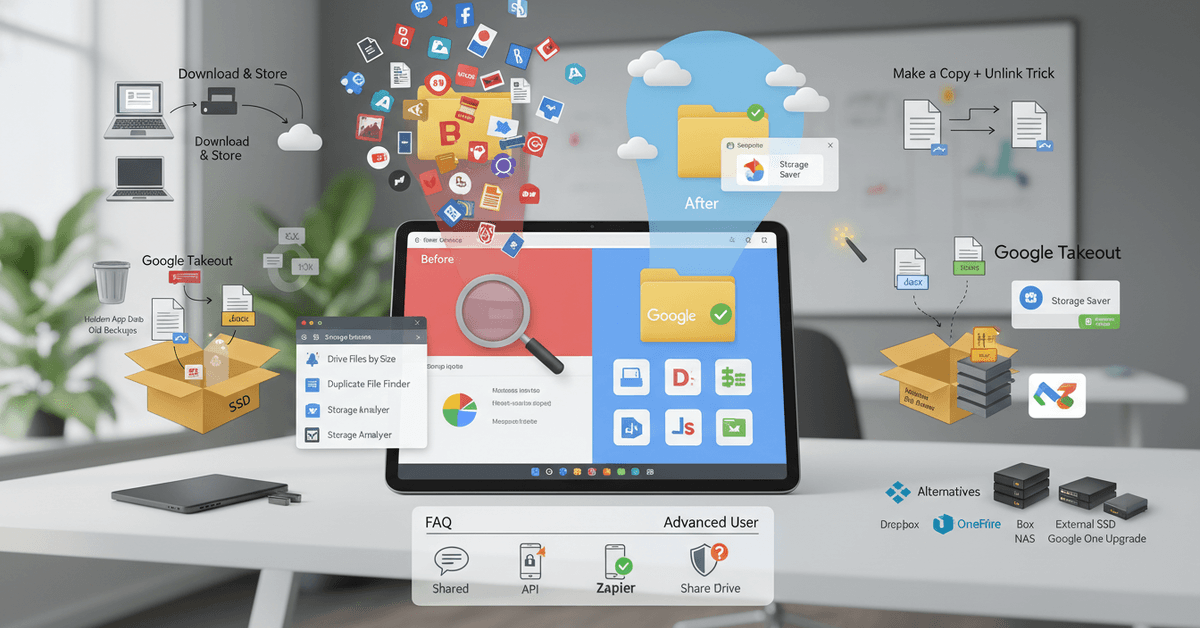
The hidden culprit most people miss: files you did not create but still own. If a colleague shared a folder with you and then transferred ownership, that quota hit is now yours.
Shared files you receive do not count against you, but files you own absolutely do, even ones sitting in someone else's folder.
Large video files and RAW photo exports tend to be the real space hogs. One untouched 4K backup from a phone can eat 3 to 4 GB without you ever noticing it sitting there.
The Storage Page Nobody Visits
Go to drive.google.com/drive/quota right now and sort by file size. Most people have never seen this page. I was surprised the first time I looked: a single folder of presentation recordings was hogging over 8 GB of my 15 GB free tier.
This view shows you exactly where the weight is, ranked from largest to smallest. It takes about two minutes and changes how you think about your Drive entirely.
How to Reclaim Space Without Deleting Anything
This is where the article earns its existence. Deleting is obvious. These methods are not.
Convert Microsoft Office Files to Google Format
This one is genuinely underused. Files you upload in .docx, .xlsx, or .pptx format count against your storage quota. Files created or converted to Google Docs, Sheets, or Slides format do not count at all.
Right-click any uploaded Office file, select "Open with Google Docs" (or Sheets or Slides), and a Google-format version appears in your Drive.
Delete the original .docx file and you have just freed up that space completely. The content stays, the storage cost disappears.
If you have 50 uploaded Word documents from a past project, converting them could recover several hundred megabytes instantly.
Move Large Files Out and Store Them Elsewhere
I think the smartest free-tier strategy is treating Google Drive as your active workspace, not your permanent archive. Large files that you rarely open do not belong there.
Download anything over 500MB that you haven't touched in six months. Move it to an external hard drive, an SSD, or a secondary cloud service like Dropbox or OneDrive. Then delete it from Drive. The file is not gone. It is just not costing you quota anymore.
The tradeoff is real: you lose instant cloud access to those files. Worth it if you are trying to stay on the free 15 GB tier without paying a cent.
Use Google Takeout to Migrate to a Second Account
Google Takeout is Google's official export tool and most people only discover it when they are panicking. Go there, select only Google Drive, choose your export format, download the archive, and re-upload to a secondary Gmail account.
This works especially well if you have a student or university Google account sitting unused.
Many school accounts come with significantly more storage. Migrating old project folders there frees up your personal Drive without deleting anything permanently.
Delete Hidden App Backups Nobody Talks About
Navigate to drive.google.com/drive/backups. This folder is invisible in the regular Drive interface. It stores Android device backups, WhatsApp conversation exports, and app-specific data that accumulates silently over time.
A phone you replaced two years ago might still have a full backup sitting there. Old WhatsApp backups can run 2 to 4 GB each.
Check this folder before anything else. Just verify before you delete: if the backup is from a device you no longer own or use, removing it carries zero risk.

Google Photos Is Probably the Real Problem
I genuinely disagree with the advice that says "just switch to Storage Saver quality and you are fine." That is a half-solution.
The bigger issue is that most people still have years of "Original quality" uploads sitting there that never got compressed, and simply changing the setting going forward does nothing about the backlog.
Fix the Backlog, Not Just the Setting
Open Google Photos, go to Settings, find "Manage storage," and look for the "Recover storage" option. This compresses all your previously uploaded Original quality photos into Storage Saver versions in bulk. One tap.
The quality difference is minimal for most everyday photos. The storage savings can be significant, sometimes multiple gigabytes.
Do this before manually deleting anything from Photos. Then reassess your actual remaining usage.
Export Albums and Archive Locally
Use Google Takeout to export specific albums you want to keep but never actually look at: old trip photos, event galleries from three years ago.
Download them, back them up to an external drive or NAS device, then remove them from Google Photos. They are preserved. They are just no longer costing you cloud space.
Third-Party Tools Worth Using (and How to Pick Them)
Google's built-in tools do the job, but third-party Chrome extensions can surface duplicates and folder-level breakdowns that the quota page misses entirely.
| Tool | Best For | Risk Level |
|---|---|---|
| Drive Files by Size | Quick file-size ranking | Low |
| Duplicate File Finder for Drive | Finding redundant copies | Medium |
| Storage Analyzer | Visual usage breakdown by folder | Low |
The takeaway: use extensions with low permission requirements first. Any tool asking for full Drive read-write access needs a good reason, a strong rating, and recent reviews before you trust it.
Always check what permissions an extension requests before installing. "Read all data on sites you visit" is a different level of access than "manage files in Google Drive."
Questions People Ask About Freeing Up Google Drive Space
Q: If I remove a shared file from my Drive, does the other person lose access? Removing a shared file from your Drive only removes it from your view. The file stays with its original owner and all other collaborators keep full access. Nothing changes on their end.
Q: Do Google Docs, Sheets, and Slides really not count against storage? Correct. Files created natively in Google's format are exempt from the storage quota. Only files you upload from outside Google (like .docx or .pdf) or files stored in Google Photos at Original quality count against your 15 GB limit.
Q: Is it safe to delete old device backups from drive.google.com/drive/backups? Generally yes, especially for devices you no longer use. If you are uncertain, download the backup locally first before removing it from Drive. Backups from active devices should stay until you have a replacement backup strategy in place.
Q: Can I get more free storage without paying for Google One? Not through Google directly, but student and university Google accounts often come with significantly more storage. A second personal Gmail account gives you another 15 GB free. Combining those two options can effectively triple your free storage capacity.
Q: Will converting .docx files to Google Docs format change how they look? Minor formatting differences sometimes appear, especially with complex tables or custom fonts. For most working documents, the conversion is clean. Check the converted version before deleting the original .docx file just to confirm nothing critical shifted.
Conclusion
Google Drive's free 15 GB goes further than most people realize when you stop treating it as a permanent archive.
Converting Office files to Google format, clearing hidden backups, and compressing your Photos backlog can recover significant space before you ever need to delete a real file.
The quota page at drive.google.com/drive/quota is the fastest starting point you have probably never visited. Try the conversion trick on your oldest uploaded documents first, then work backward through your Photos settings.
Most users find they can reclaim 5 to 10 GB without removing anything they actually want to keep.





