
With more of our lives online, securing your home network is more important than ever. This guide explains how to set up a secure VPN on your home router, why it matters, and some surprising benefits.
If you’re a remote worker, student, tech enthusiast, or anyone concerned about online privacy, this article walks you through making your home Wi-Fi far more resilient against threats.
The main benefit? All your devices get VPN protection automatically. Let’s make it happen—step by step.
Why Set up a VPN on Your Home Router?
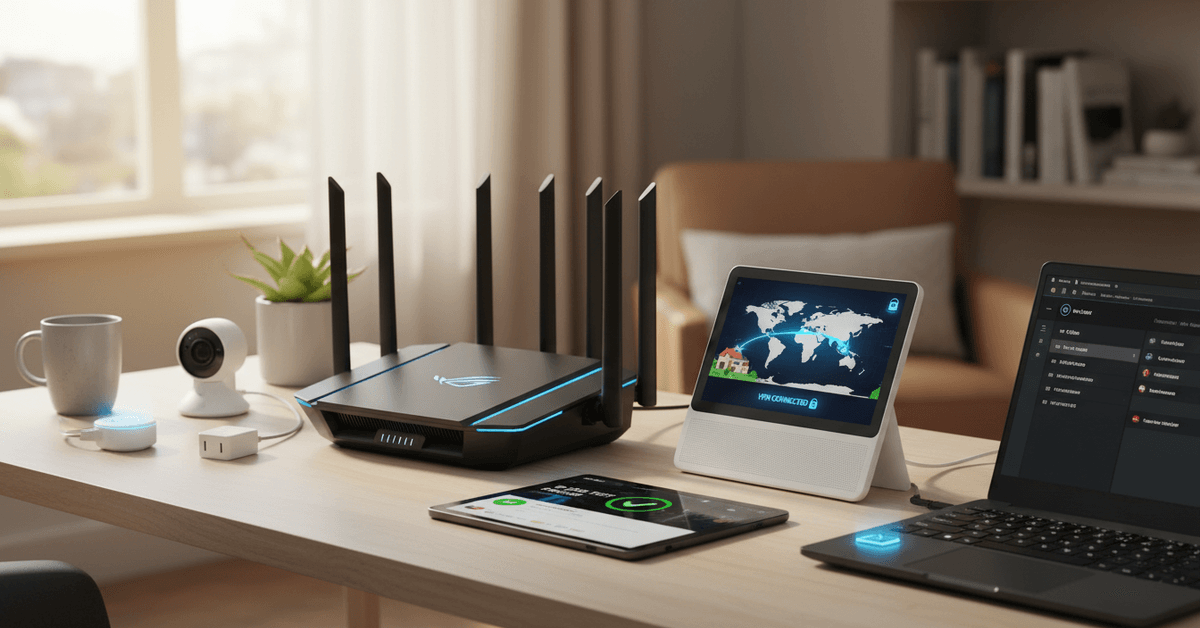
Setting up a VPN on your router doesn’t just secure your computer—it protects every device connected to your network. That might feel like overkill at first.
But, as more gadgets appear in our homes, from laptops to smart TVs and voice assistants, it’s easy to overlook vulnerabilities.
I used to think my phone was safe because of built-in encryption. Turns out, smart cameras and streaming devices often don’t secure your data at all.
With a router-based VPN, you encrypt the connection for every device automatically, even those that can’t run VPN software on their own.
Always-On Protection
Unlike individual app-based VPNs, a router VPN never forgets to turn itself on. Once it’s configured, it just works behind the scenes, day in and day out.
This is less hassle, honestly, and it means guests—yes, even that friend who never updates their phone—are safer too.
Network-Wide Privacy and Bypassing Geo-Restrictions
Ever try to stream international content or access work resources abroad? With a VPN on your router, every device can pretend to be in another location. One router change does it all—no separate logins or apps across devices.
Preparing to Set Up a Router VPN
Before you dive in, a little preparation goes a long way. Not every router supports VPNs, so you’ll need to check compatibility. It took me a while to realize that my old ISP-provided router wouldn’t cut it. Here’s what to do:
Step 1: Check Your Router’s VPN Support
- Look up your router model online for OpenVPN or WireGuard compatibility
- Many popular brands like ASUS, Netgear, and Linksys offer VPN-ready routers
- ISP-supplied routers rarely support VPNs—consider upgrading to a third-party model if needed
Step 2: Sign Up With a Trusted VPN Service
- Choose a VPN provider with good speed, strong privacy, and router support (ExpressVPN, NordVPN, or ProtonVPN are common picks)
- Check for setup guides specific to routers—easy documentation can save a lot of headache
Step 3: Download Necessary Files
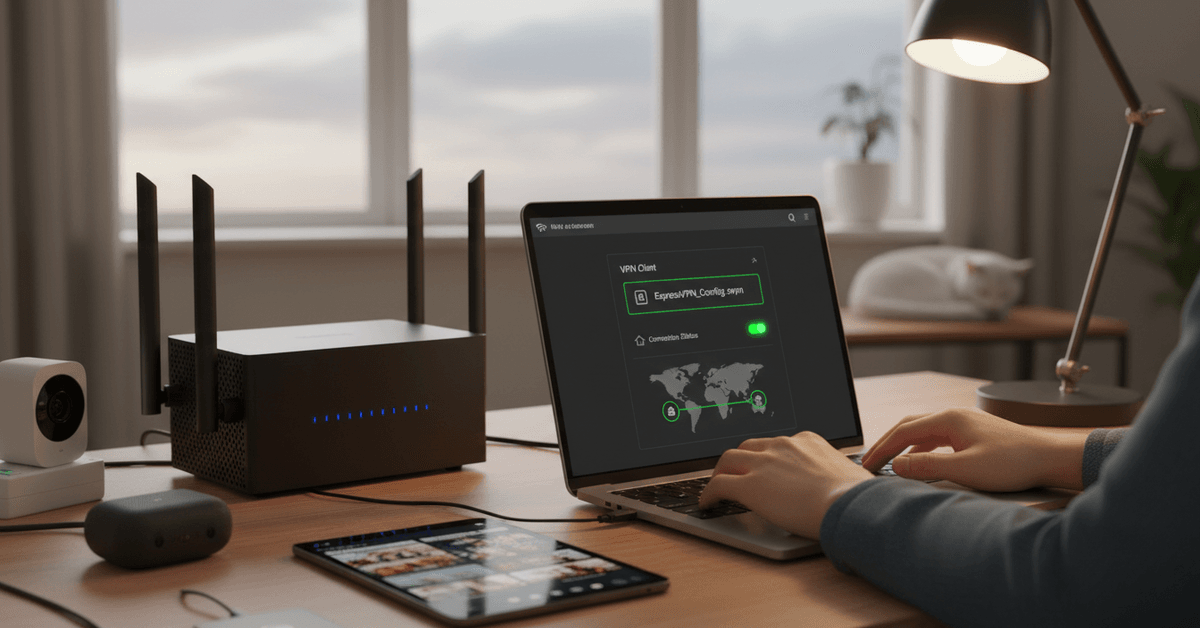
- Your VPN provider should supply OpenVPN/WireGuard configuration files for routers
- Keep your VPN username and password handy
How to Set Up a Secure VPN on Your Home Router?
Let’s get practical. While steps differ among router brands, this covers the standard setup for most models supporting OpenVPN or WireGuard.
If in doubt, refer to your VPN and router manuals for specifics—it’s easy to miss a tiny checkbox or two.
Step 1: Log In to Your Router Admin Panel
Find your router’s local IP address (often 192.168.1.1). Enter it into your web browser. Log in using your admin credentials.
If you don’t remember changing these from the default, it’s probably “admin/admin” or “admin/password”—but you really should update them.
Step 2: Locate the VPN Section
Within your router’s admin interface, look for a VPN or “Advanced” tab. It could be under “WAN,” “Internet,” or a security section.
You might see choices for VPN Server and VPN Client. Choose VPN Client—you want the router to connect to a VPN, not act as one.
Step 3: Upload VPN Configurations
- Upload the OpenVPN configuration file provided by your VPN service
- Enter your username, password, and any additional security info required
- For WireGuard, paste in your public/private keys and server info—usually very copy-paste friendly
Step 4: Apply, Test, and Troubleshoot
- Click “Apply” or “Save”—expect the router to restart its connection briefly.
- Test your public IP address from a connected device via a site like ipleak.net —it should match your VPN server location
- If it doesn’t work, double-check your login info and configuration file.
Optional: Split Tunneling or Device-Based Control
Some routers and VPN services let you pick which devices or sites use the VPN—and which don’t. That can help with select streaming services or specific smart devices, though it often requires a newer router or paid VPN tier.
Recommended Routers and VPN Providers (2024 Edition)
The choice of equipment can make or break your VPN setup. Here are some reliable options I’ve tested or seen recommended in recent tech forums (honestly, there are a lot of opinions out there):
Top VPN-Ready Home Routers
- ASUS RT-AX58U/AX86U: Known for easy OpenVPN and WireGuard support, plus strong WiFi 6
- Netgear Nighthawk Series: Especially the R7800, great for families needing lots of bandwidth
- Synology and TP-Link Archer models with VPN Client features
Top VPN Providers for Routers
- ExpressVPN: Offers a simple router app, fast speeds, and excellent support
- NordVPN: Well-documented guides and decent pricing
- ProtonVPN: Privacy-first, supports advanced configurations, free tier available (with limits)
- Private Internet Access, Surfshark, and Mullvad also support router installs—just check compatibilities
Common Issues & How to Troubleshoot
Setting up a VPN on your router isn’t always totally smooth. Sometimes connections drop, or your speeds take a hit. I’ve had instances where Netflix simply refused to load until I tweaked the settings. Not ideal, but fixable.
Slow Speeds
- Try switching VPN locations—nearby servers are faster
- Check if your router can handle VPN encryption (older CPUs can bottleneck at 10–30 Mbps)
- Consider wired connections for critical devices
Devices Not Connecting
- Restart both the router and device
- Check device network settings—some IoT devices require 2.4GHz WiFi only
- Review split-tunneling rules if in use
Services Blocked or Not Working
- Some streaming platforms (like Netflix, BBC iPlayer) may block VPNs—try different servers
- Use split-tunneling to exclude specific services from VPN routing
Staying Secure: Maintenance and Best Practices
Setting and forgetting your VPN isn’t always wise. Here’s how to keep your setup resilient in the face of new threats—something even I occasionally overlook until a software update alert pops up at the worst possible time.
- Regularly update router firmware—new exploits get patched often
- Change VPN passwords periodically, especially if you share your network
- Monitor connected devices for unusual activity
- Double-check privacy settings after router resets
Legal, Privacy, and ISP Considerations
Using a VPN is legal in most countries, but it’s smart to check local laws first. Your ISP might also restrict or throttle VPN traffic.
If you notice a drastic speed drop just on VPN connections, it’s worth reaching out or considering an alternative provider.
I’ve never faced legal issues, but some countries—China, Russia, parts of the Middle East—enforce heavy internet restrictions, so be cautious if you’re traveling with a router in tow.
Be aware: While VPNs encrypt your traffic and hide your IP, they don’t make you totally anonymous. Your VPN provider can, in theory, see your activity unless they offer a strict no-logs policy. Review their privacy terms, and consider double-hop (multi-VPN) features if you’re very privacy-conscious.
Next Steps: Bringing VPN Security to Your Home
Is it worth the hassle? For most people, yes. A secure VPN on your home router boosts privacy without extra apps, encrypts everything at once, and gives real peace of mind in today’s connected world.
Smart home? Remote work? Kids browsing on tablets? It all gets a little safer—if you set things up right. After my own first install, I wondered why I’d waited so long.
Even setting aside privacy—which matters—a VPN router makes geo-restricted content, safer hotel browsing, and better parental controls accessible in a single step.
Practical Router VPN Setup Tips
- Check router VPN support first.
- Choose a trusted VPN provider.
- Update router firmware regularly.
- Test your VPN connection.
- Review privacy settings often.
Final Home VPN Security Guide
Setting up a VPN on your home router can protect every connected device without installing separate apps on each one.
The safest setup starts with a compatible router, a trusted VPN provider, correct configuration files, and careful testing after installation.
It is also important to update firmware, monitor connected devices, and review privacy settings after router resets.
With the right setup, a router VPN can improve home network privacy, support safer browsing, and make connected devices more secure.





