Job seekers are spending hundreds on headshots that recruiters scroll past in two seconds. Meanwhile, a free AI tool can produce something cleaner in fifteen minutes. That math is not subtle.
LinkedIn profiles with professional photos get up to 14x more views. Fourteen times. That single number should settle the debate about whether your headshot matters at all.
The good news is that AI headshot generators have crossed a quality threshold in 2026 where most results are genuinely usable on a professional platform.
This guide is for students, freelancers, and career-changers who want a polished profile photo without booking a studio or learning Lightroom.
Grab any decent selfie. That is all you need to start.
Does Your LinkedIn Photo Really Need to Be Perfect?
Short answer: no. Long answer: it needs to be credible, and those are very different targets.
I think the obsession with perfection is where most people waste time and money. Recruiters are not looking for editorial-grade photography. They are looking for approachability, clarity, and confidence.
A slightly imperfect AI headshot often communicates those things better than an overly smoothed, plastic-looking studio edit.
The threshold you are actually trying to clear is simple: Does this photo make me look like someone a hiring manager would reply to? That is the bar. Everything above it is diminishing returns.
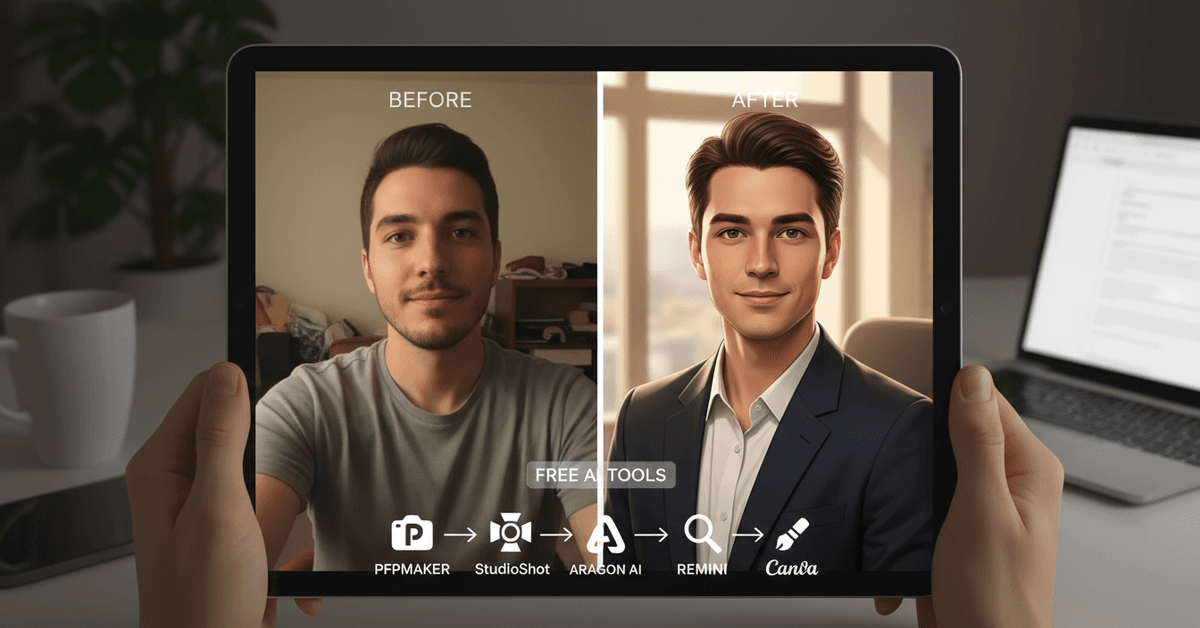
Which Free AI Tools Are Worth Using in 2026
A few services have emerged as genuinely reliable, and the gap between them matters.
PFPMaker is the most frictionless option available. Upload a selfie, and the AI handles background removal, color correction, and facial sharpening automatically.
The free tier produces results that are completely usable for LinkedIn without any paid upgrade. For most people, this is the first and only tool they need to try.
StudioShot focuses specifically on lighting and facial clarity, which makes it ideal for photos taken in dim indoor conditions.
Low-light selfies are notoriously difficult to rescue, and StudioShot handles them with more consistency than most competitors. The free tier has some export limitations, but the output quality is solid.
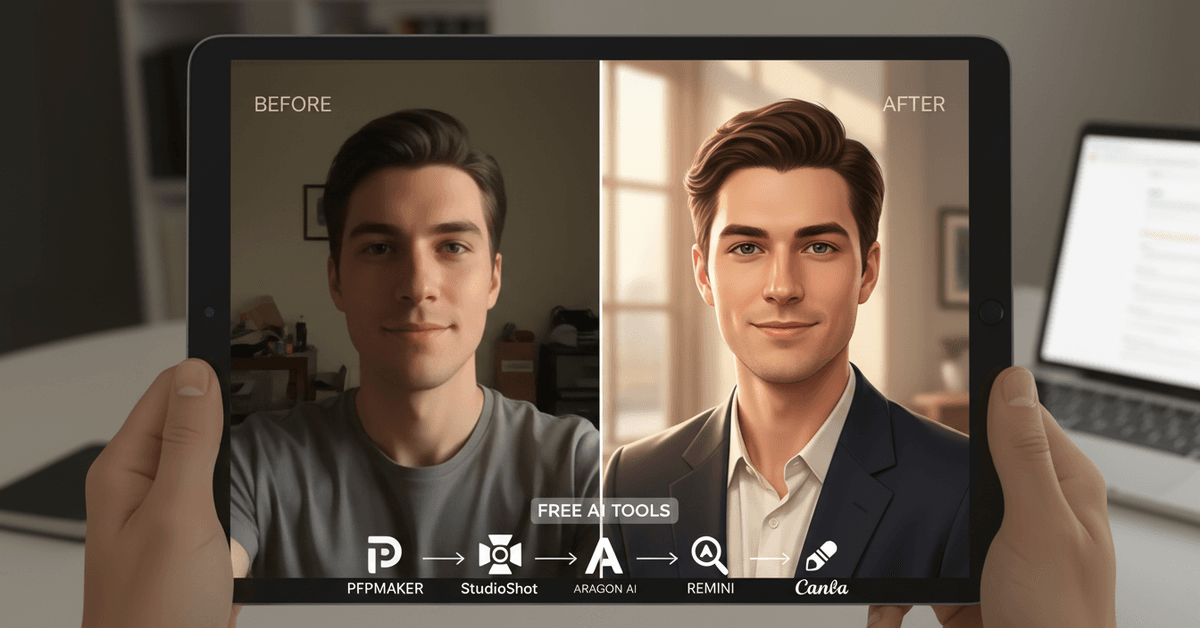
Aragon AI is the most ambitious of the free options. It generates what it calls "studio simulations," meaning it does not just clean your existing photo but produces new headshot-ready outputs based on your likeness.
The free plan limits export resolution, but it is worth running through once to see how generative AI can transform a casual photo into something that looks deliberately shot.
Remini's web app (not just the mobile version) specializes in upscaling blurry or low-resolution images.
If your best available photo is a screenshot from a video call or an older phone camera, Remini can recover detail that other tools cannot. The Remini web app is free to access and requires no account to test.
Canva's AI photo editor is the right tool if you want to control the background rather than let the AI decide. It has a clean background remover and lets you drop in a solid or gradient backdrop from their free asset library.
If your industry expects a particular aesthetic (navy for finance, clean white for tech), Canva gives you that control without requiring any design experience.
Comparing the Top Free Tools Side by Side
| Tool | Best For | Background Control | Low-Light Fix | Free Export Quality |
|---|---|---|---|---|
| PFPMaker | General use, speed | Automatic removal | Moderate | High |
| StudioShot | Poor lighting conditions | Limited | Strong | Medium |
| Aragon AI | Studio-look simulation | Preset options | Moderate | Medium (resolution cap) |
| Remini | Blurry or old photos | None | Strong | High |
| Canva AI | Custom backgrounds | Full control | Low | High |
Remini wins on recovery. PFPMaker wins on convenience. Aragon wins on ambition.
The Step-by-Step Process That Takes 15 Minutes
Step 1: Pick Your Starting Photo
Find a photo where your face fills at least half the frame and the lighting hits your face directly, not from behind.
A front-facing smartphone selfie taken near a window is ideal. The AI tools will do the heavy lifting, but they perform significantly better when they have clear facial data to work with.
Avoid photos where you are wearing sunglasses, have dramatic shadows across half your face, or are mid-blink. Those are the failure modes that produce weird AI artifacts.
Step 2: Upload and Run
Head to PFPMaker or whichever tool fits your situation from the table above. Upload is drag-and-drop on every major platform. Processing takes between 10 and 90 seconds depending on the service. No account is required for most free tiers.
Step 3: Test Two or Three Outputs Before Downloading
Most platforms let you preview multiple style options before you commit. Try a neutral grey background, a soft white, and the automatic removal setting. Give each about ten seconds of honest evaluation.
The one that makes you look most like a credible version of yourself is the right pick, not the most polished one.
Step 4: Export and Crop for LinkedIn
LinkedIn recommends a square photo between 400x400 and 7680x4320 pixels. Most AI tools let you export at a usable resolution on the free tier.
If your downloaded file needs cropping, a free tool like Canva or even the native Photos app on any phone handles it cleanly.
The One Piece of Advice I Genuinely Disagree With
Every guide on this topic tells you to remove any trace of imperfection from your AI headshot. Run it through multiple enhancement layers, smooth the skin, sharpen every detail.
I think that approach actively hurts credibility on LinkedIn, and here is the specific reason: generative AI over-processing is now recognizable.
A face that is too smooth, lighting that is too even, a background that is too seamlessly removed, these visual signals now read as "AI headshot" rather than "professional."
Recruiters at companies processing hundreds of applications per week have pattern-matched these cues, even if they cannot articulate exactly what looks off.
The counterintuitive move in 2026 is to stop at 80% polished. One natural shadow, a slightly imperfect background edge, a detail that still looks like a photo rather than a render. That is the version that reads as human.
Privacy: What You Actually Agree to When You Upload Your Face
Most people click through terms without reading them, which is fine for most apps and a mistake for facial data.
Several free AI headshot services retain uploaded images for model training. Some specify an opt-out process buried in their privacy settings. Others delete images automatically after processing. Before uploading to any platform, check three things:
- Does the service retain images after processing?
- Is there an opt-out for training data use?
- Is the privacy policy from a company with a physical address and actual legal accountability?
PFPMaker and Canva both have clearly documented privacy practices. Aragon AI specifies data handling in their terms. For lesser-known tools, if the privacy policy is missing or a single paragraph long, skip it.
Questions People Ask About AI LinkedIn Headshots
Q: Can a recruiter tell my headshot was AI-generated? Increasingly, yes, if over-processed. Subtle AI artifacts like unnaturally smooth skin texture, slightly off hair edges, or oddly uniform lighting are becoming recognizable to frequent LinkedIn users. The fix is to use light processing and stop before it looks rendered.
Q: Do I need a different photo for different industries? The background and framing matter more than the photo itself. Finance and law tend toward plain grey or white backgrounds with conservative framing. Tech and creative fields tolerate more variation. The AI tool lets you swap backgrounds without reshooting, so test a few industry-appropriate options before committing.
Q: Is a free AI headshot better than no headshot at all? By a significant margin, yes. Profiles without photos receive far fewer recruiter contacts than profiles with even a mediocre photo. A decent free AI headshot outperforms a blank profile every time.
Q: How often should I update my LinkedIn headshot? Every two to three years at minimum, or immediately if your appearance has changed significantly. An AI tool makes this a 15-minute task rather than a scheduling and budgeting challenge, so there is no good reason to let it go stale.
Q: Can I use these tools on photos of other people? Only with explicit permission. Uploading photos of others without consent raises serious privacy and ethical issues, regardless of what the platform technically allows.
Conclusion
A good LinkedIn headshot is not about looking perfect. It is about looking like someone worth a conversation. Free AI tools in 2026 are capable enough to get you there.
Pick one tool, run your best selfie through it, stop before it looks over-edited, and upload it. The alternative is leaving 14x the profile visibility sitting on the table because you never got around to booking a photographer.